

Register Apple Devices
Connect Macs, iPhones, and iPads to deeploi, with or without Apple Business and an existing MDM.
With Apple Business
deeploi must be set up as a device management service in your Apple Business. deeploi sets this up together with you. Only start once deeploi lets you know.
You register all Apple devices in Apple Business through the same process, whether or not they're already managed by another MDM. The devices don't need to be reset. Your employees get a notice on their device and start the switch themselves.
Does This Work for My Devices?
A device can be registered this way if it meets these requirements:
- Current operating system: iOS 26, iPadOS 26, or macOS 26 or later. On iPhone, you'll find the version under Settings → General → About. On Mac, open the Apple menu and choose About This Mac.
- Company device from Apple Business: The device belongs to your company and was set up through Automated Device Enrollment. This is the case if it appears in Apple Business under Devices.
- No Shared iPad: Devices in Shared iPad mode can't be registered this way.
If a device doesn't meet the requirements, the Add Deadline option doesn't appear. That device needs to be enrolled another way. If you're unsure, send a list of your devices to hello@deeploi.io and deeploi will check for you.
How to Register the Devices
-
Open Apple Business and sign in.
-
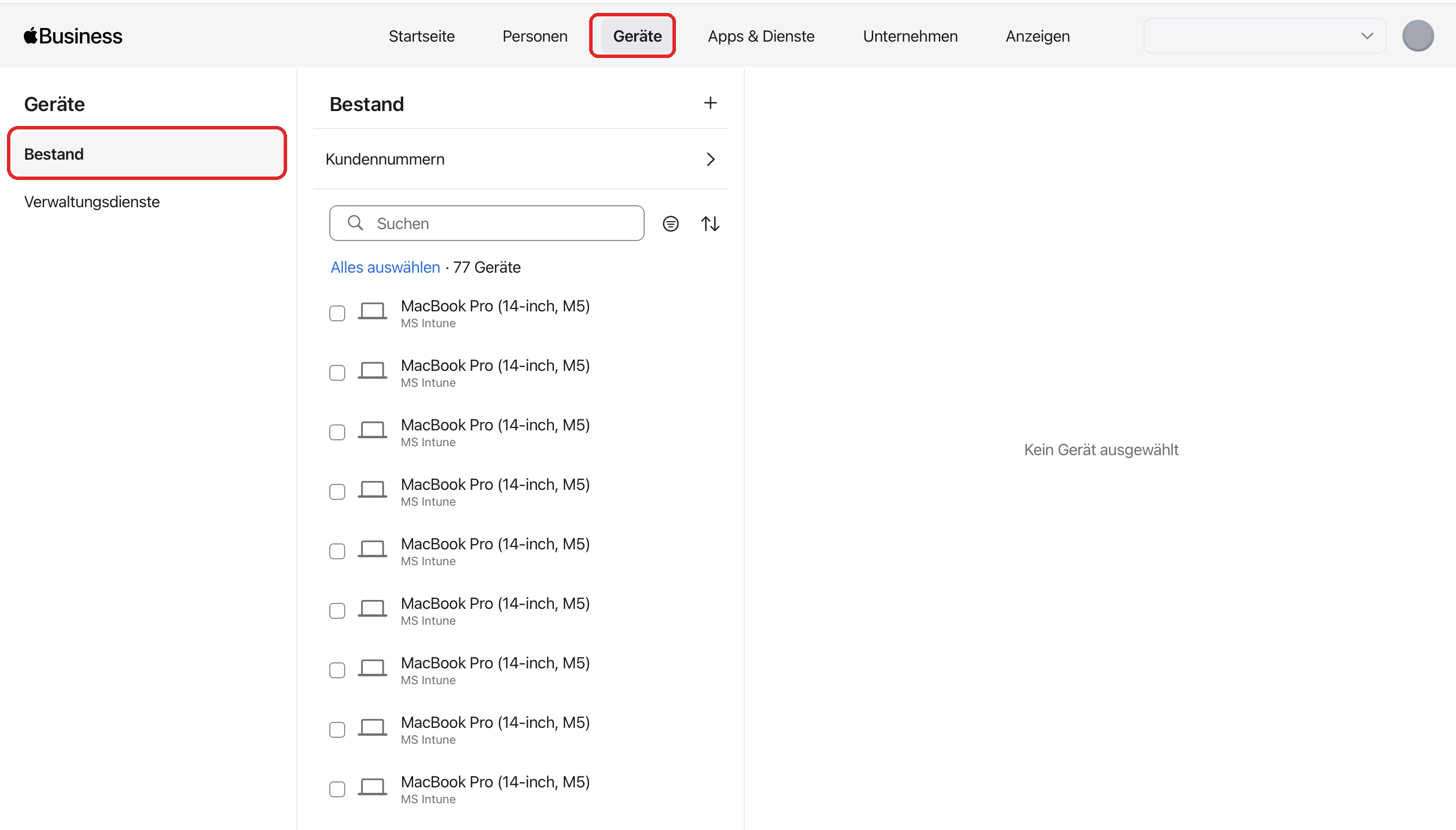
Click Devices at the top and Inventory on the left. Below each device, you can see which provider currently manages it.
-
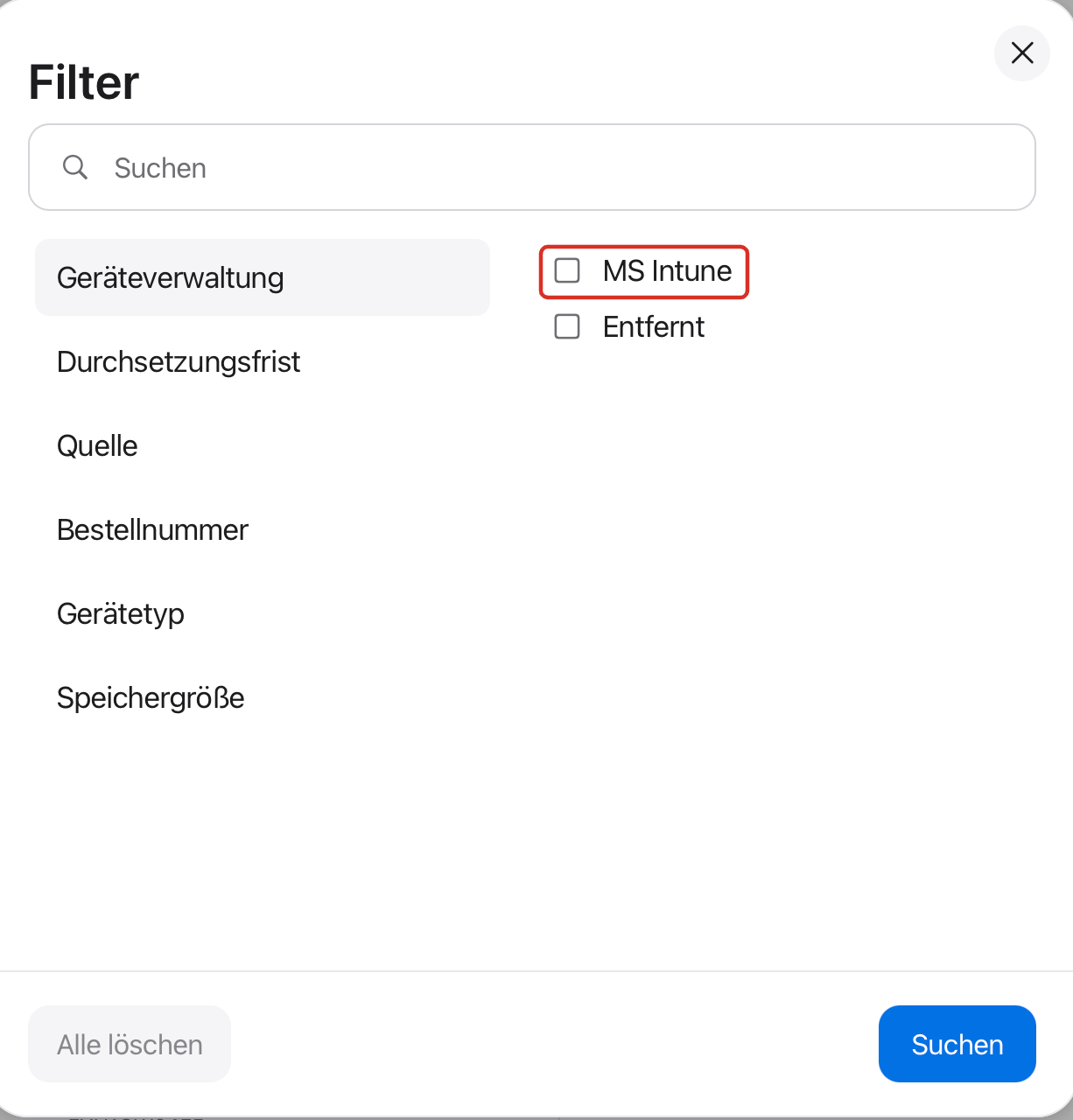
Click the filter icon next to the search field. If your devices are already managed by another MDM, you can filter by your current provider under Device Management here, for example MS Intune.
-
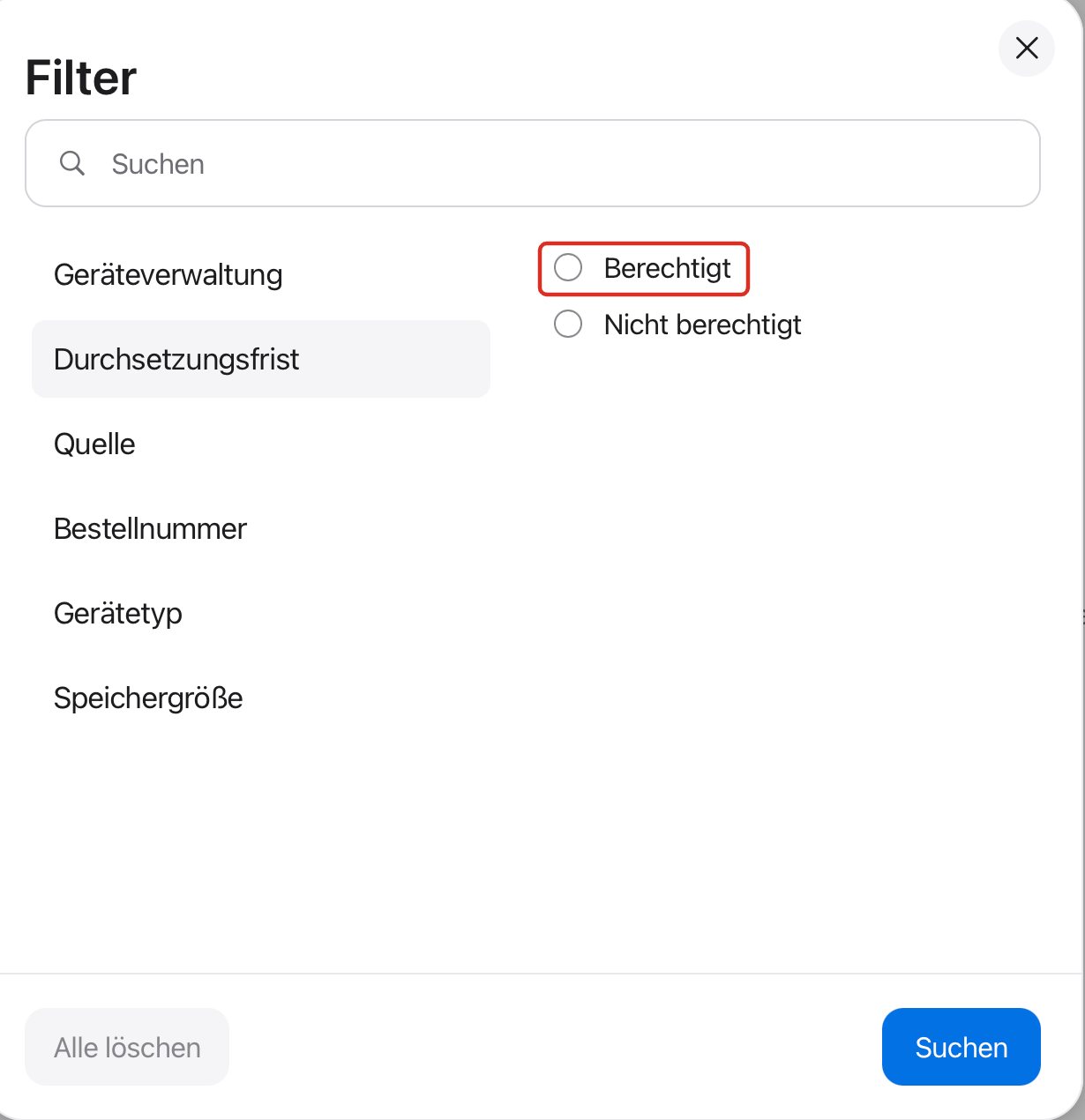
Under Enforcement Deadline, select Eligible and click Search. You now only see devices you can register.
-
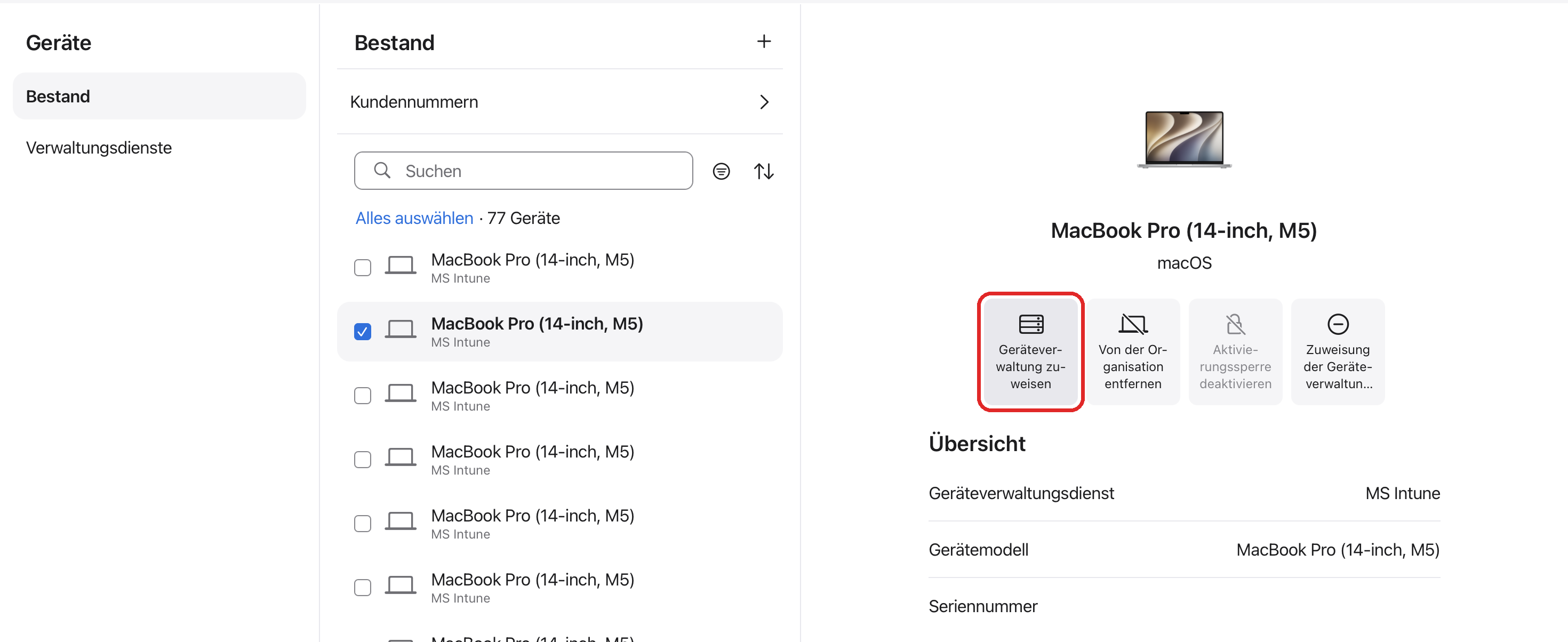
Check the devices you want to register. You can also search for serial numbers in the search field.
-
Click Assign Device Management on the right.
-
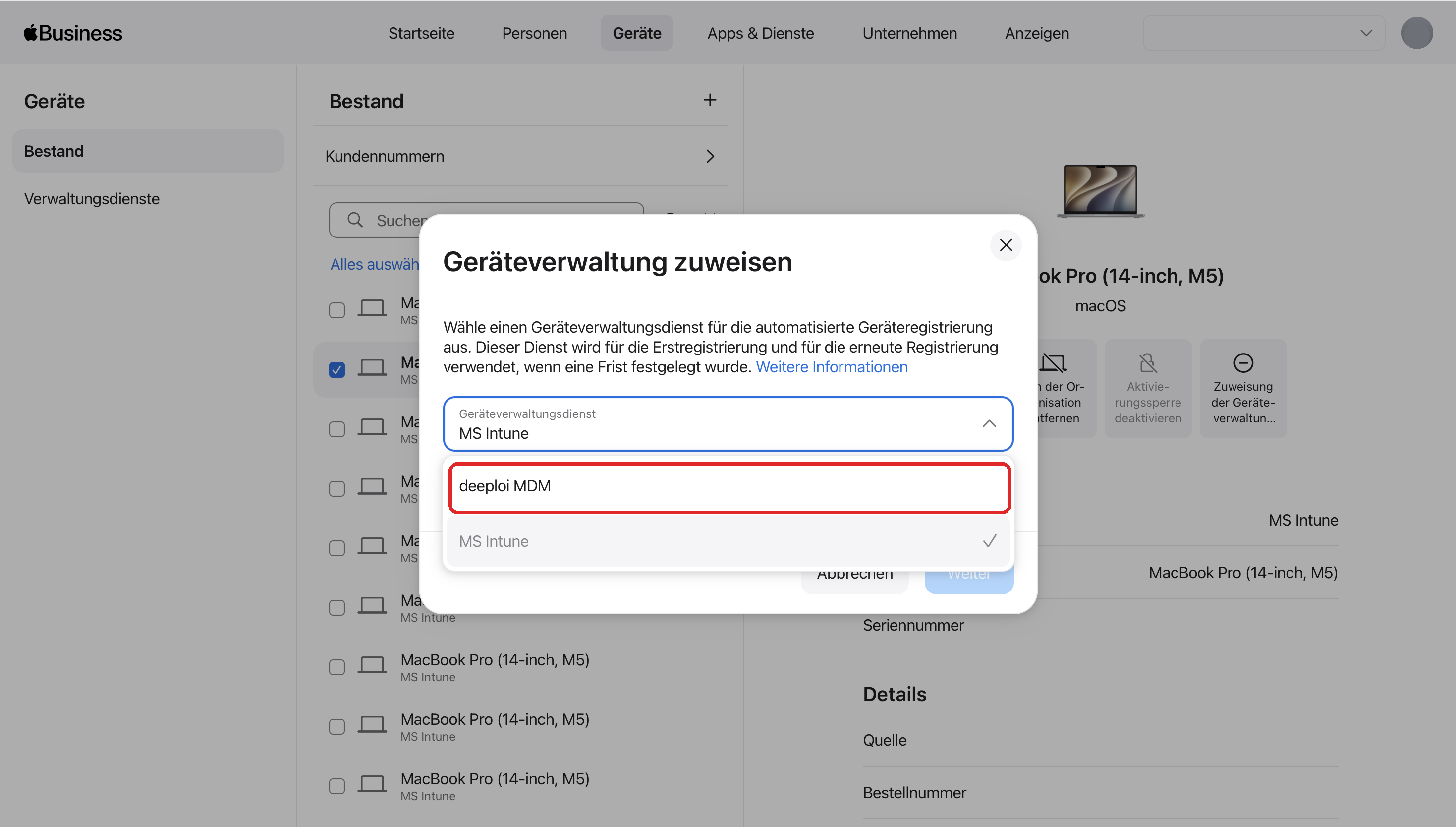
Click the Device Management Service field and select deeploi MDM.
-
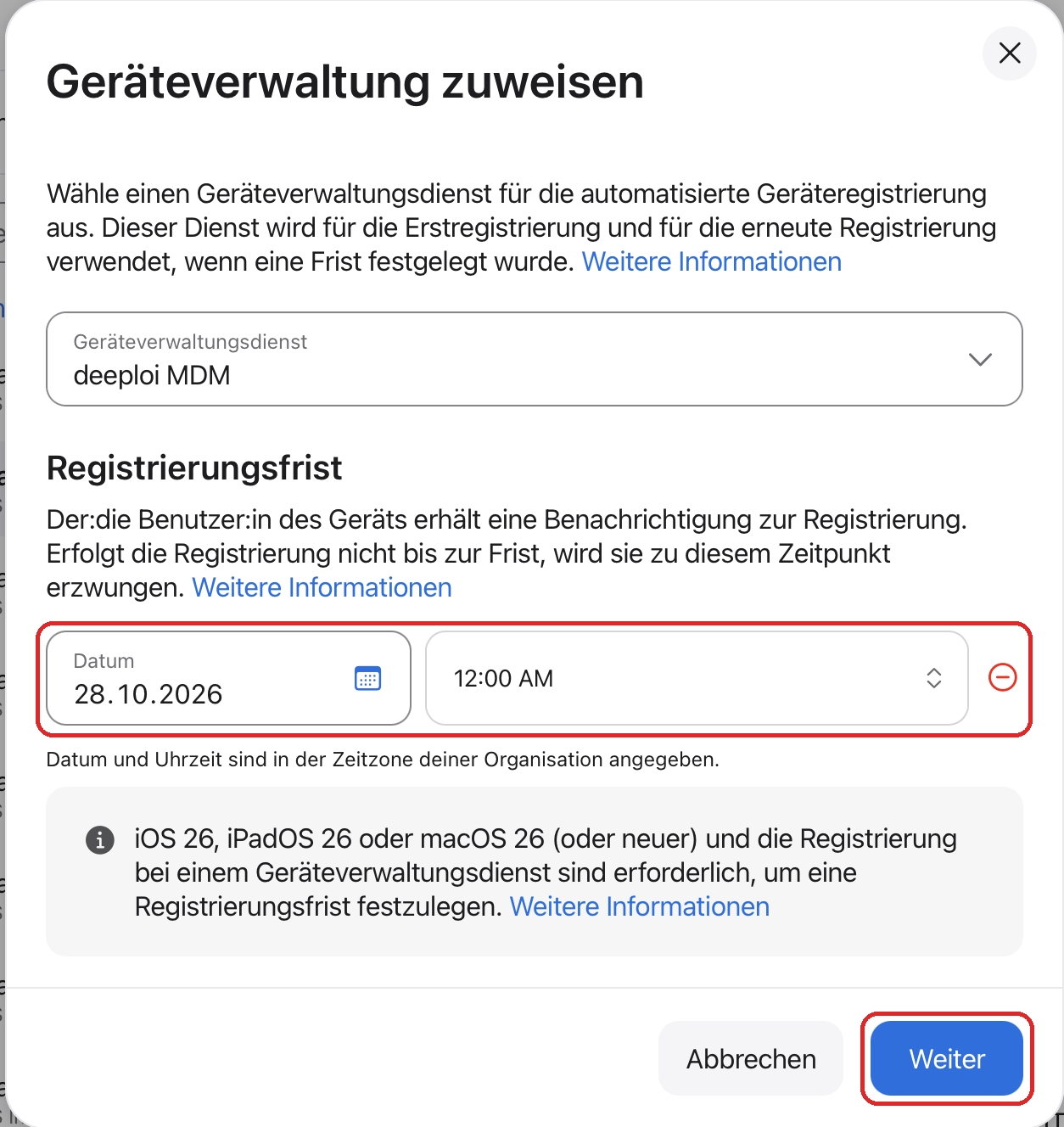
Click Add Deadline and choose a date and time under Enrollment Deadline. Until then, your employees have time to start the switch on their device. The deadline must be between 1 and 90 days.
-
Click Continue.
-
Read the notice and click Confirm.
-
Apple Business starts the registration in the background. Click Close, or wait until everything is done and click Done.
What Do Your Employees See?
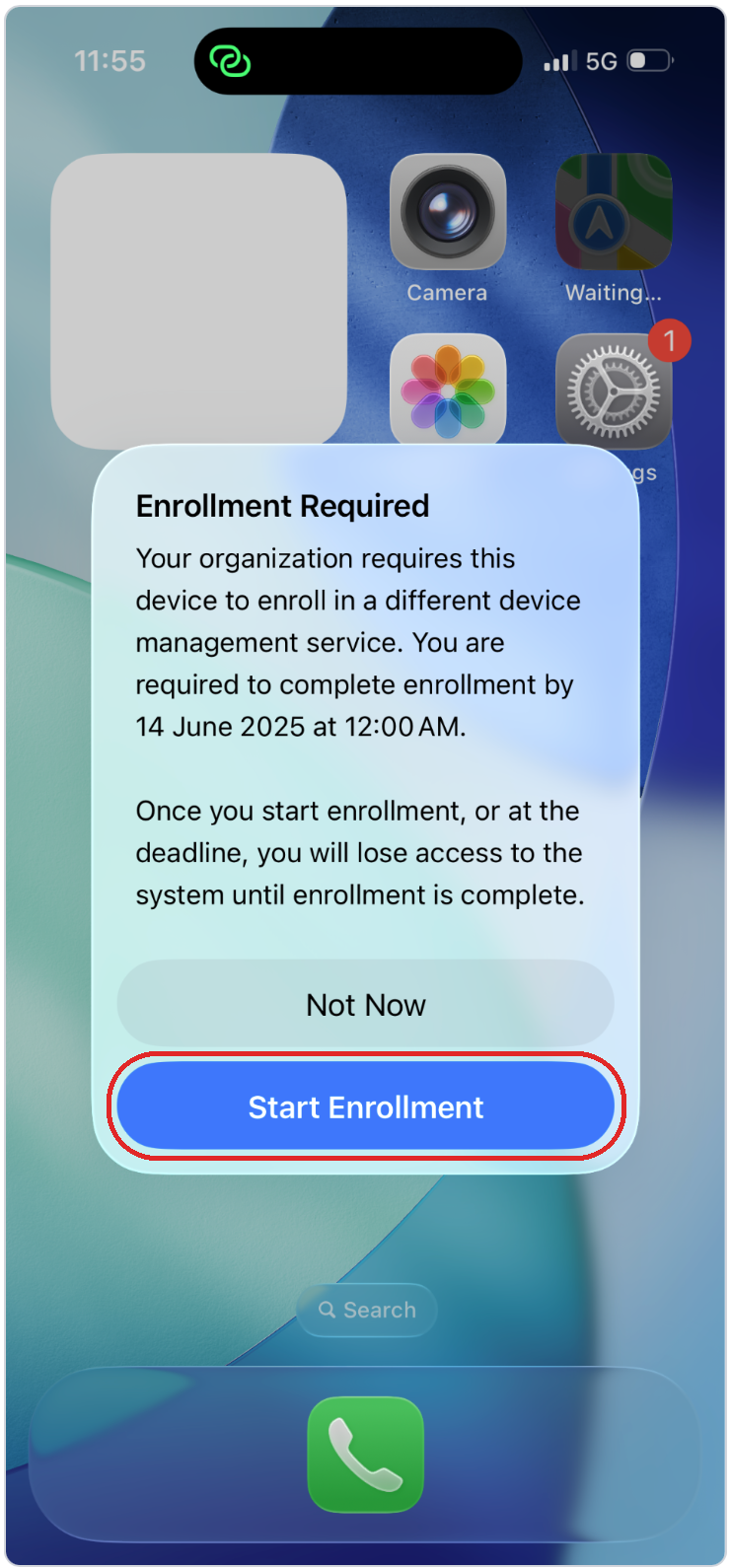
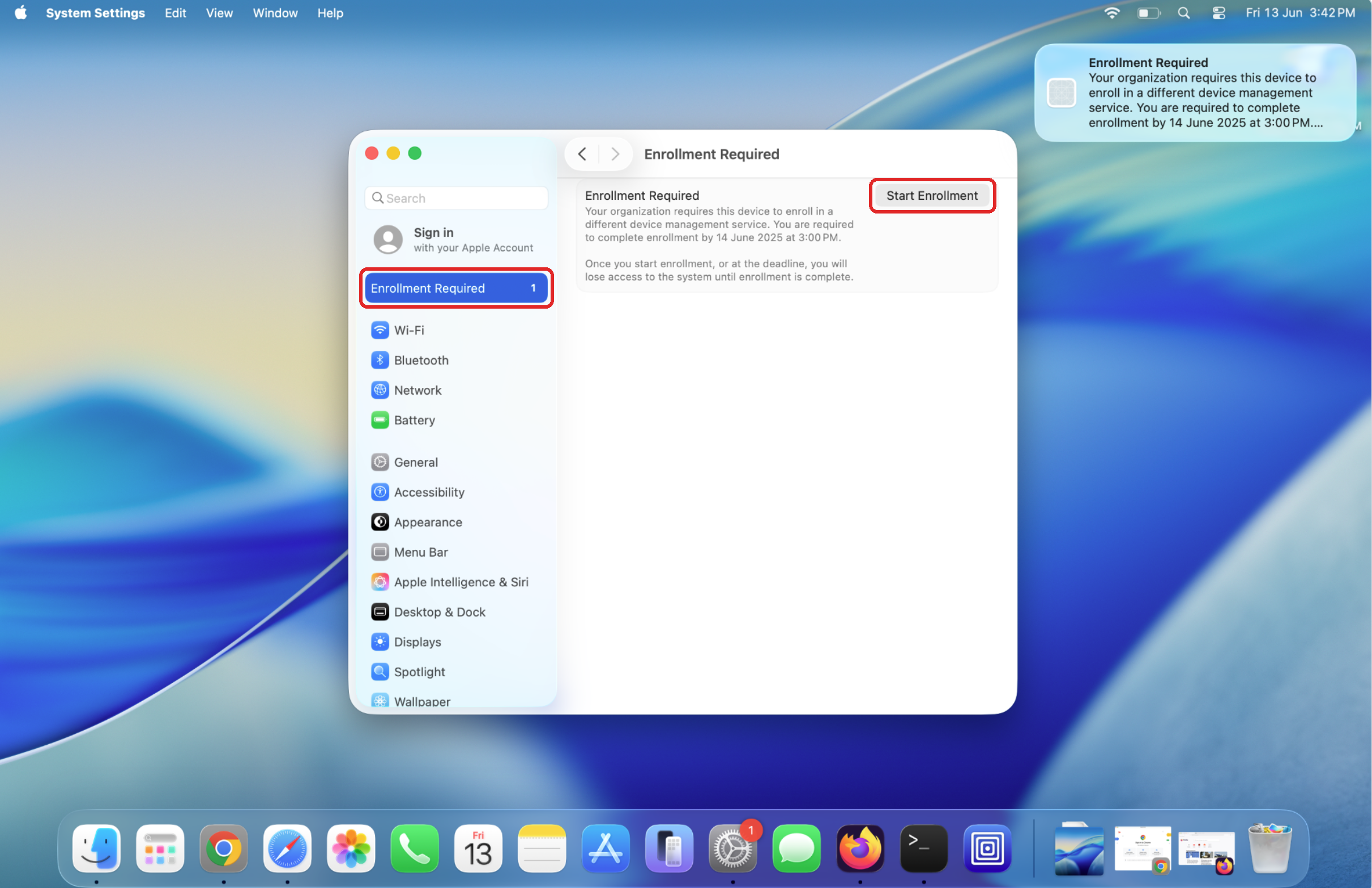
After you start, the devices show an Enrollment Required notice with the deadline by which the switch must be completed.
On iPhone and iPad, the notice appears directly on the screen. Start Enrollment starts the switch, Not Now postpones it until the deadline.
On Mac, a notification appears in the top right. In addition, an Enrollment Required entry appears at the top of System Settings. The switch starts there with Start Enrollment.
During the switch, the device can't be used for a few minutes. Your employees should start it at a quiet moment, for example before lunch, and save their work first.
If the switch isn't started by the deadline, it happens automatically: iPhones and iPads restart, and on Mac a full-screen notice appears that can't be dismissed. Let your employees know in advance.
Cancel a Registration
As long as the switch hasn't started on the device, you can cancel the registration. The device then stays managed as before, and all notices on the device disappear.
- In Apple Business, open Devices → Inventory and select the device.
- Click Change Deadline.
- Remove or change the deadline and click Save.
Without Apple Business
Every employee can register their device themselves through start.deeploi.io.
Is the device still managed by another MDM? A device can only be managed by one MDM at a time. So first remove it from the old MDM, for example Jamf, Kandji, or Microsoft Intune. If you don't have access, ask your current provider to do it. Then check on the device that no MDM profile is installed anymore: on Mac under System Settings → General → Device Management, on iPhone and iPad under Settings → General → VPN & Device Management.
When you remove the old MDM, apps, Wi-Fi profiles, and settings distributed through it may also be removed, depending on the provider. Plan the switch so your employees connect the device to deeploi right afterwards.
How the employee registers their device:
- The employee opens start.deeploi.io on their device.
- They sign in with their work email address and receive a registration code by email.
- They enter the code and follow the steps on the screen. deeploi then automatically installs the software from their bundle.
Mac
iPhone and iPad
Detailed guides: Connect a MacBook to deeploi and Connect an iPhone or iPad to deeploi.