

How do I connect my iPhone or iPad to deeploi?
Connecting your iPhone or iPad to deeploi installs your company's required apps and security settings. Which path you follow depends on whether you are new to the company or already part of the team.
For new employees
This path applies to brand new or reset devices provided by your company. You register the device while you go through the iOS setup assistant.
- Select your country or region and preferred language.
- Connect to Wi-Fi: select your network and enter the password.
- When the Remote Management screen appears, tap Enroll.
If this screen does not appear, complete the rest of the setup first, then follow the steps under For existing employees.
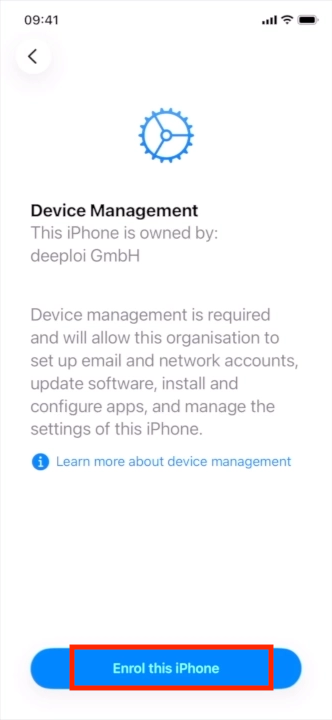
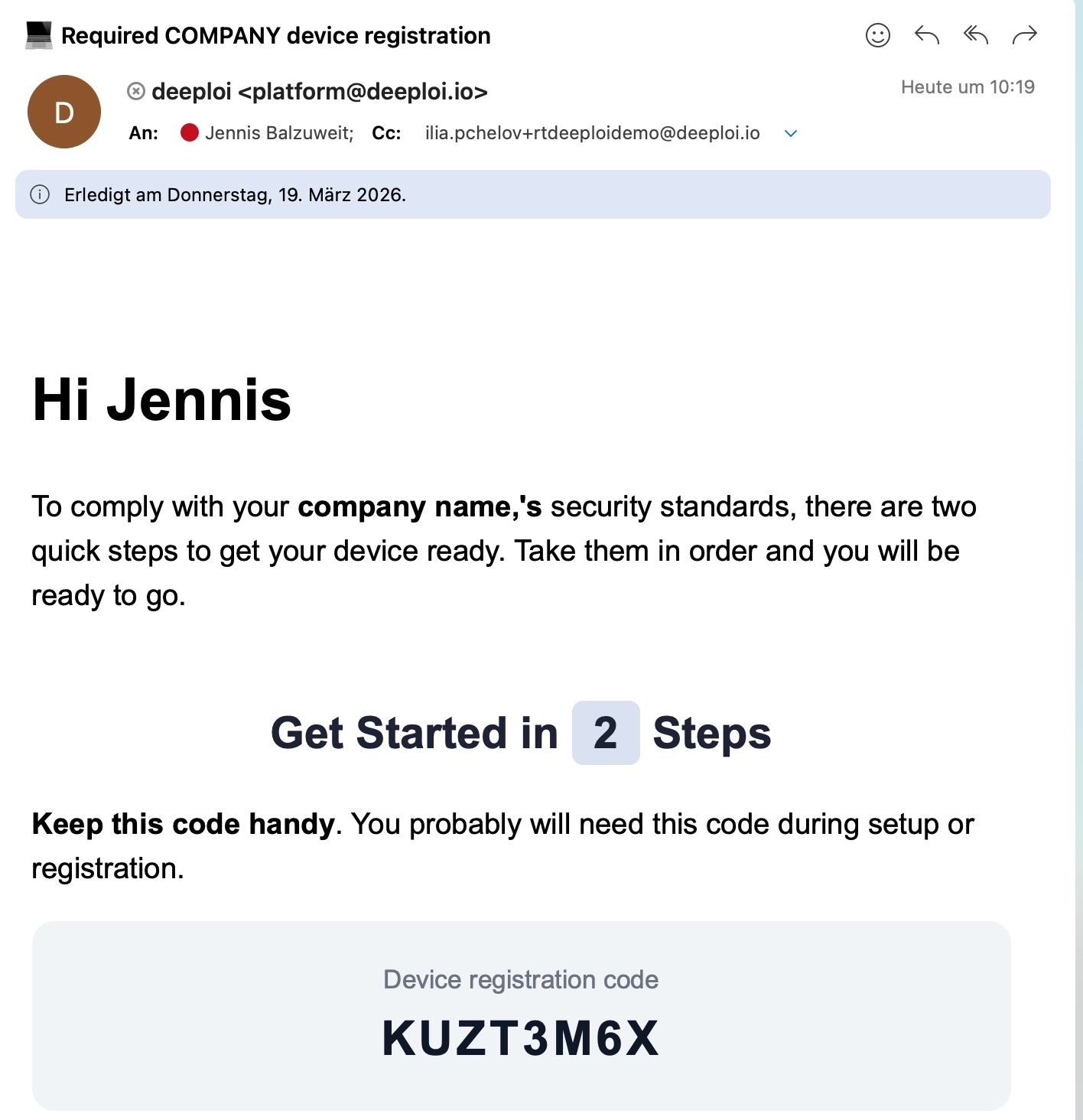
- Open the deeploi registration email on another device. It is sent to your personal email address with the subject "Required COMPANY device registration". Enter your personal registration code in the field shown on screen. You can also ask your IT admin for the code.
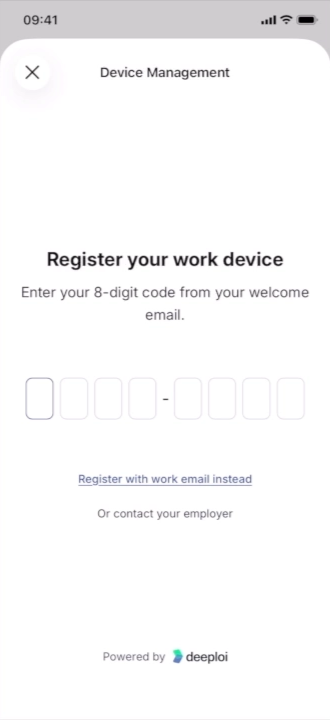
- The profile downloads and installs automatically.

- Complete the remaining setup screens:
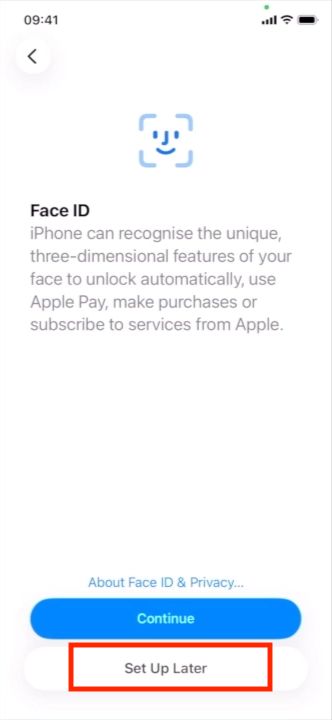
- Set up Face ID, or tap Set Up Later to skip.
- Create a passcode.
- Continue with automatic updates.
- Set up Location Services, or tap Set Up Later to skip.
- Set up your eSIM, or tap Set Up Later to skip.
- Choose your design.
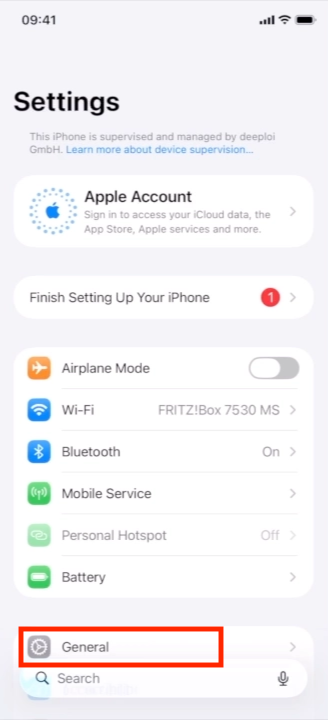
- Verify the installation: open Settings, tap General, then VPN & Device Management. The deeploi profile should appear in the list.
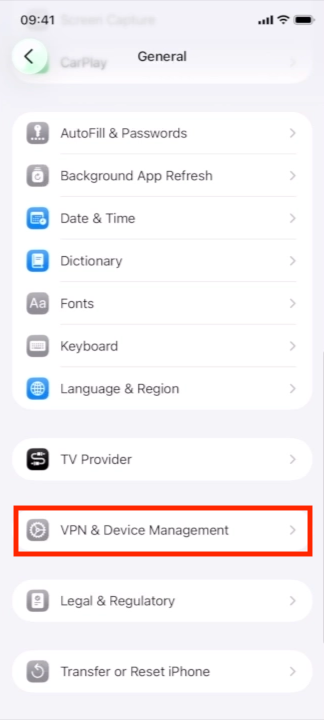
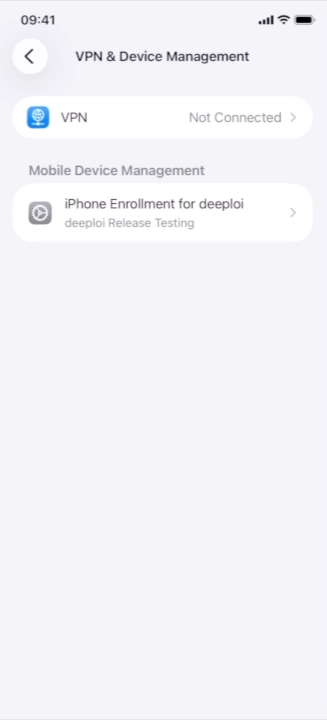
Your device is now connected to deeploi and ready for work.
For existing employees
This path applies if your device is already set up, or if you did not see an enrollment screen when you first started it.
- Log in to your work email via Safari — for example, mail.google.com or outlook.com. Your credentials are in your deeploi welcome email, or you can get them from your employer.
- Find the email with the subject "Required COMPANY device registration". If you cannot find it, check your spam folder. If it is still missing, ask your IT admin to resend it.
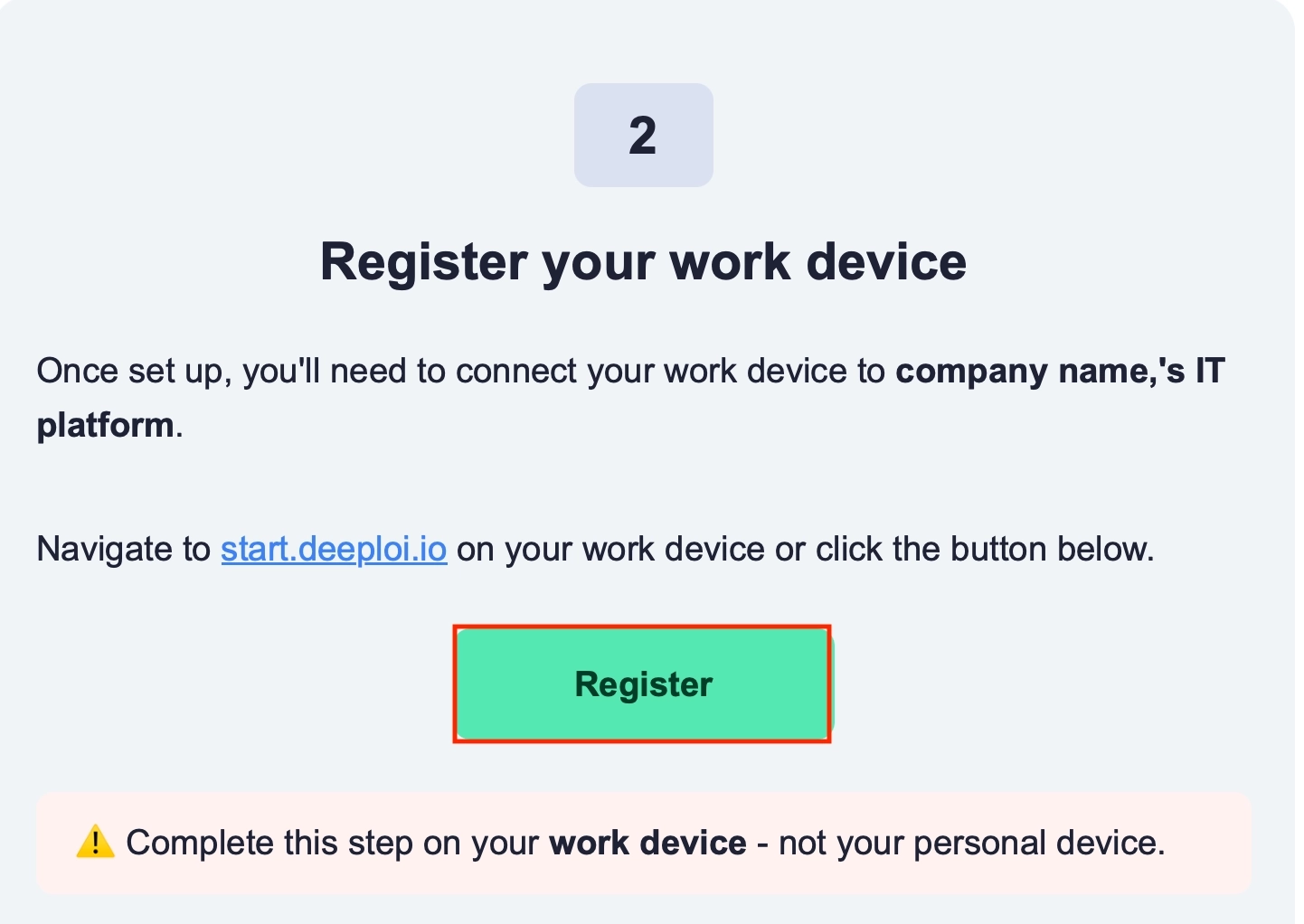
- Scroll to the second section and tap Register. You can also go to start.deeploi.io and follow the steps shown.
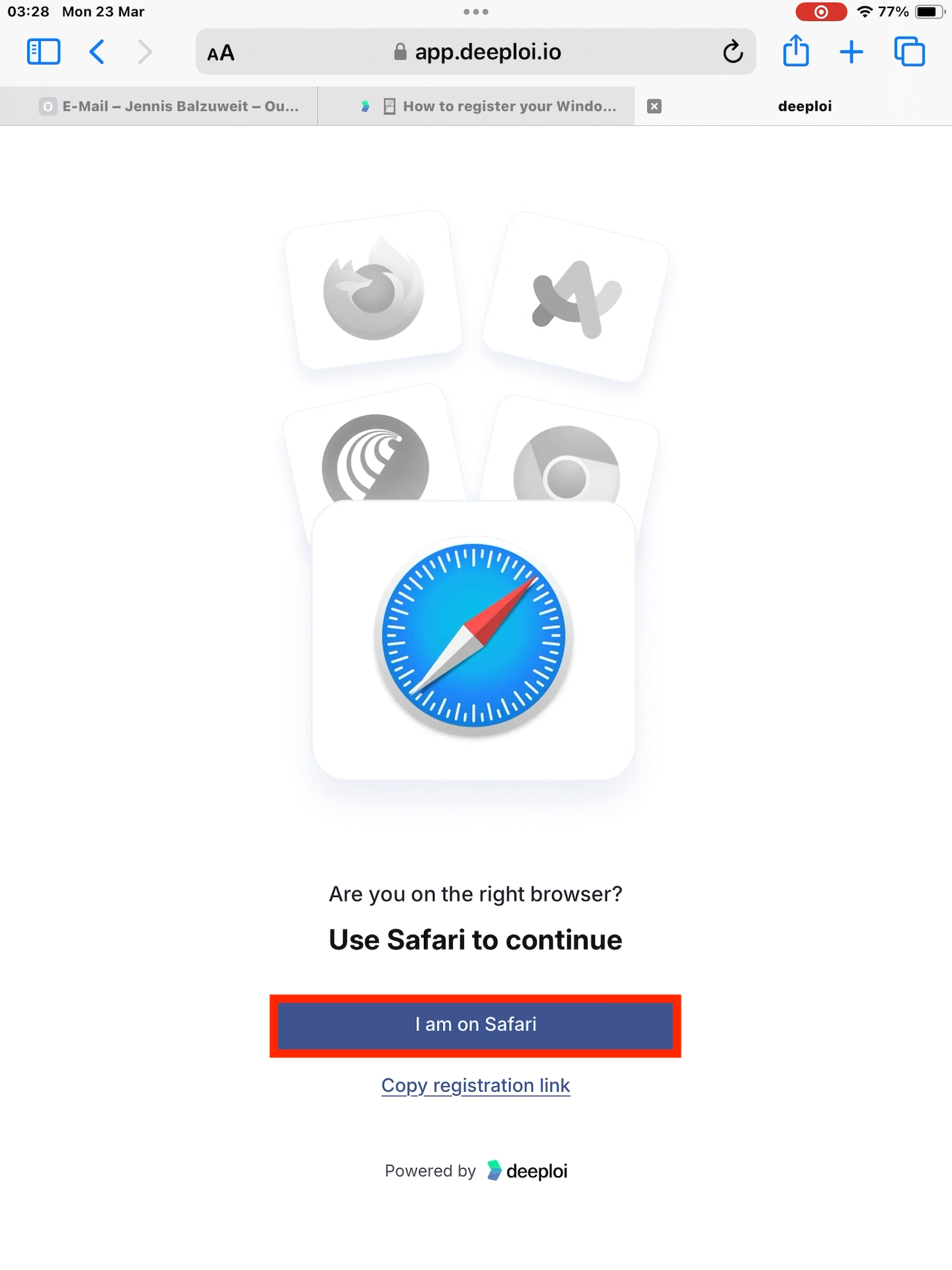
- Confirm that you are using Safari.
Important The download only works in Safari. Google Chrome and other browsers cannot be used for this step.
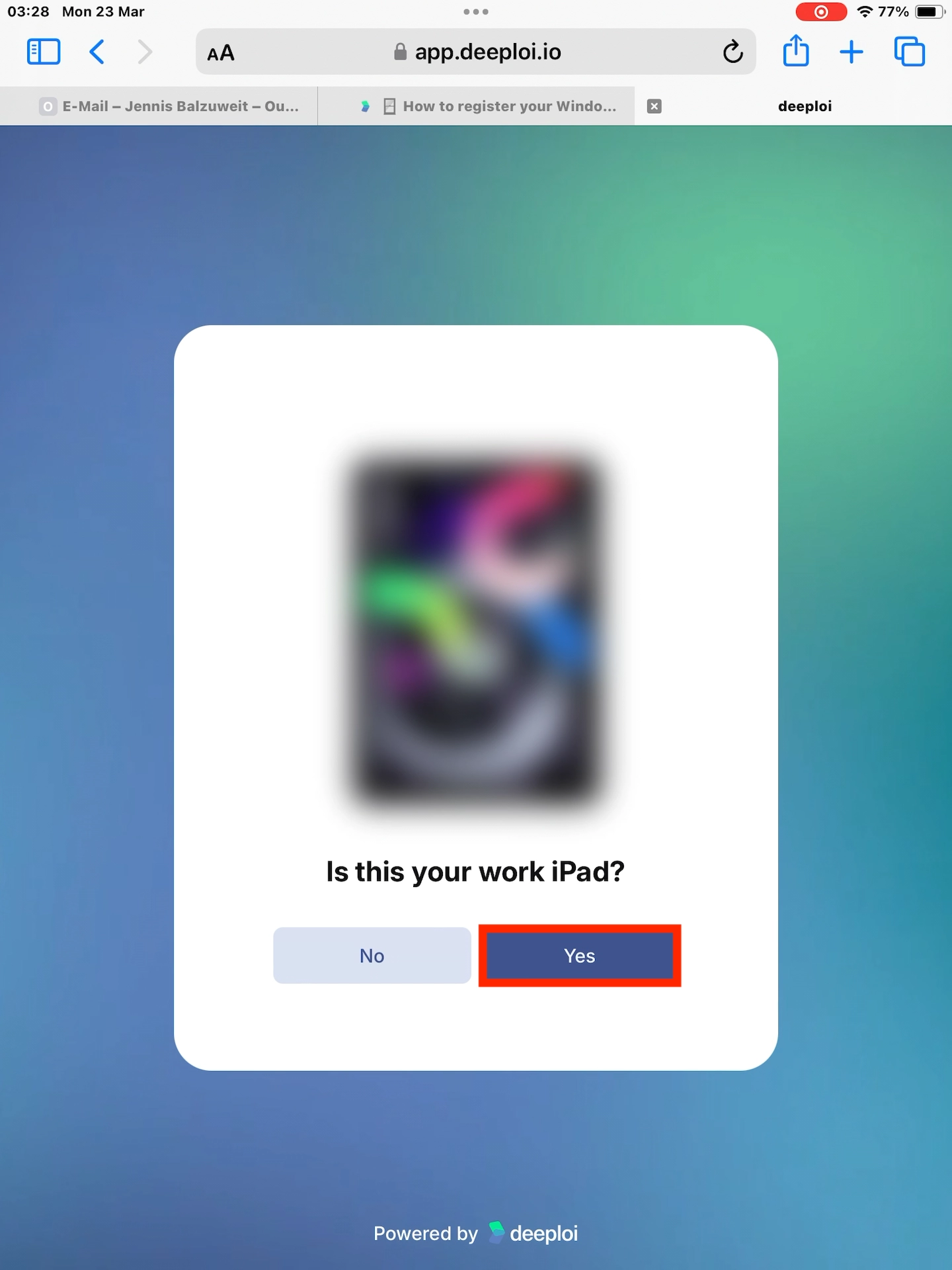
- Confirm this is your work device and tap Yes.
Only connect your work device, never a personal device. Connecting a device installs company settings, provides visibility into installed apps, and enables actions such as a remote lock or reset. These actions can result in permanent loss of personal data.
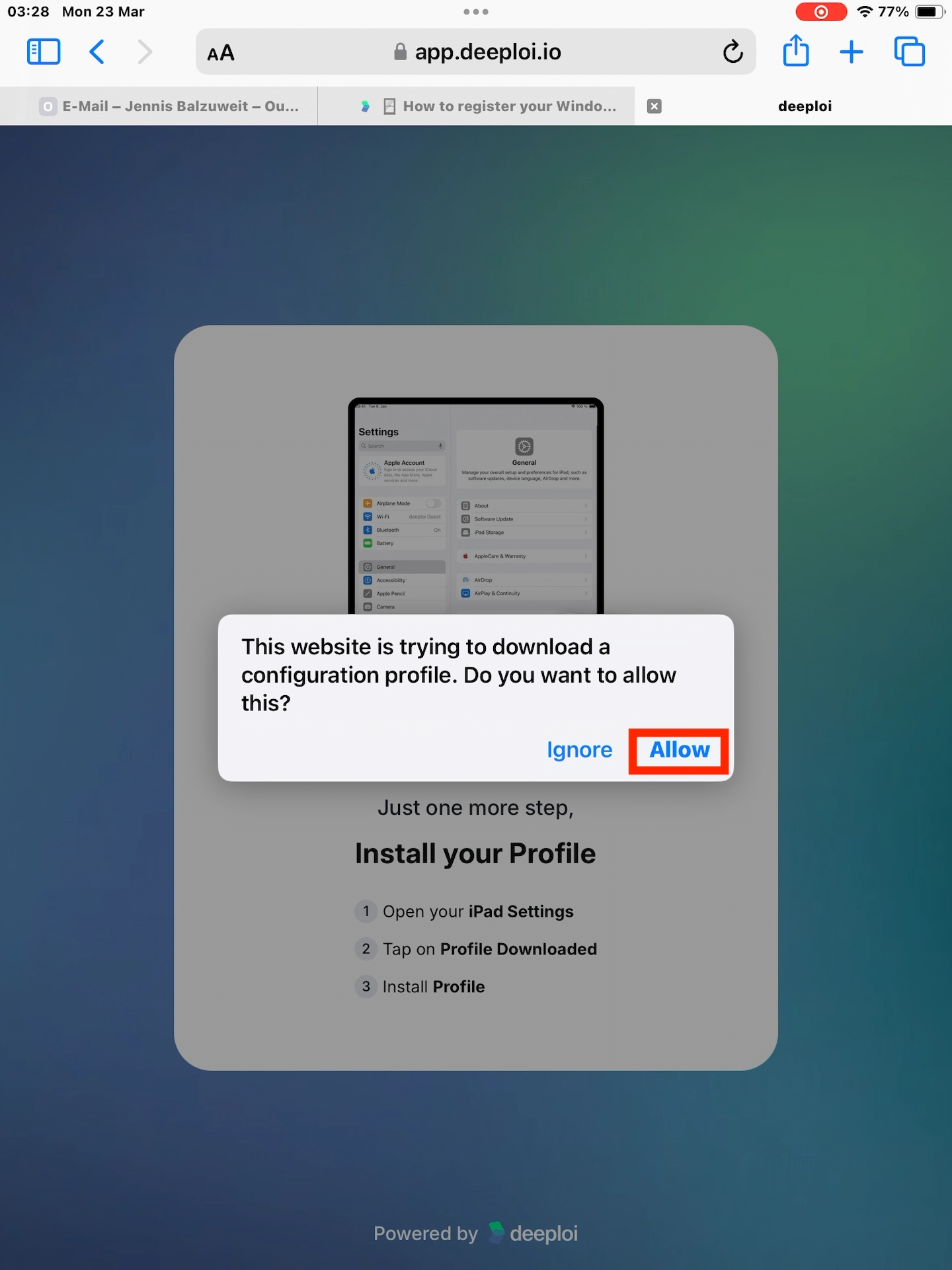
- Tap Allow to download the configuration profile.
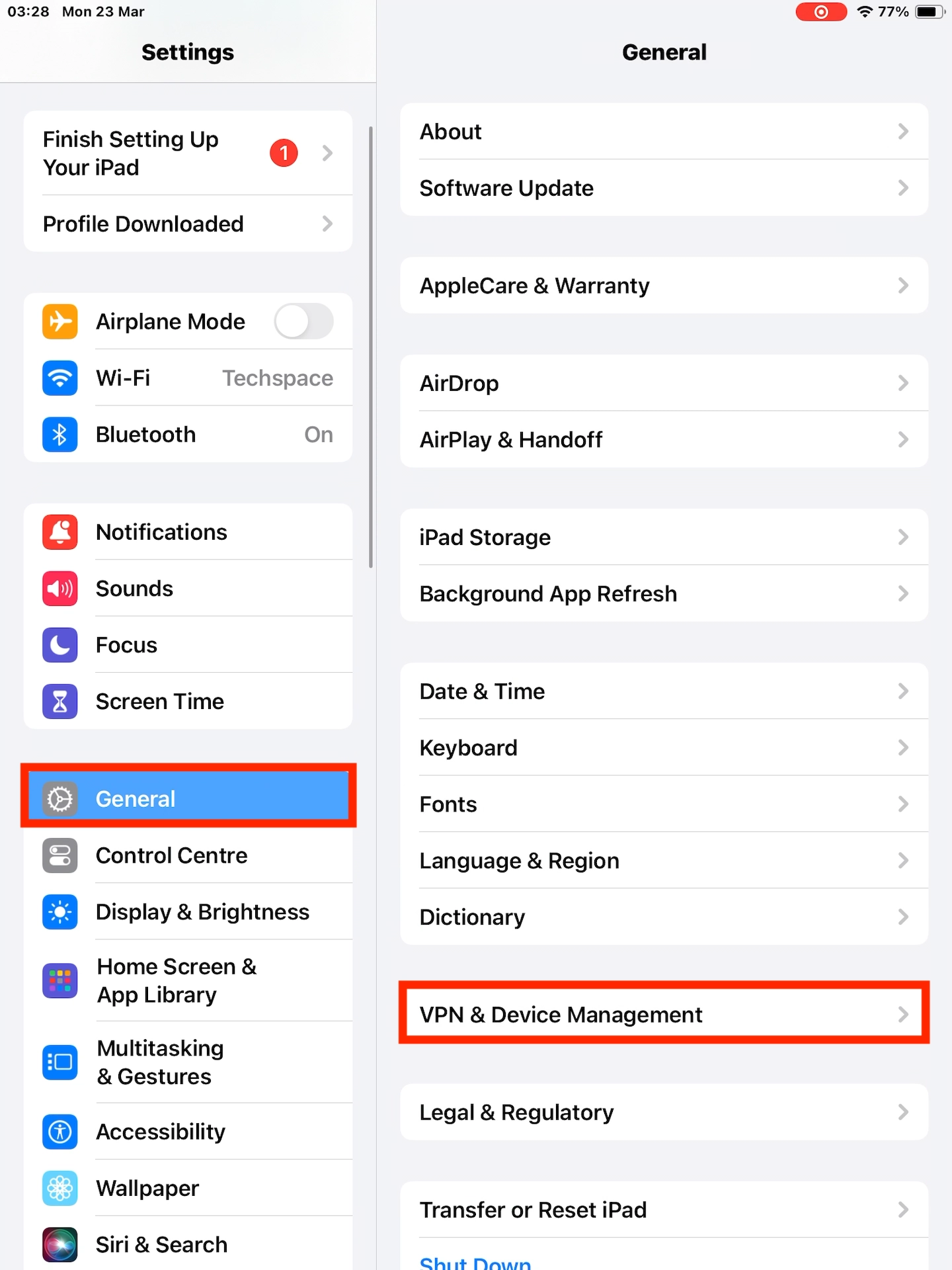
- Install the profile manually: open Settings, then go to General → VPN & Device Management.
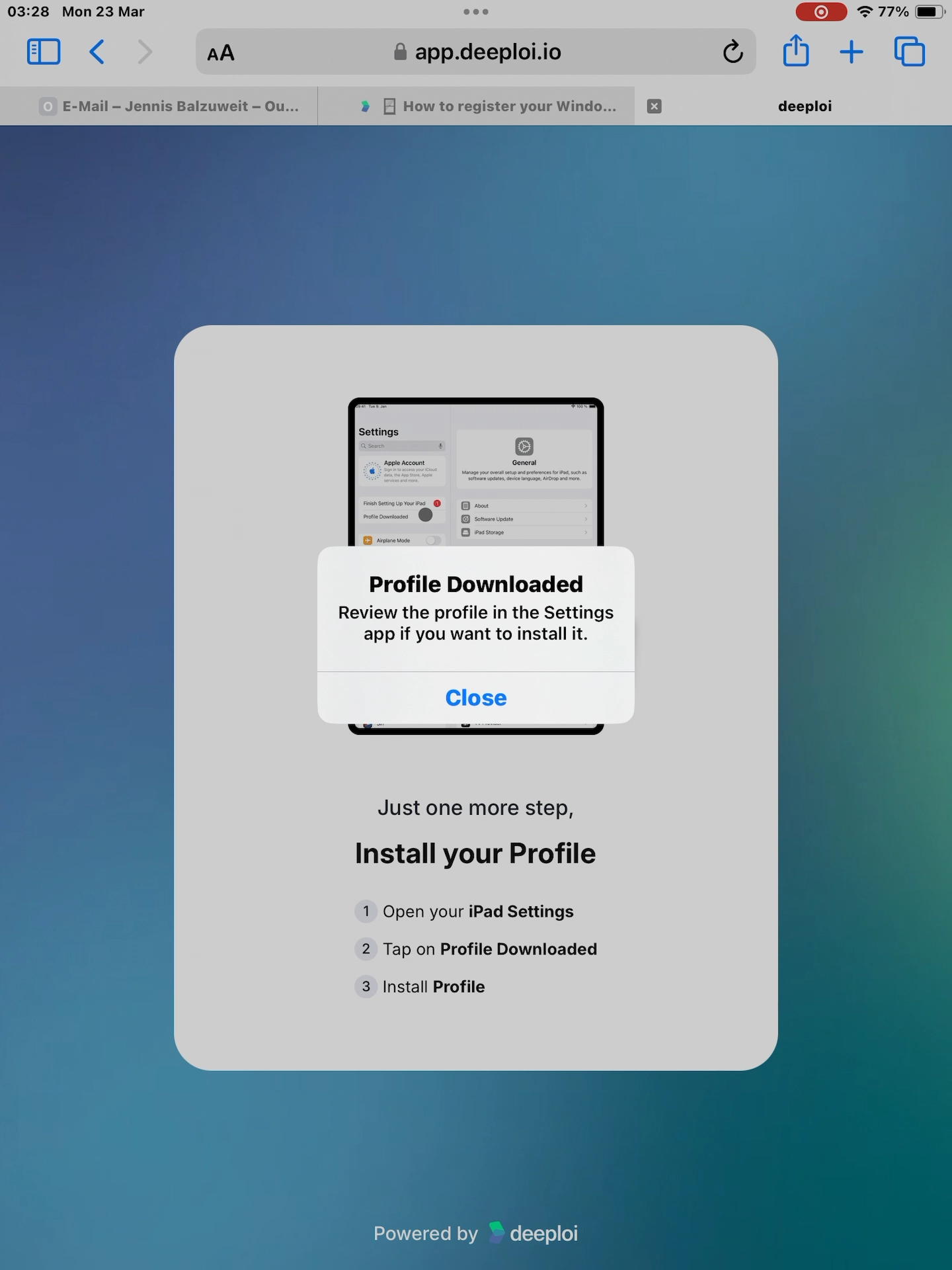
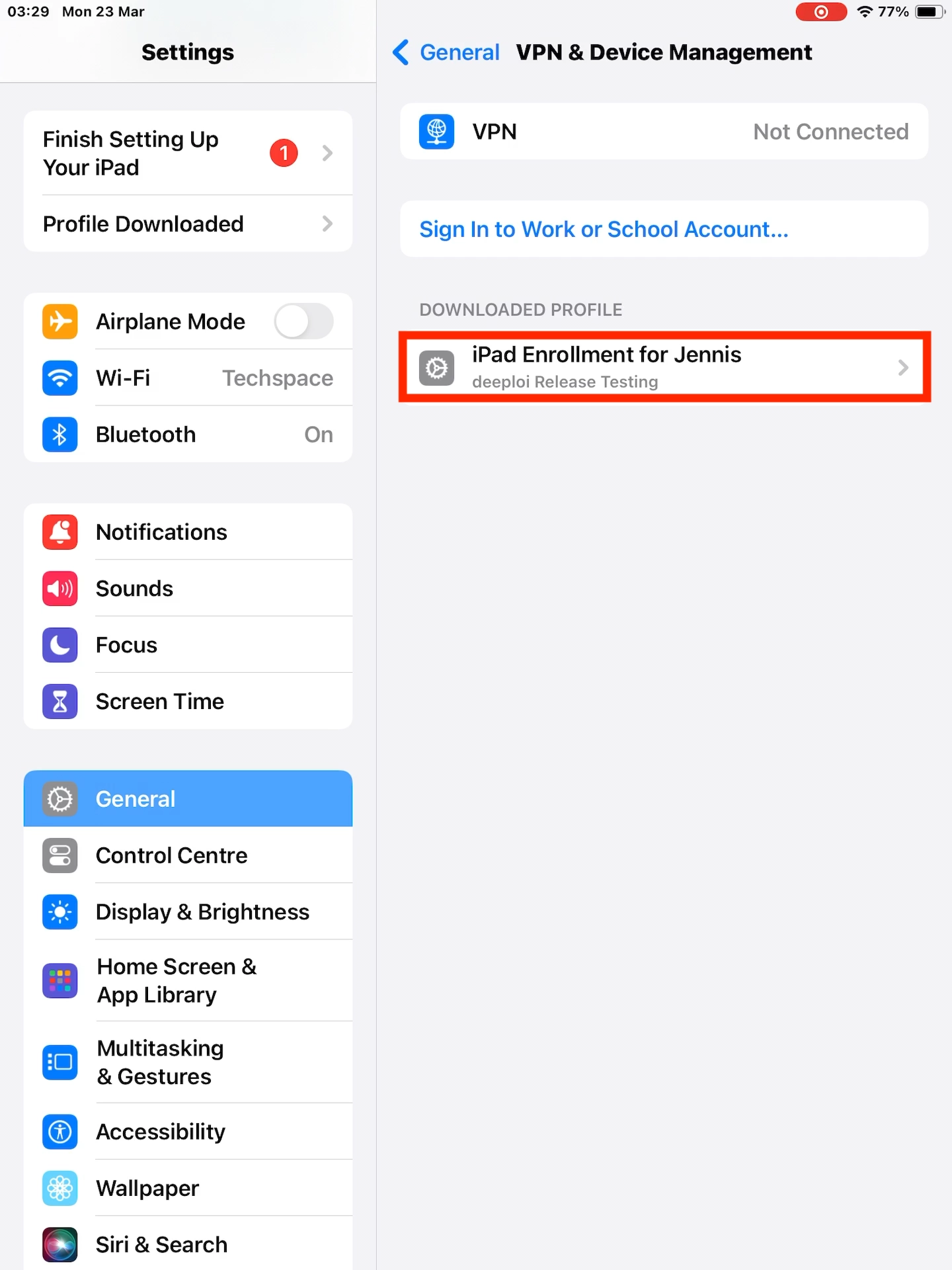
- Tap the downloaded profile named "iPad/iPhone Enrollment for...".
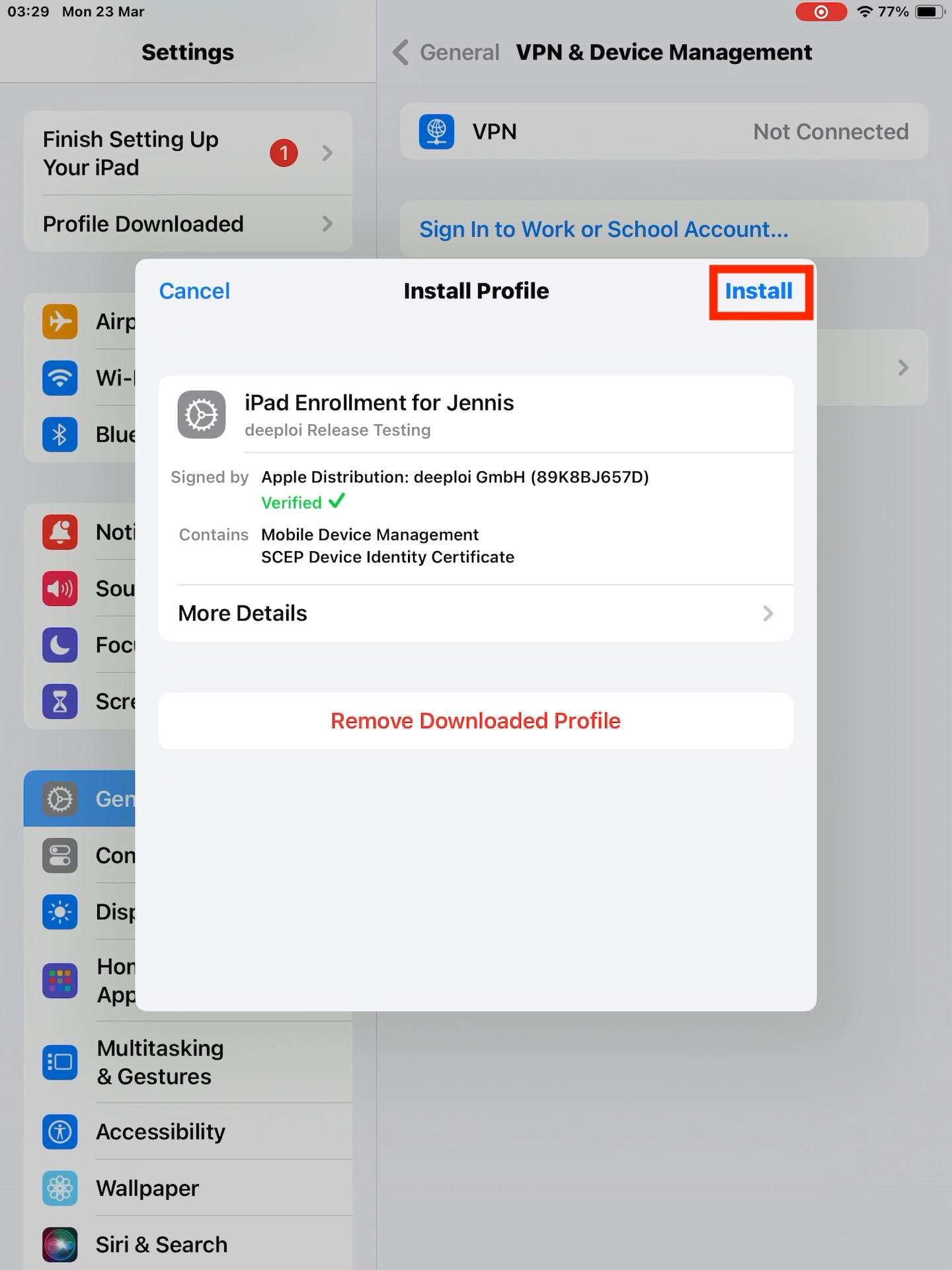
- Tap Install, then Trust to install the profile.
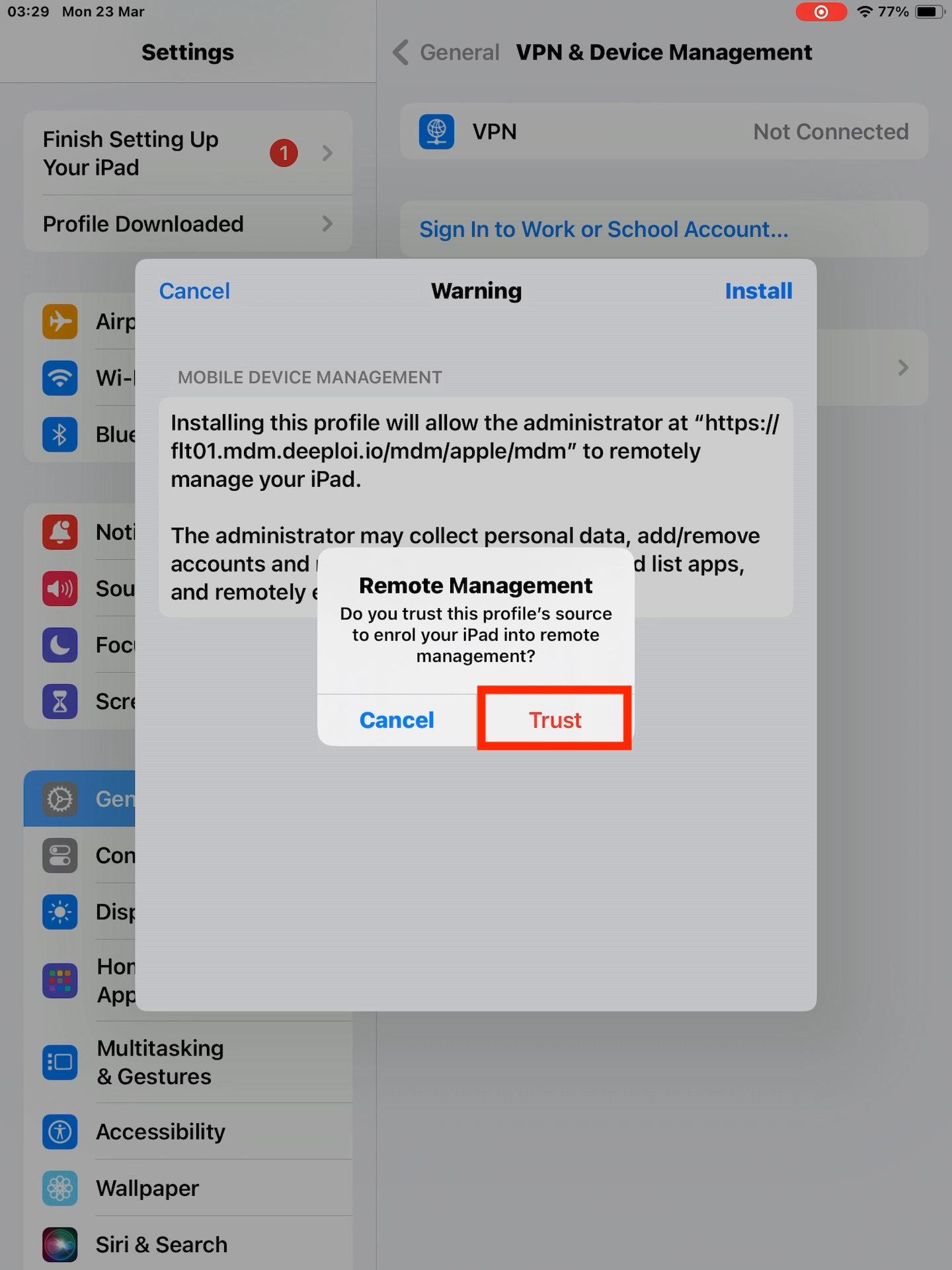
- The profile installs automatically.
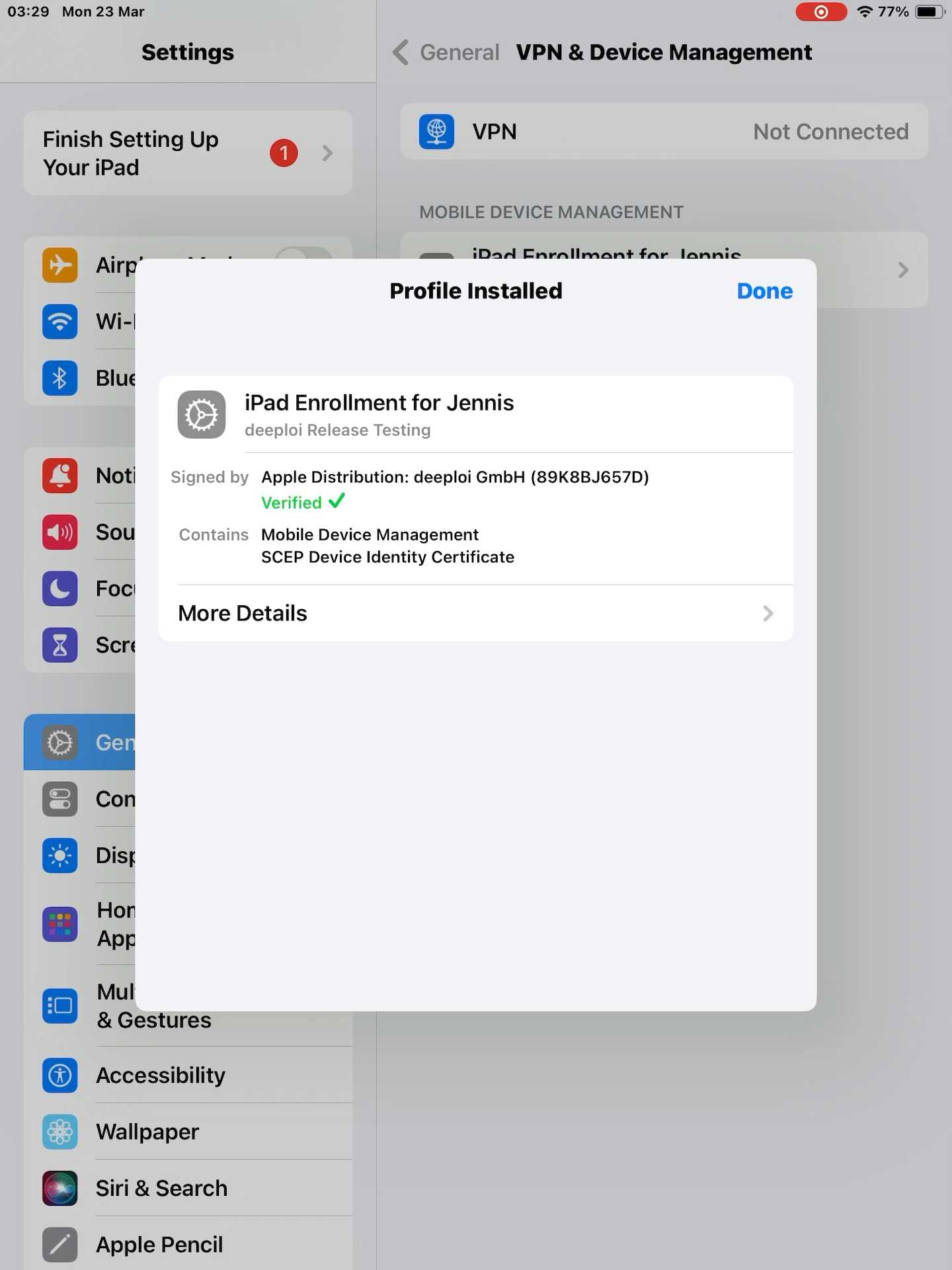
Your device is now connected to deeploi and ready for work.