

How do I connect my Windows laptop to deeploi?
Connecting your Windows laptop to deeploi installs your company's apps and security settings. It takes about 5 minutes.
If you have not completed the Windows laptop setup yet, do that first: How do I set up my new Windows laptop?
- Log in to your work email via Microsoft Edge — for example, mail.google.com or outlook.com. Your credentials are in your deeploi welcome email, or you can get them from your employer.
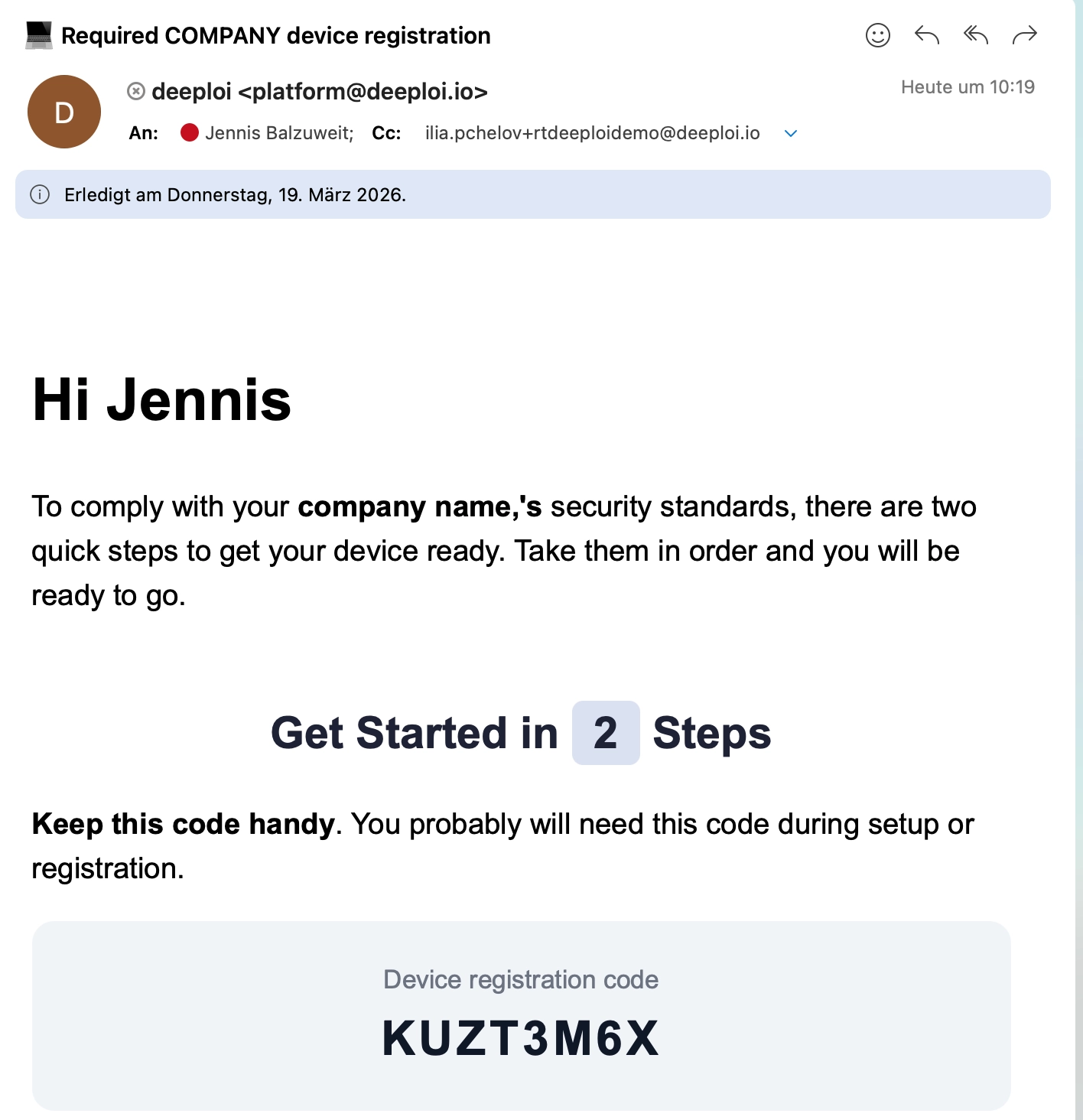
- Find the email with the subject "Required COMPANY device registration". If you cannot find it, check your spam folder. If it is still missing, ask your IT admin to resend it.
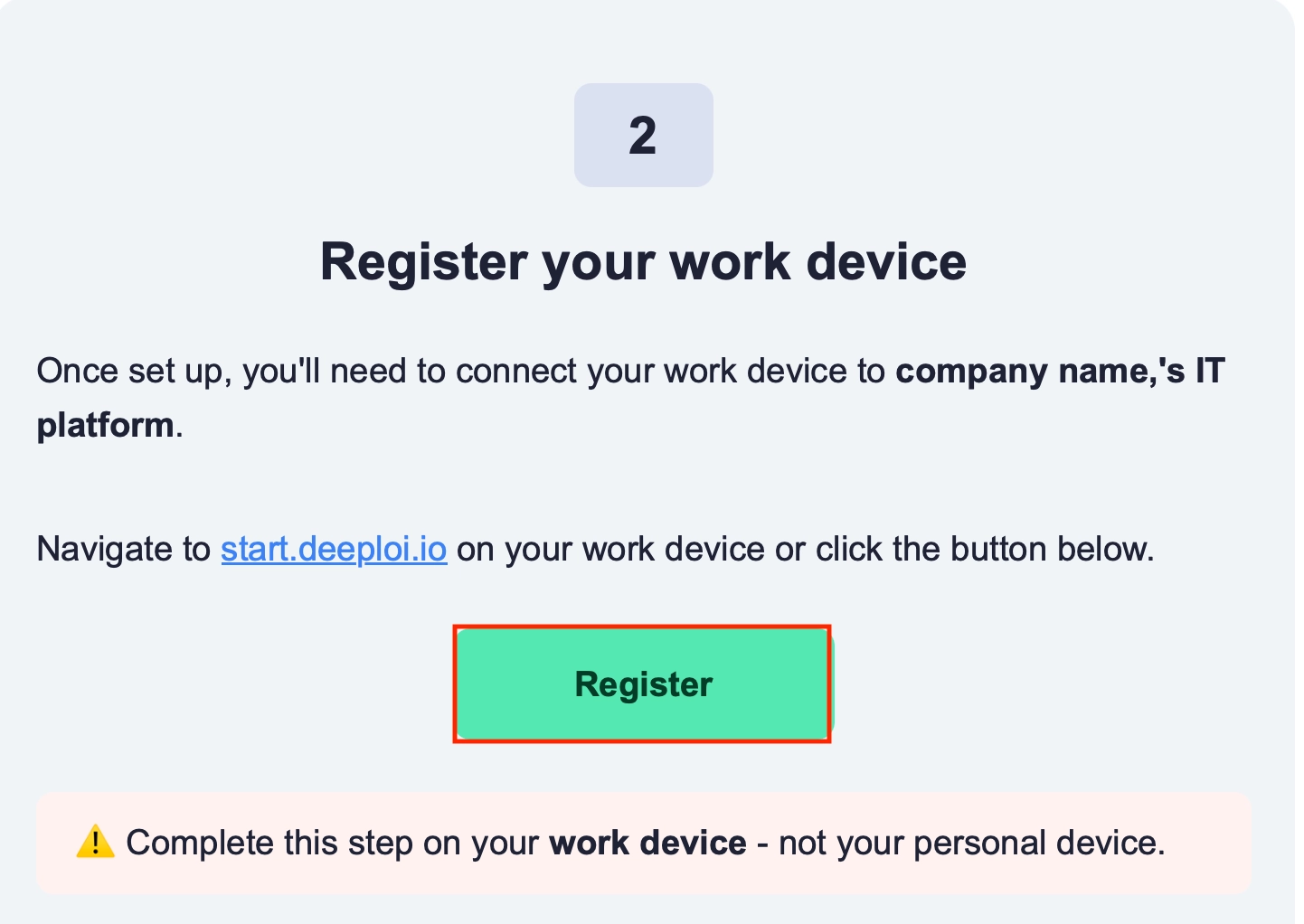
- Scroll to the second section and click Register. You can also go to start.deeploi.io on your work device and follow the steps shown.
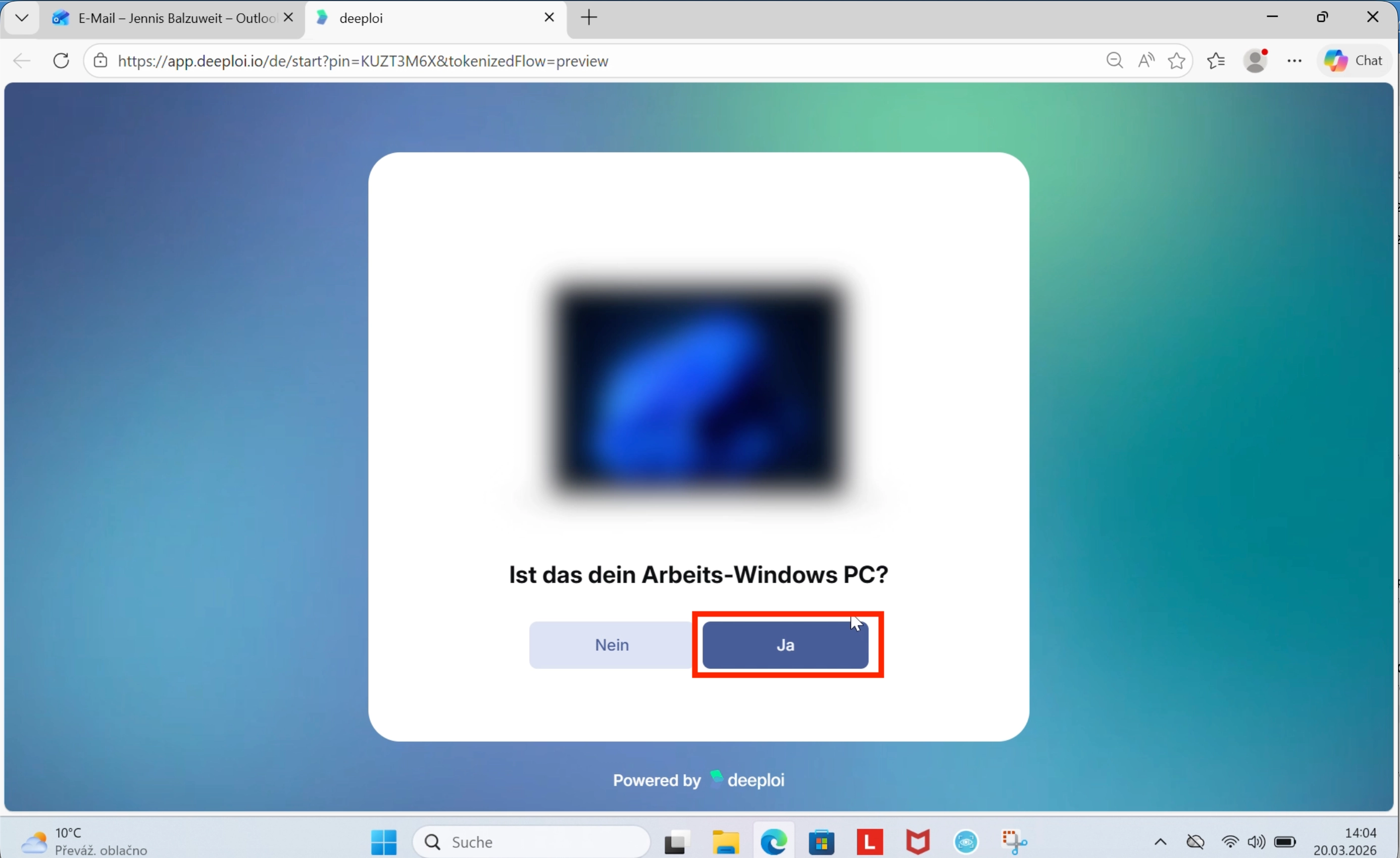
- Confirm this is your work laptop and click Yes.
Only connect your work device, never a personal device. Connecting a device installs company settings, provides visibility into installed apps, and enables actions such as a remote lock or reset. These actions can result in permanent loss of personal data.
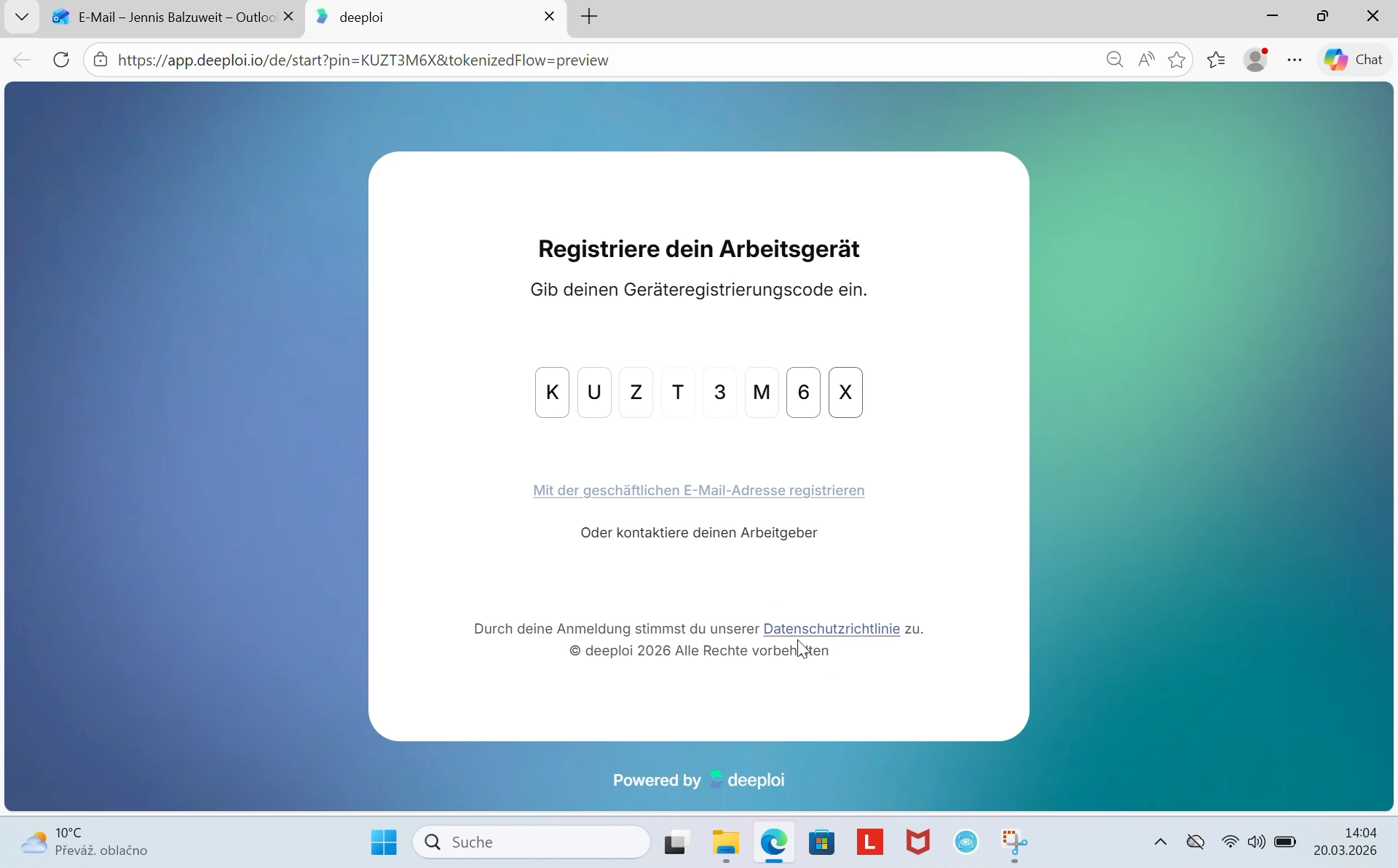
- The registration code from the email is filled in automatically.
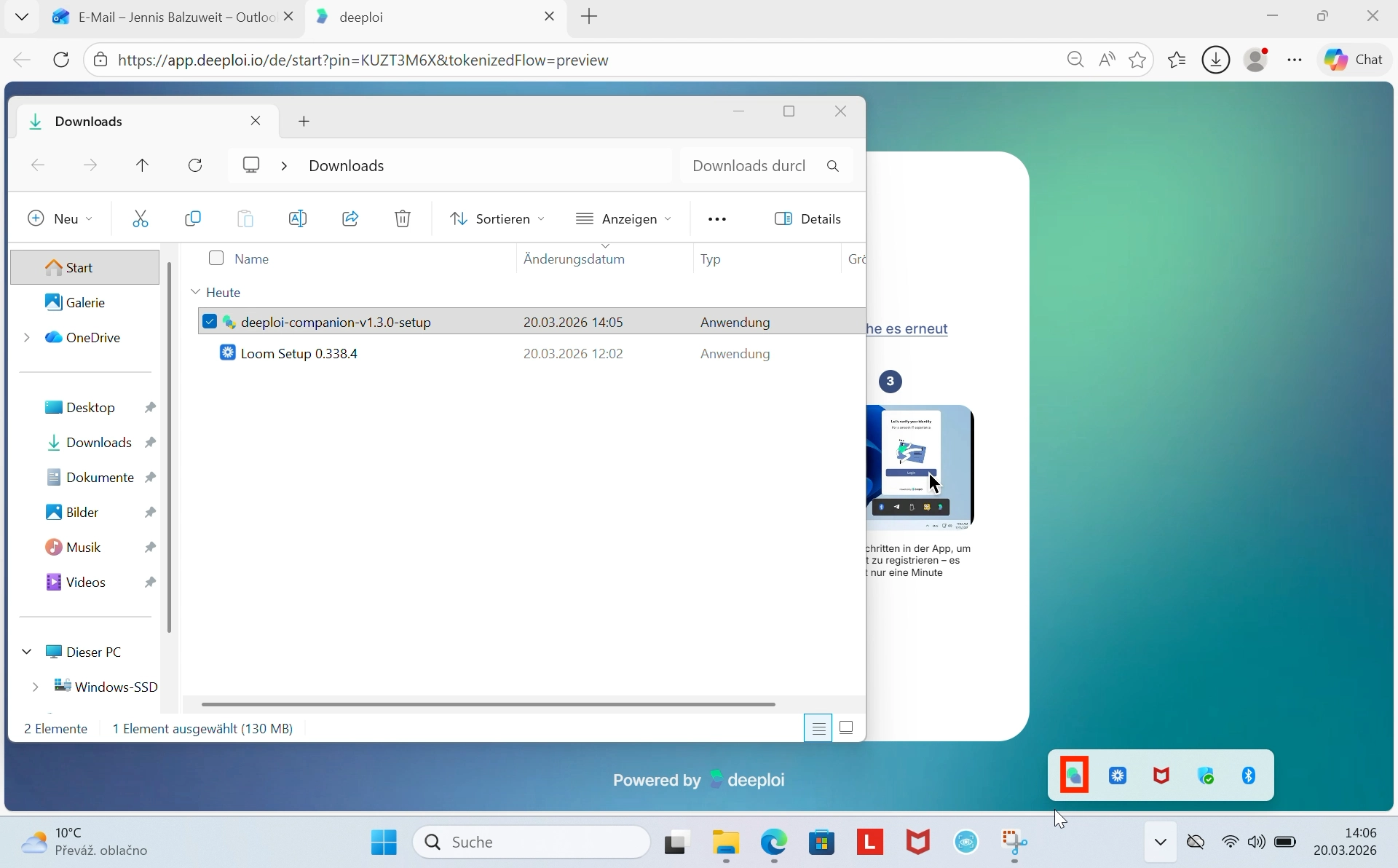
- The Companion app downloads automatically. Open your Downloads folder and click Open file or the small folder icon to locate it.
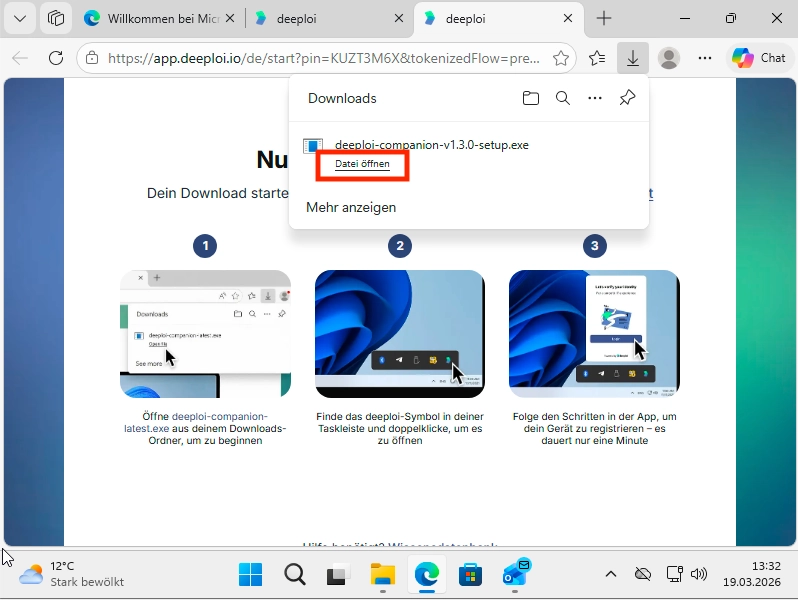
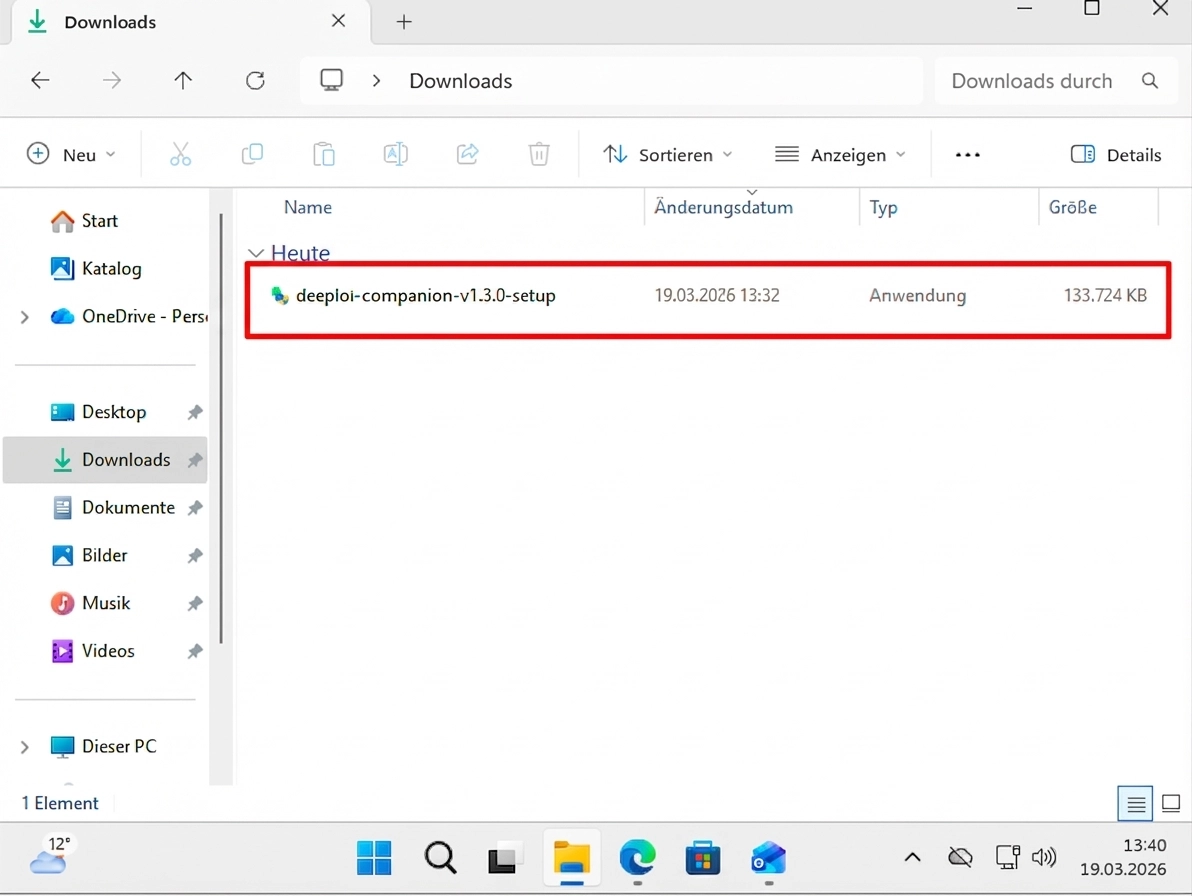
- Double-click the file to start the installation.
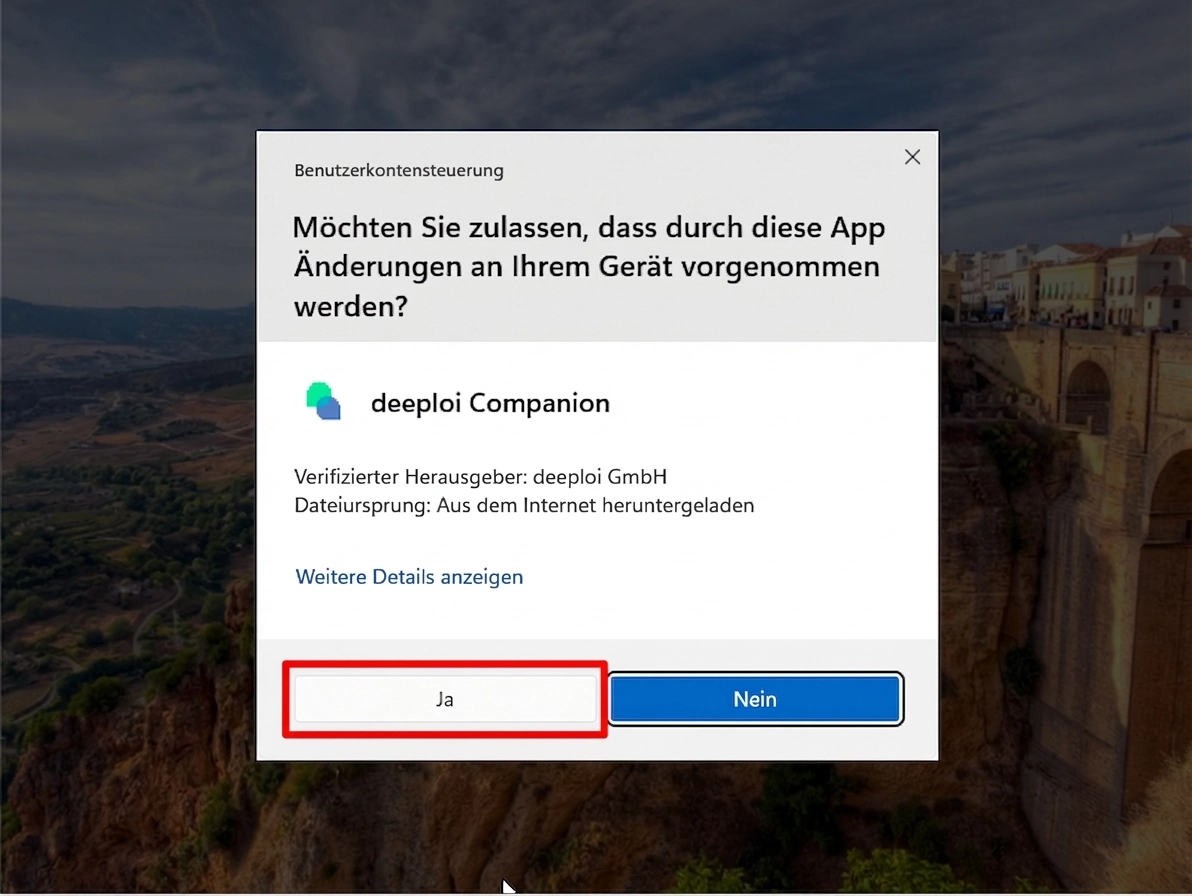
- When prompted, click Yes to allow the app to make changes to your device.
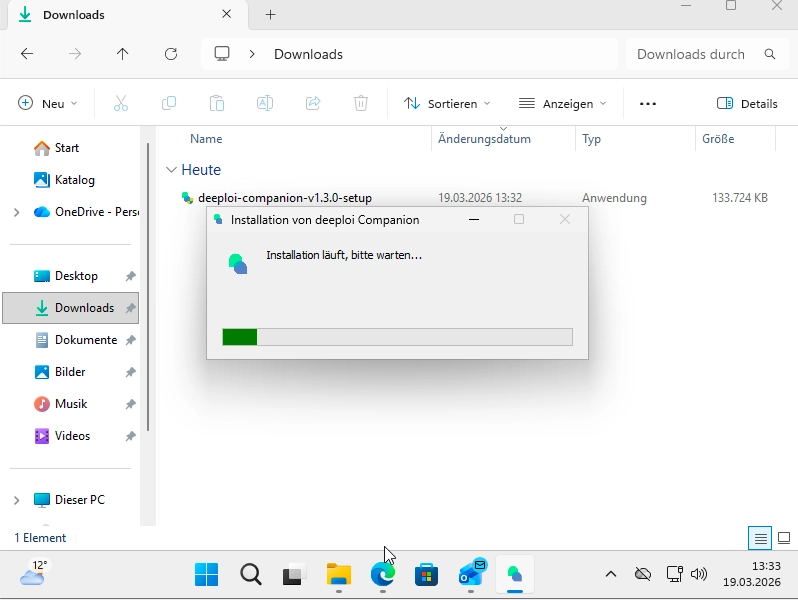
- The Companion installs automatically. Wait for it to finish.
- Once installation completes, the deeploi Companion opens automatically and starts the registration. If it does not open, look for the green and blue deeploi icon in your taskbar at the bottom of your screen and click it.
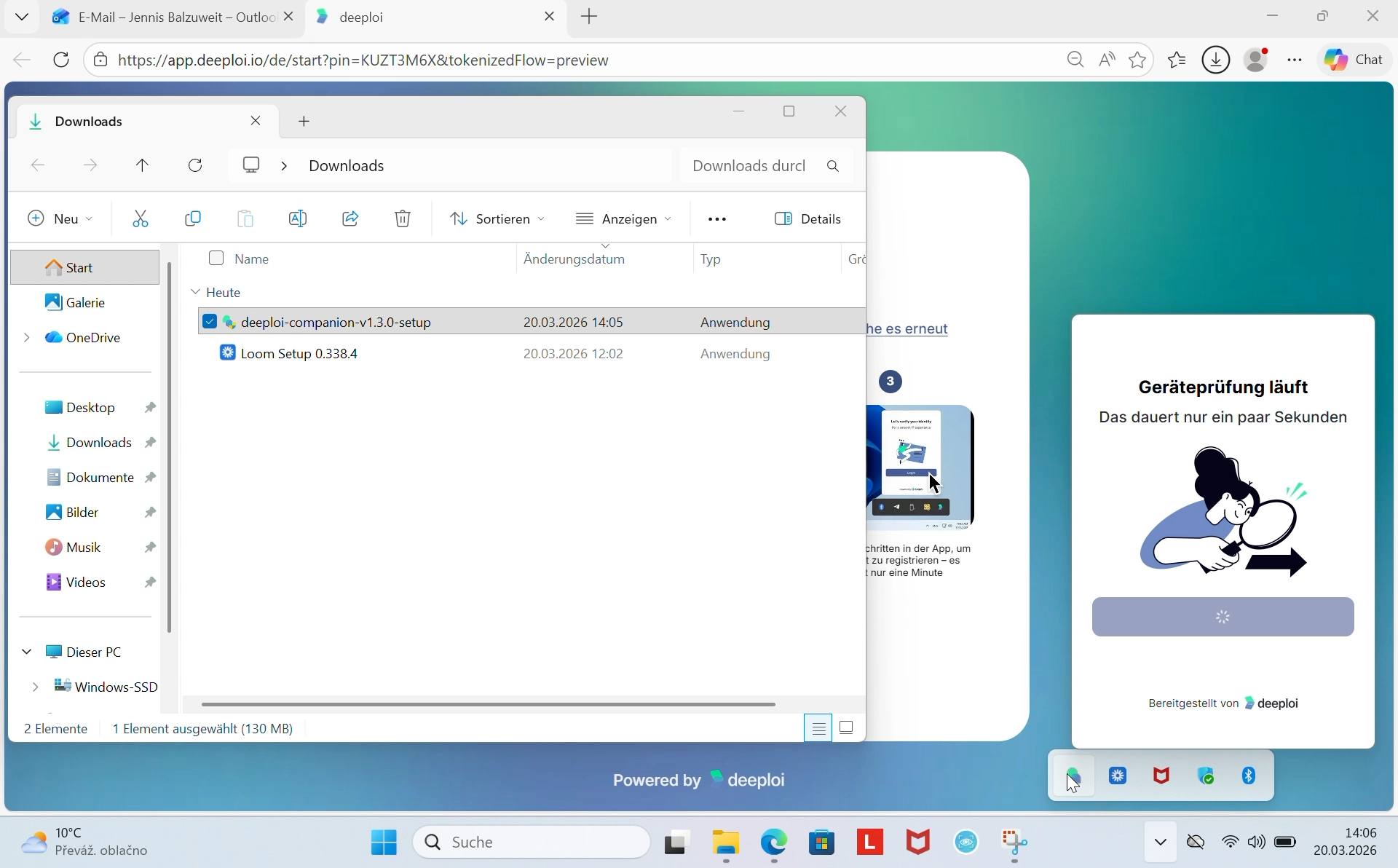
- Once your device has been verified, registration is complete.
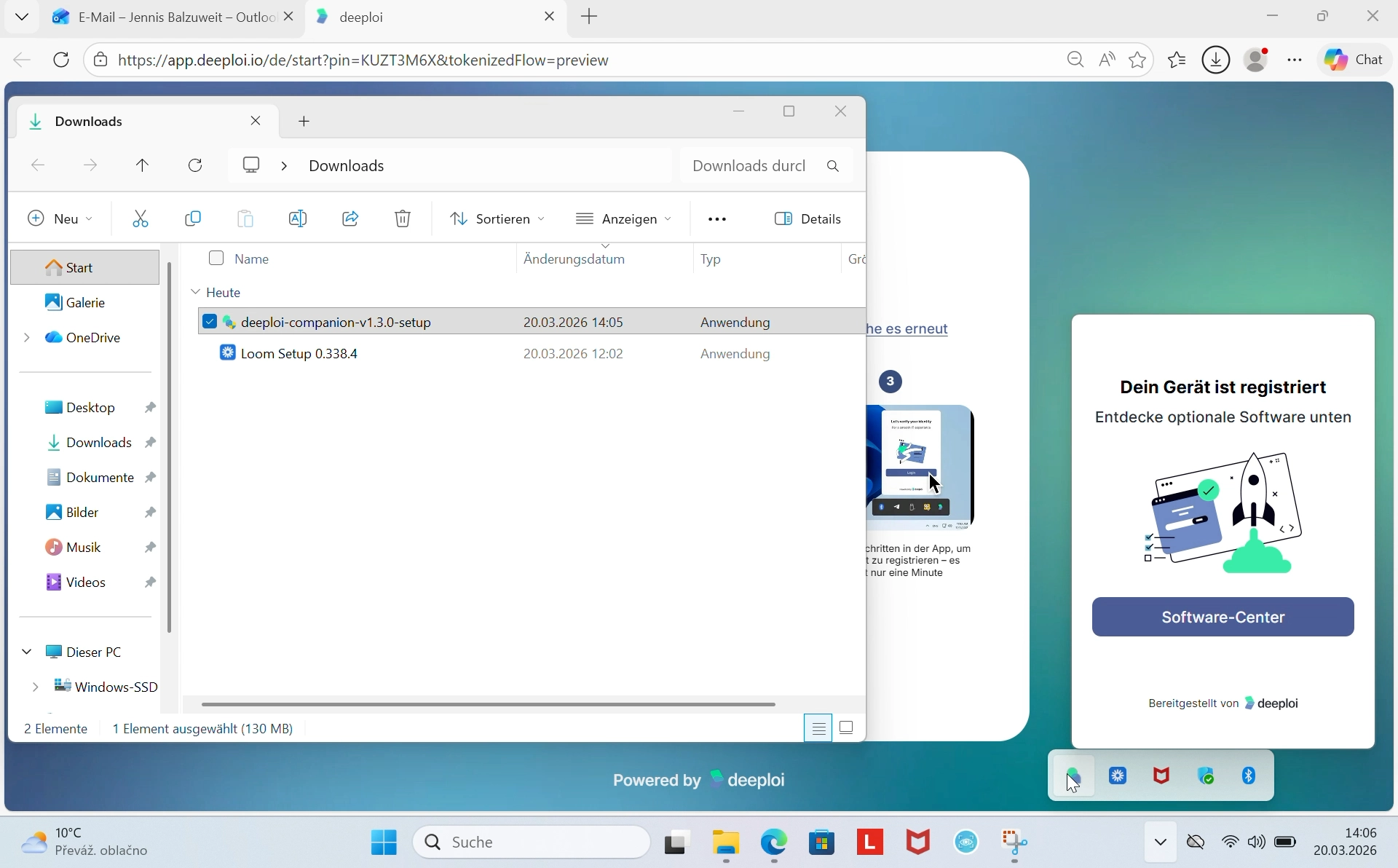
Your device is now connected to deeploi and ready for work.