

How do I connect my MacBook to deeploi?
Connecting your MacBook to deeploi installs your company's apps and security settings. Which path you follow depends on whether you are new to the company or already part of the team.
For new employees
This path applies to brand new or reset devices provided by your company. You register the device while you go through the macOS setup assistant.
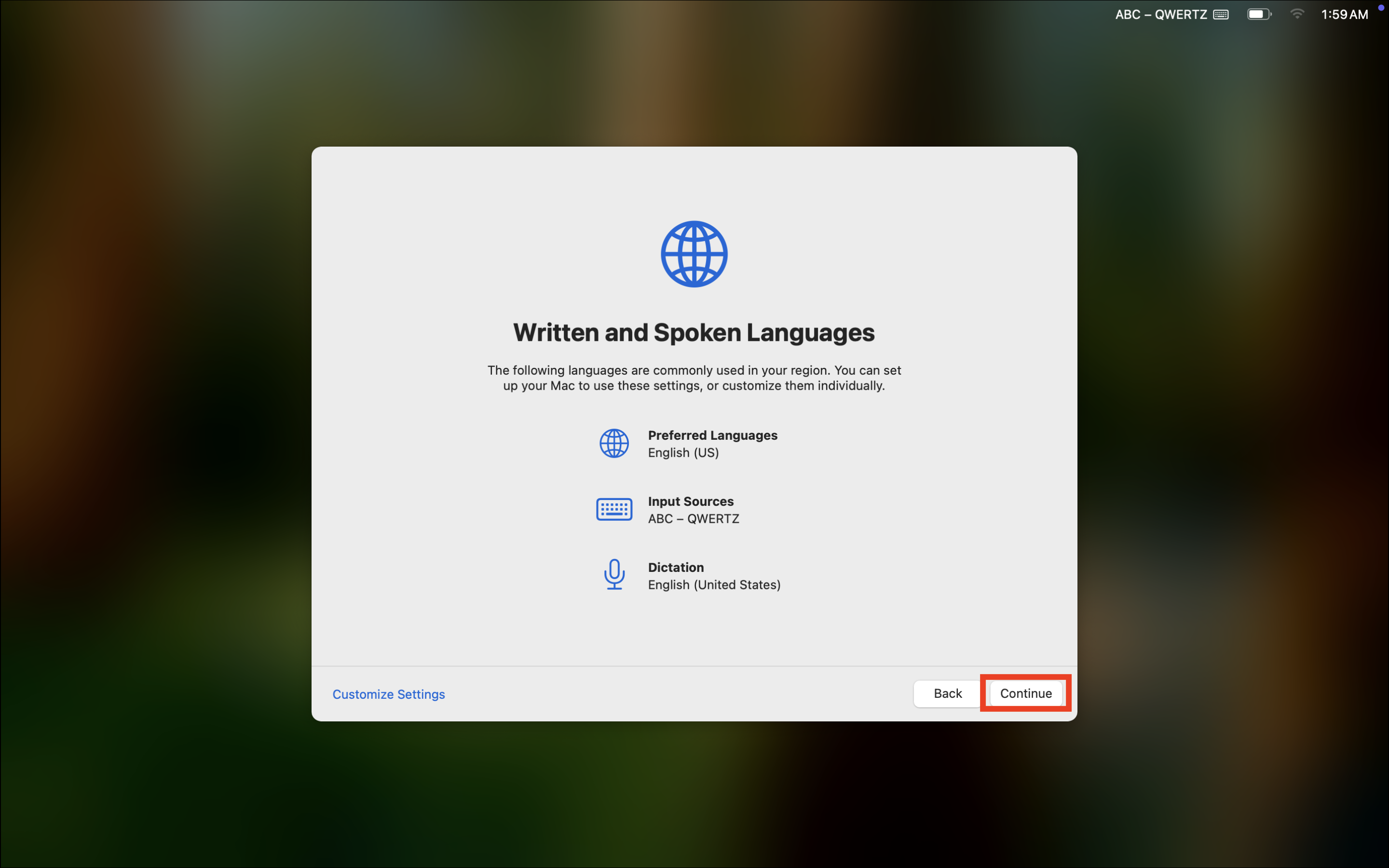
- Choose the country or region where you are located and the language you want to use.
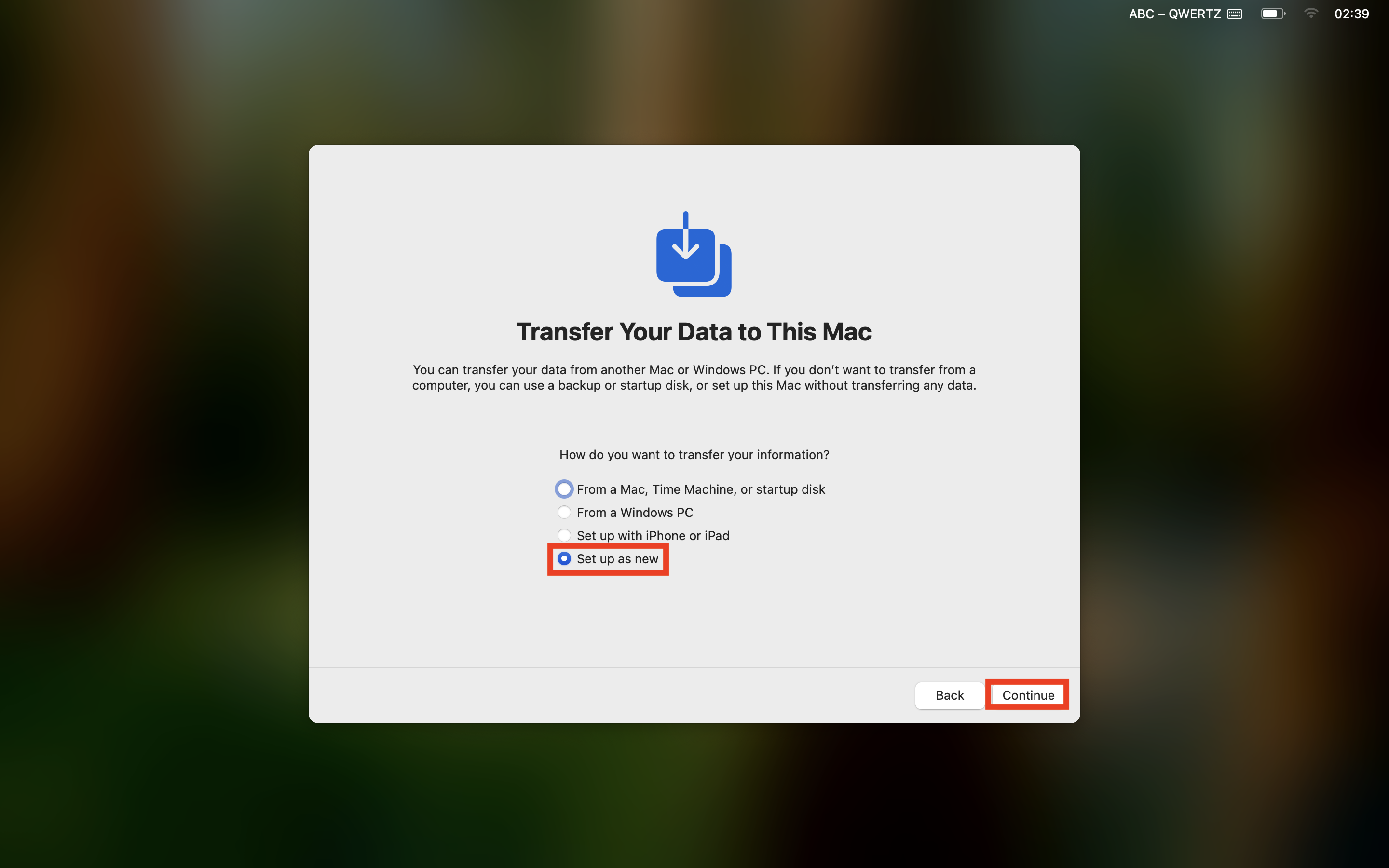
- When asked to transfer your data, set up your device as new.
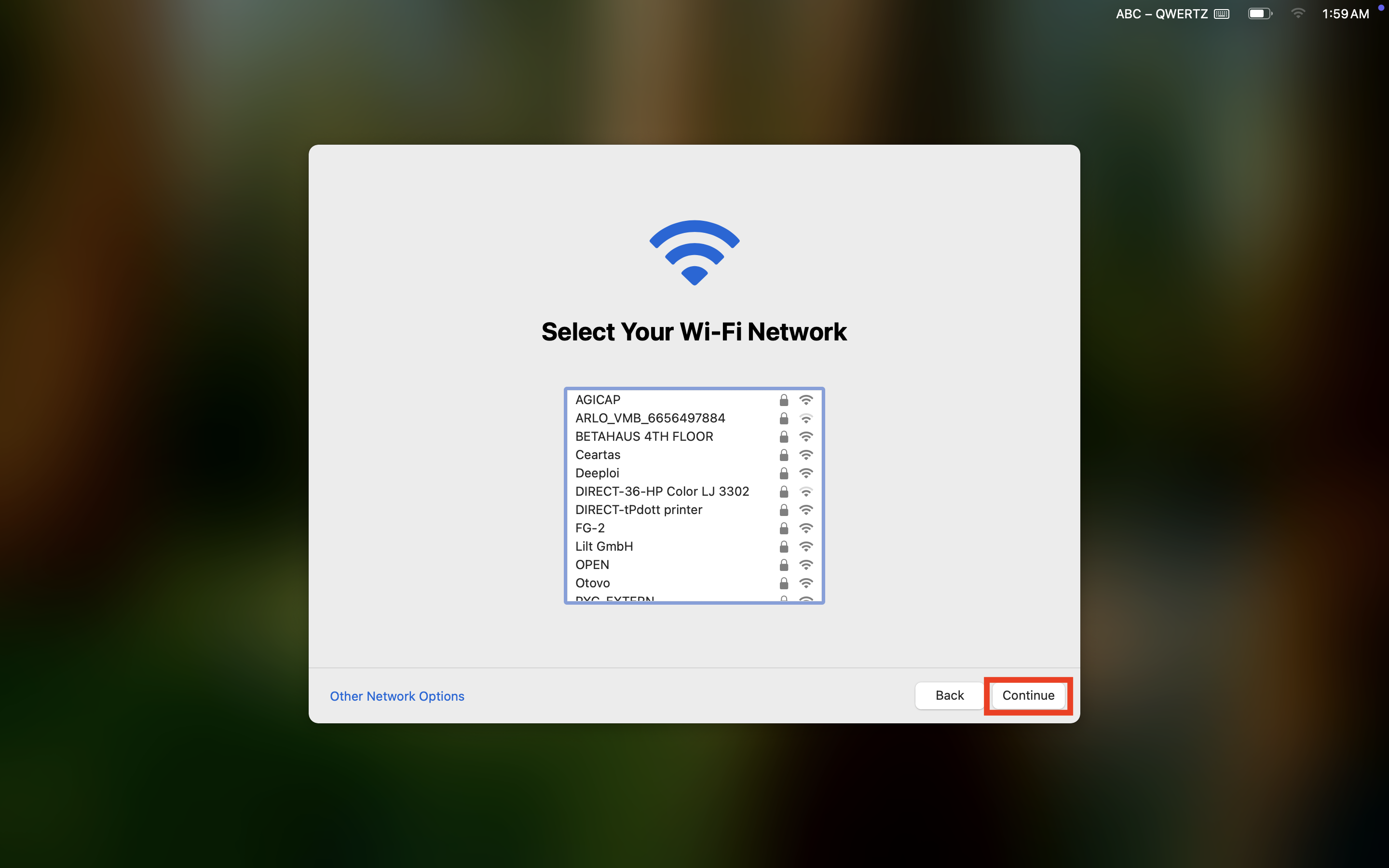
- Select your Wi-Fi network and enter the password.
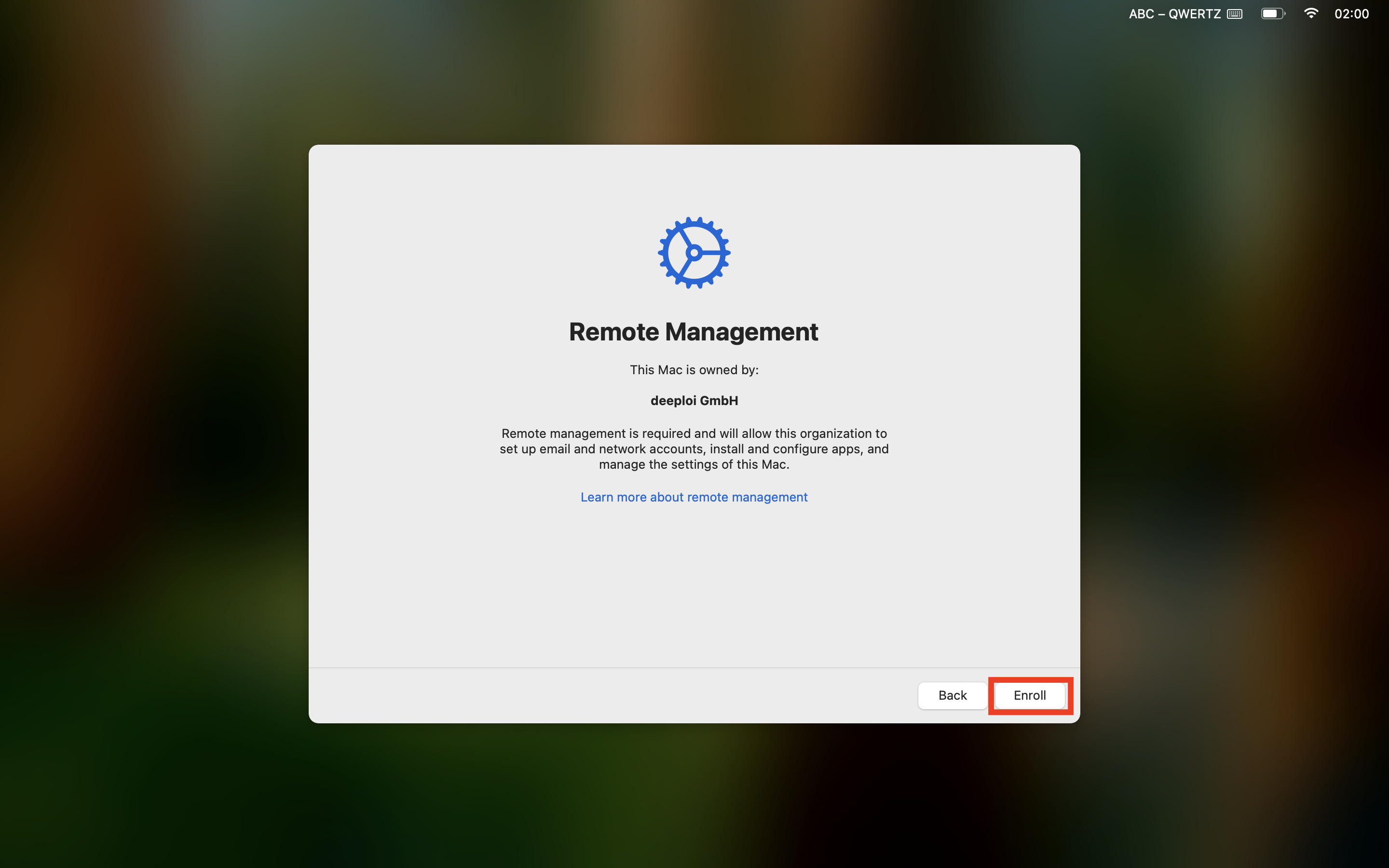
- On the Remote Management screen, click Enroll.
If this screen does not appear, complete the rest of the macOS setup first, then follow the steps under For existing employees.
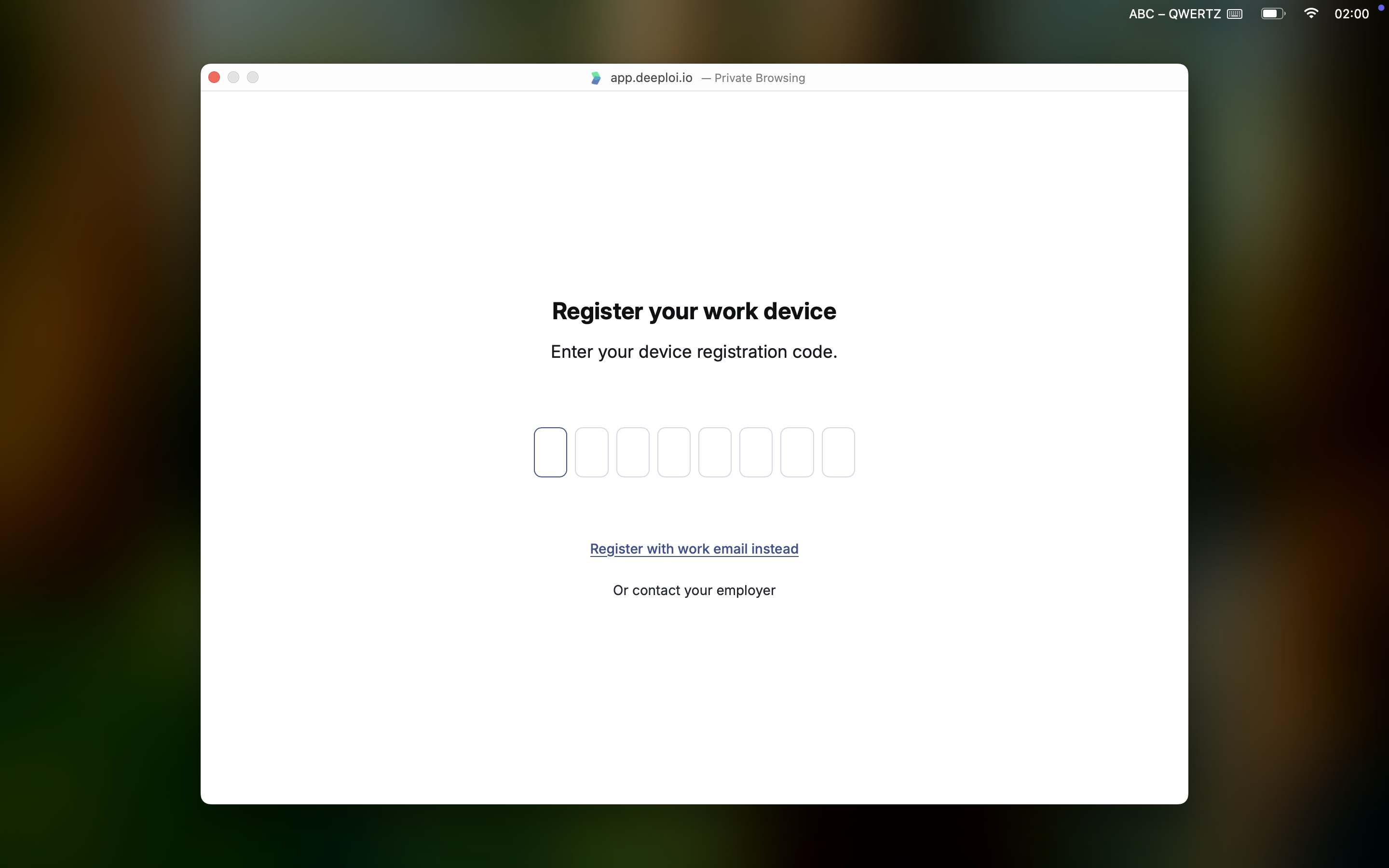
- Open the deeploi registration email on another device (your phone or another computer). It is sent to your personal email address with the subject "Required COMPANY device registration". You will find your personal registration code inside. You can also ask your IT admin for the code.
- Enter the code in the field shown on screen. Your company profile will download and install automatically.
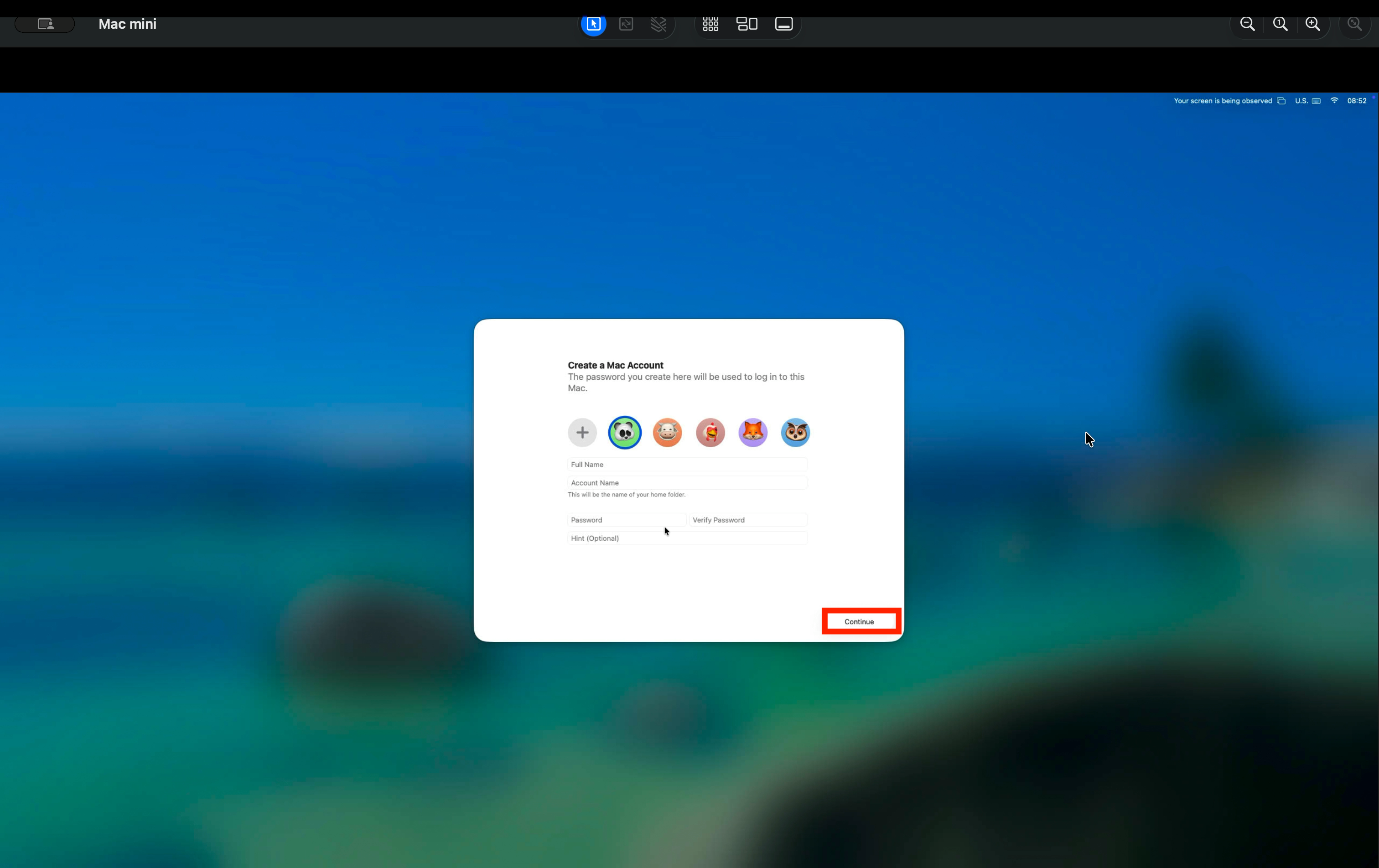
- Create your Mac account: enter your full name, your preferred account name, and a password, then click Continue. You use this password every time you log in to your MacBook.
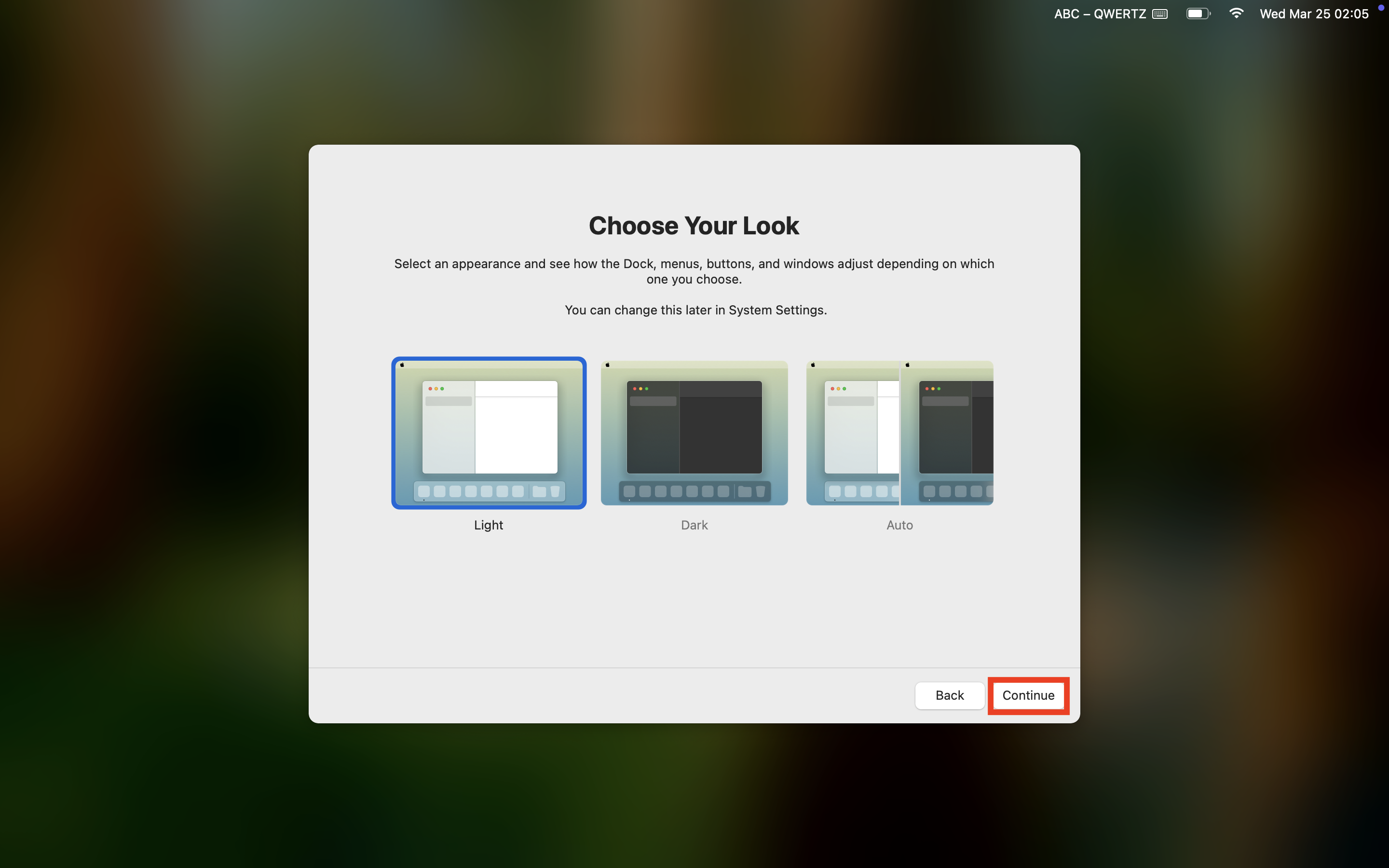
- Continue through the remaining setup screens:
- Select your time zone.
- Set up Apple Intelligence, or click Set Up Later to skip.
- Click Continue on the FileVault disk encryption screen.
- Set up Touch ID, or click Set Up Later to skip.
- Choose your design.
- The deeploi Companion app launches automatically and begins installing.
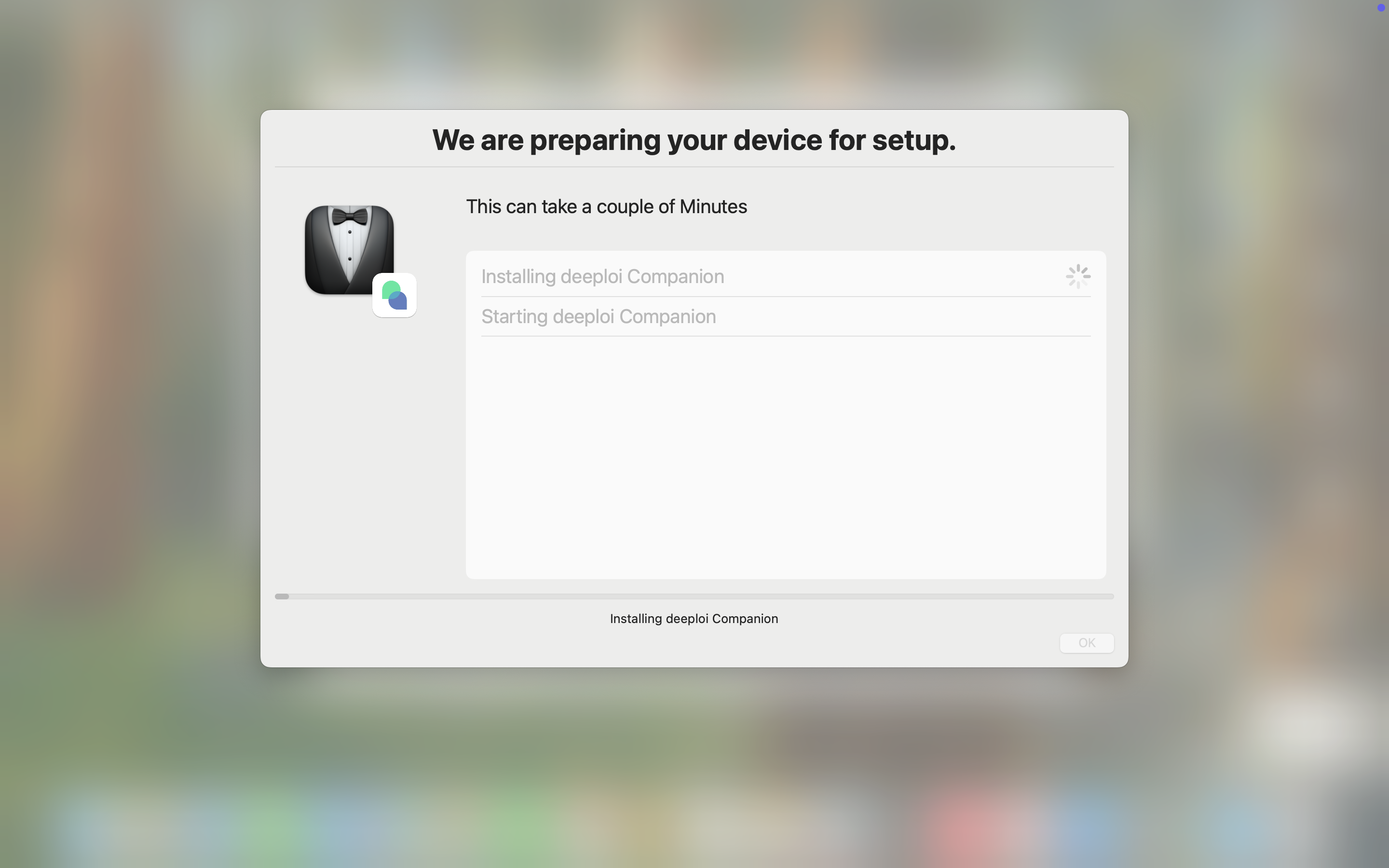
- Once installation finishes, click OK. Your apps will then install on your device.
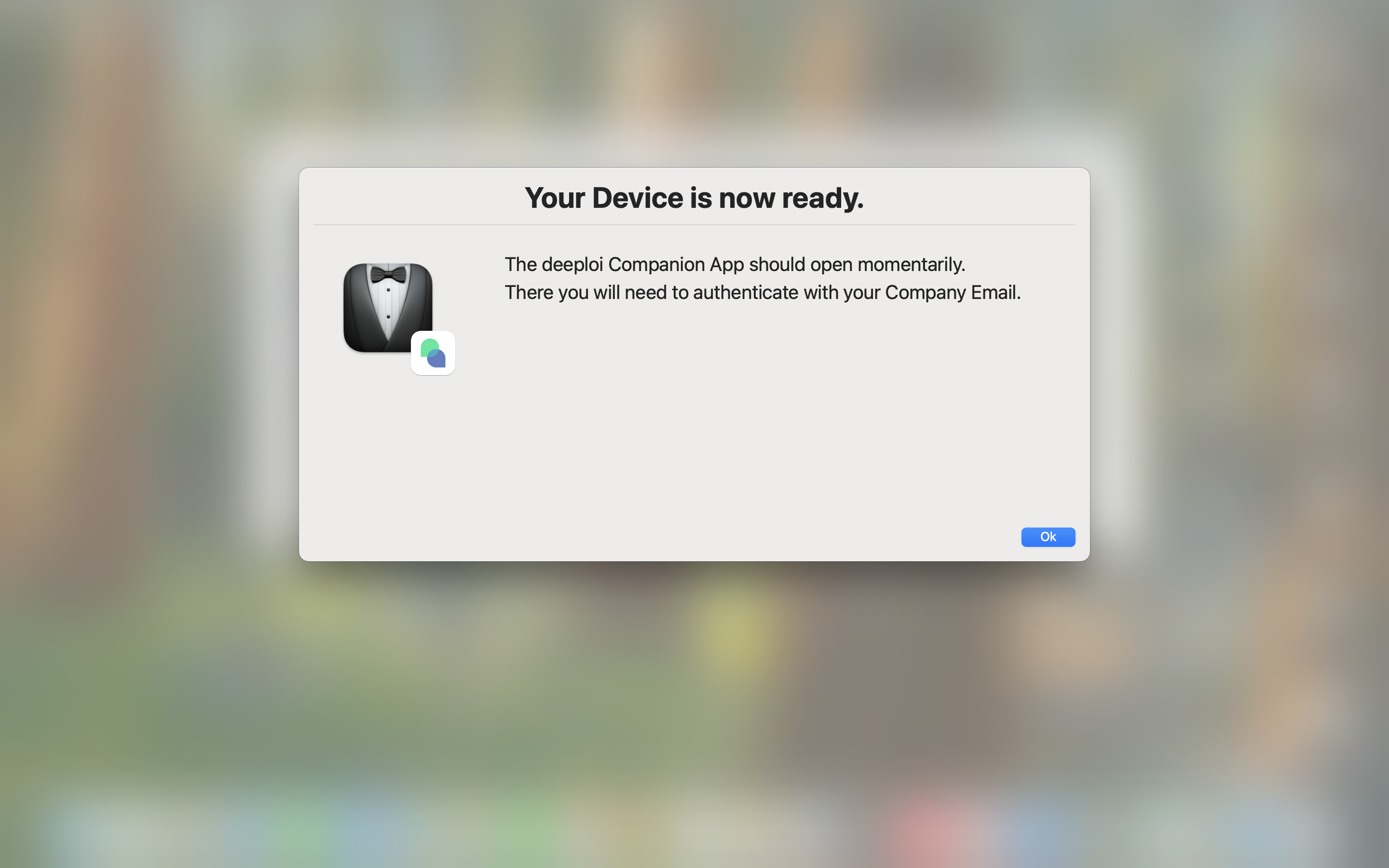
Important Keep your device on and connected to the internet until all apps have finished installing.
For existing employees
This path applies if your device is already set up, or if you did not see an enrollment screen during initial setup.
- Log in to your work email via Safari — for example, mail.google.com or outlook.com. Your email credentials are in your deeploi welcome email, or you can get them from your employer.
- Find the email with the subject "Required COMPANY device registration". If you cannot find it, check your spam folder. If it is still missing, ask your IT admin to resend it.
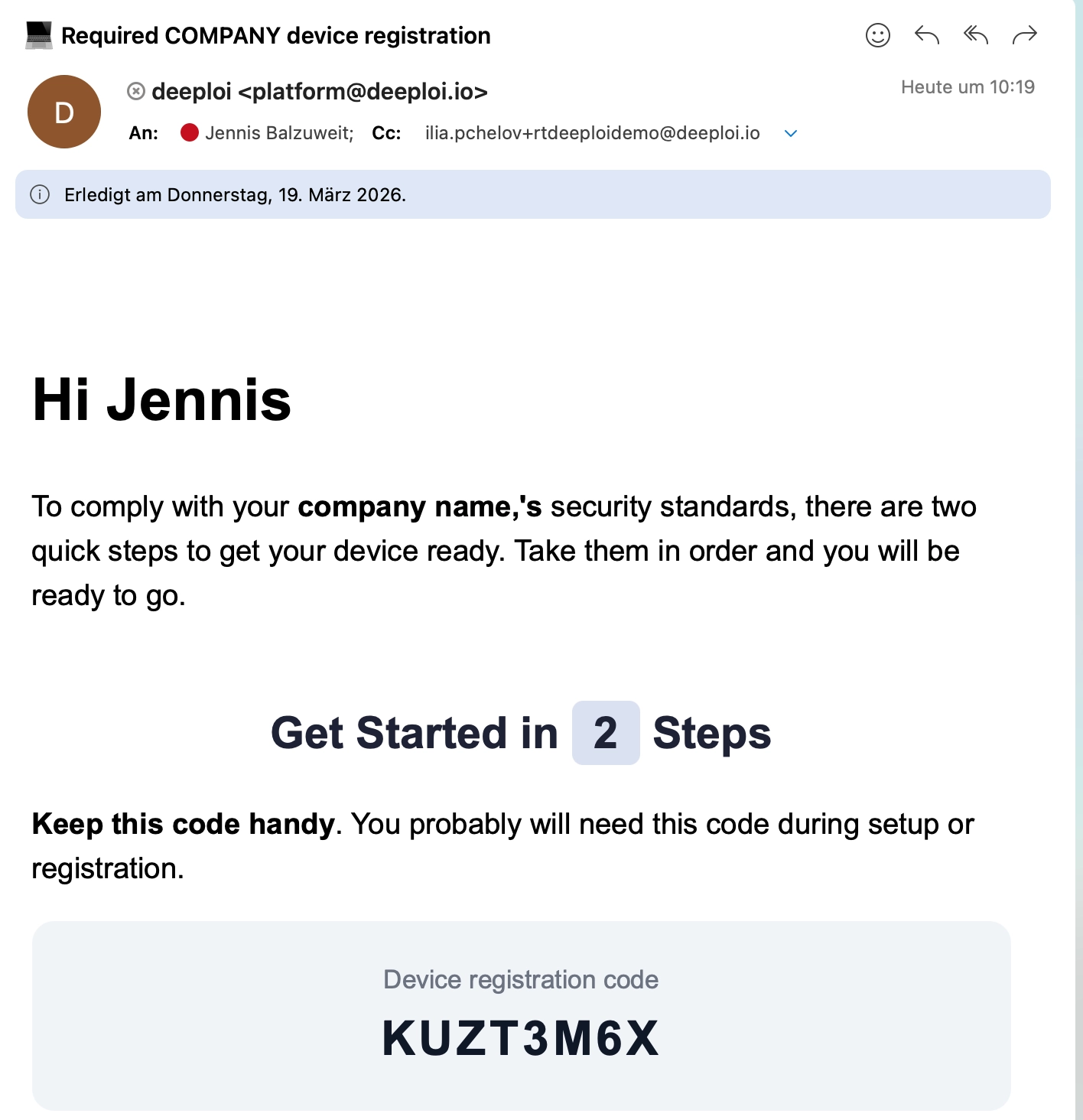
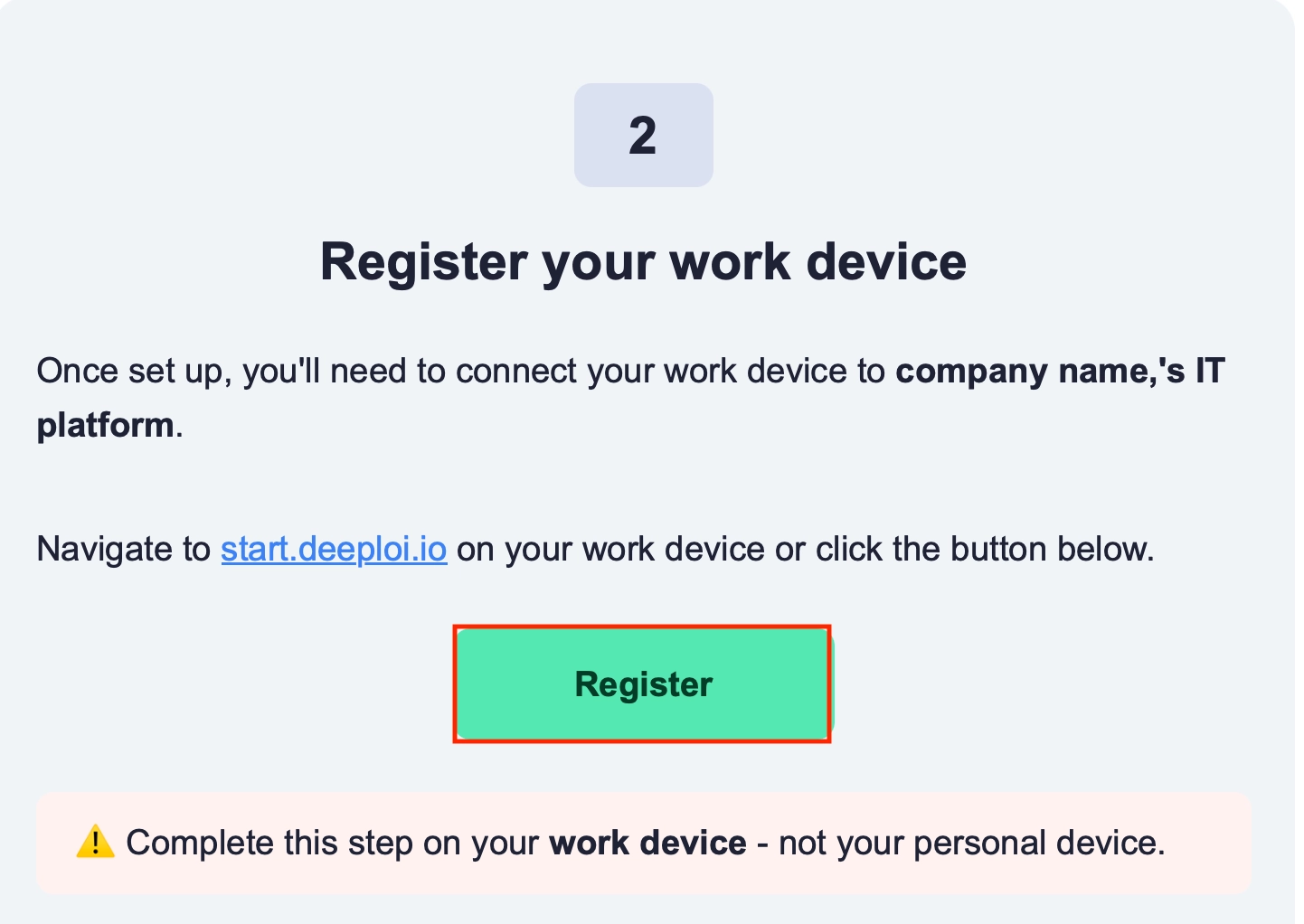
- Scroll down to the second section and click Register. Alternatively, go to start.deeploi.io on your MacBook and follow the steps shown.
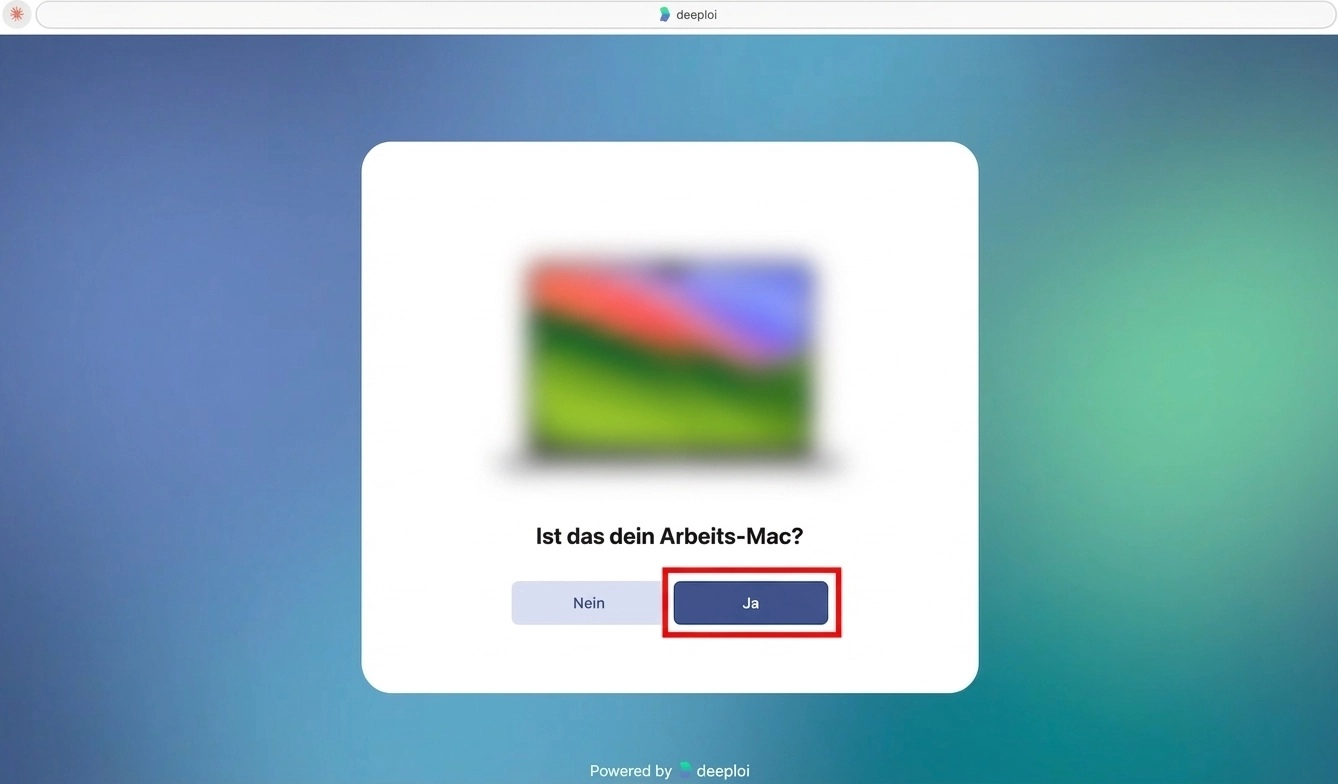
- Confirm this is your work device and click Yes.
Only connect your work device, never a personal device. Connecting a device installs company settings, provides visibility into installed apps, and enables actions such as a remote lock or reset. These actions can result in permanent loss of personal data.
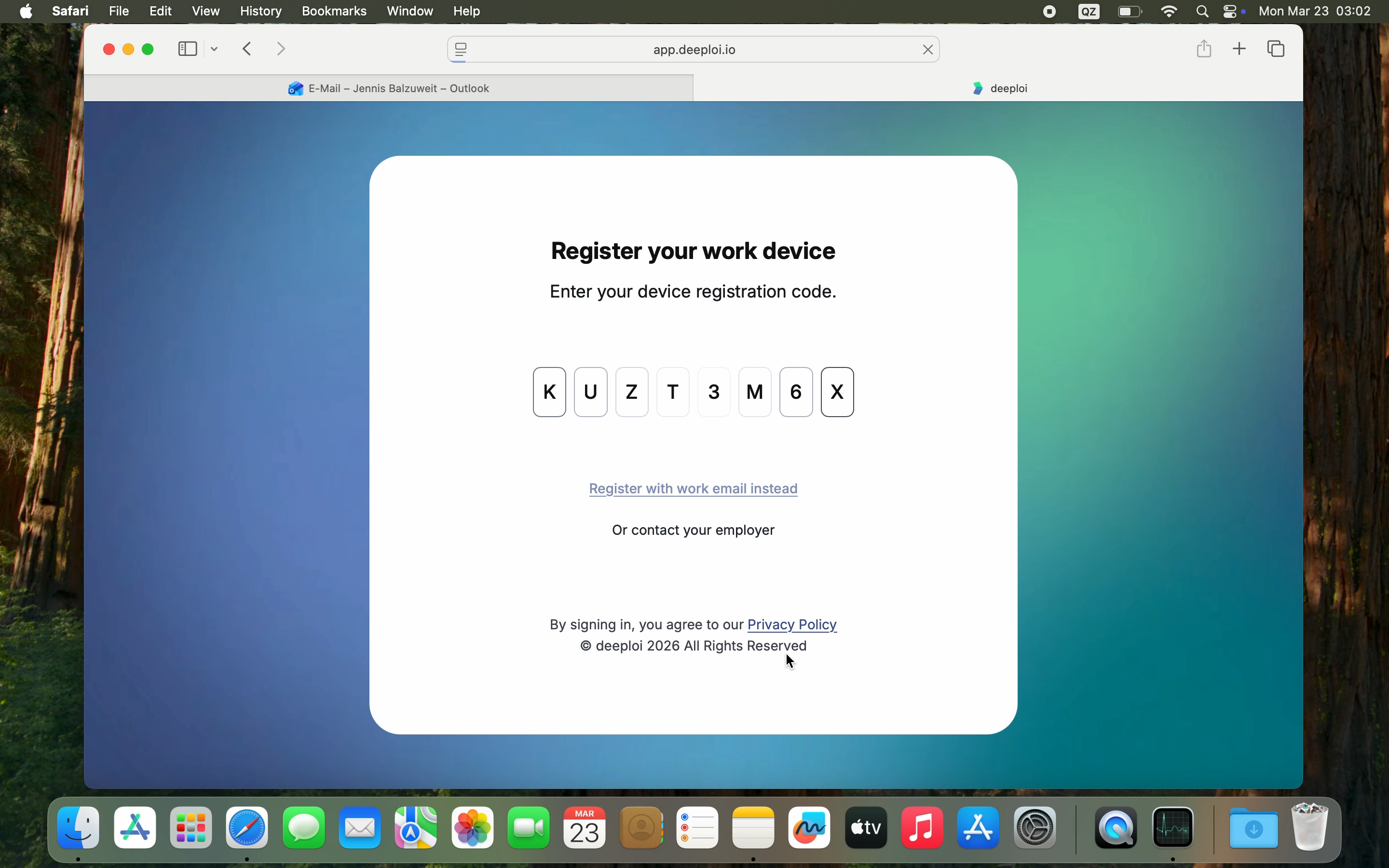
- The registration code from the email is filled in automatically.
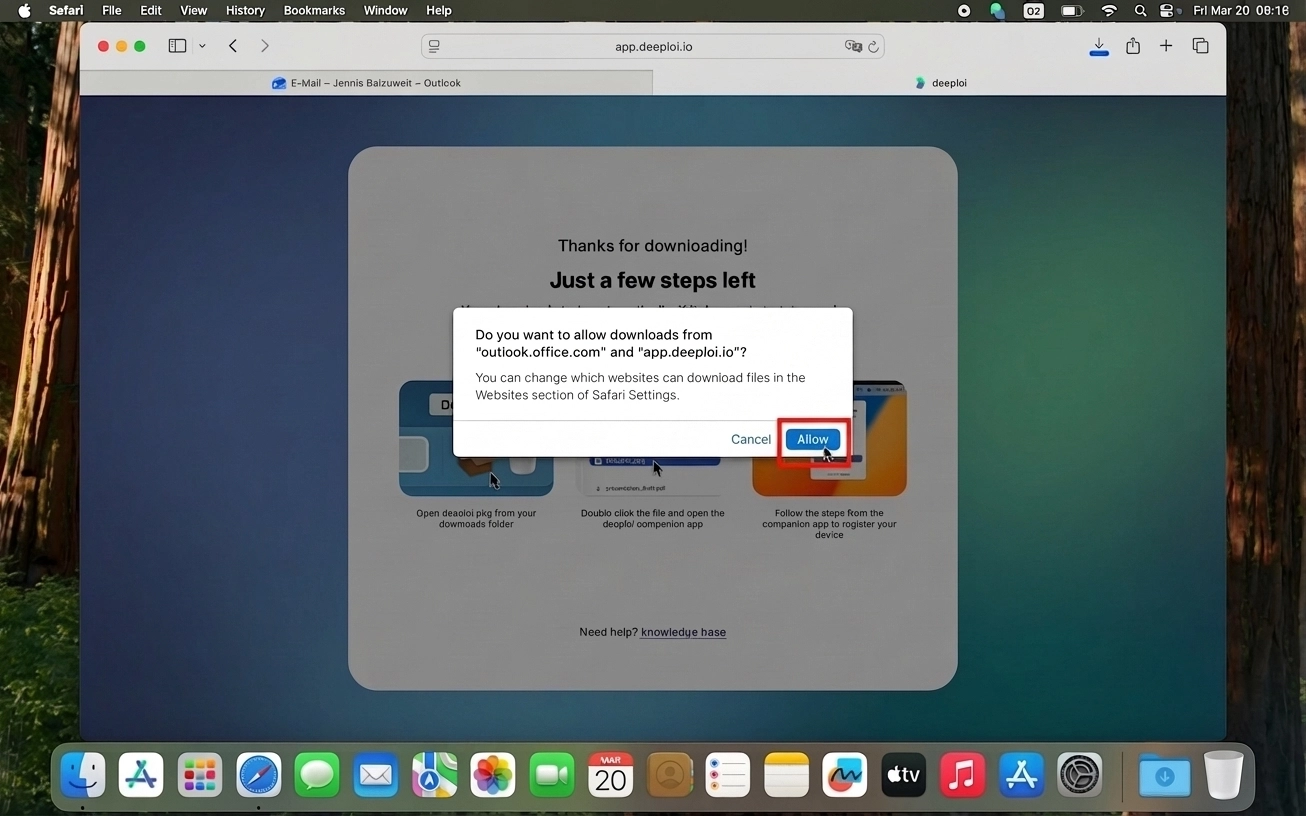
- Click Allow to start the download.
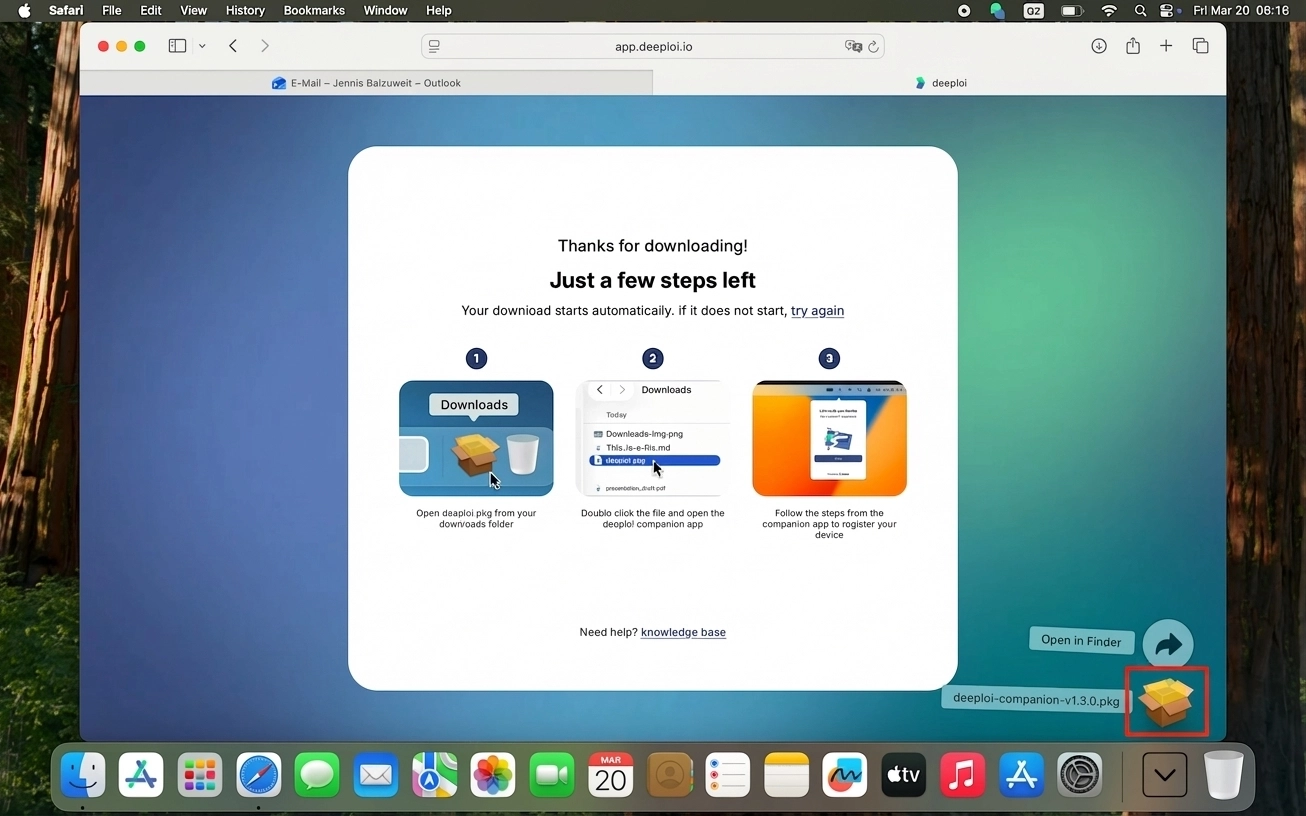
- Once the download completes, click the package icon to open the file.
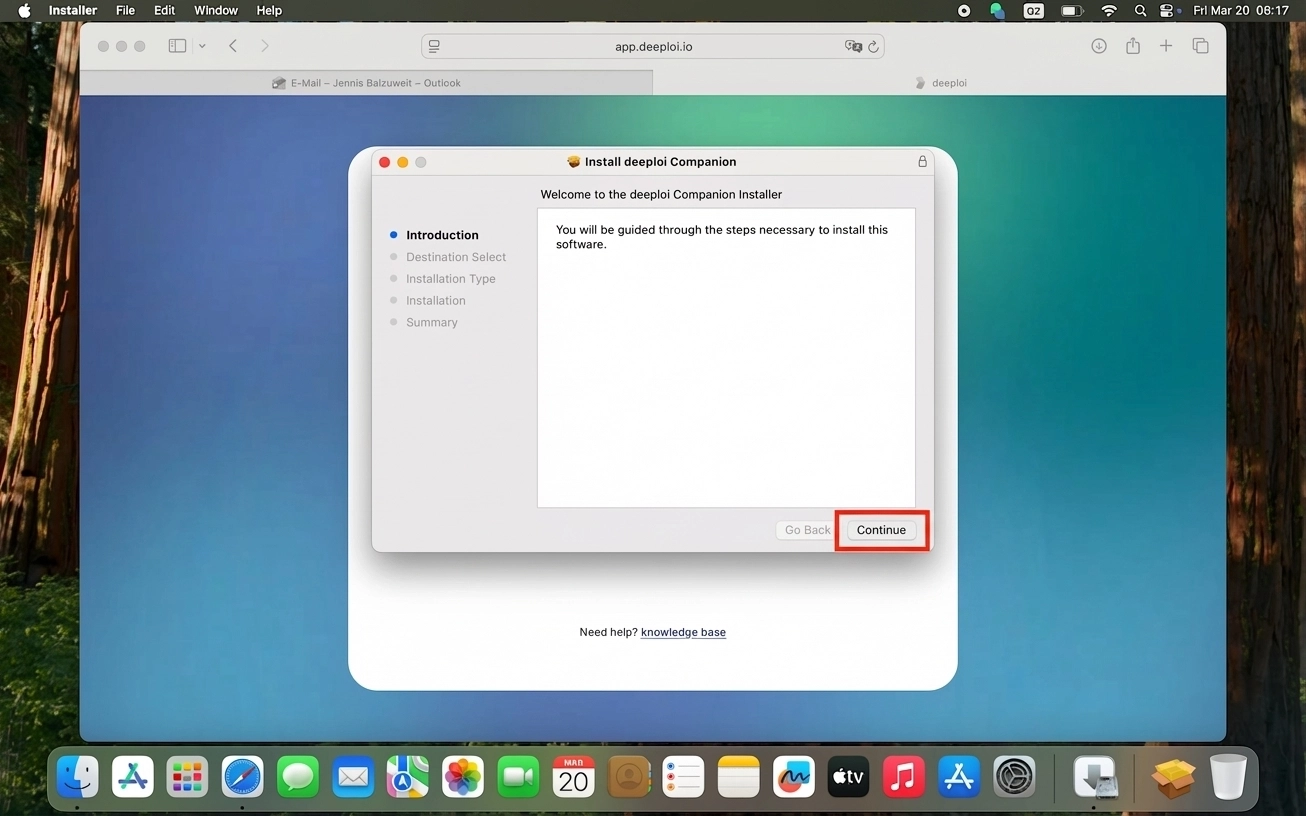
- Follow the installation assistant: click Continue, choose Install for all users of this computer and click Continue, then click Install.
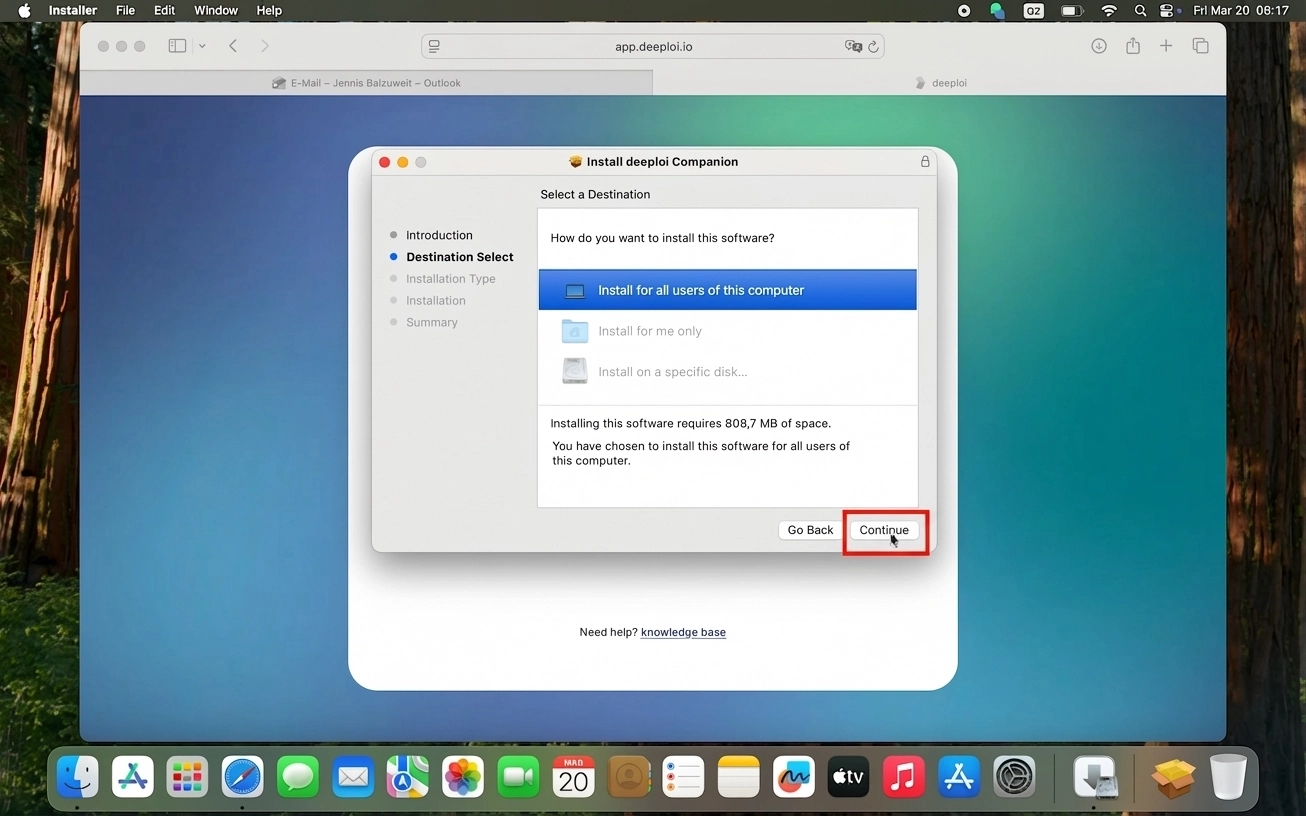
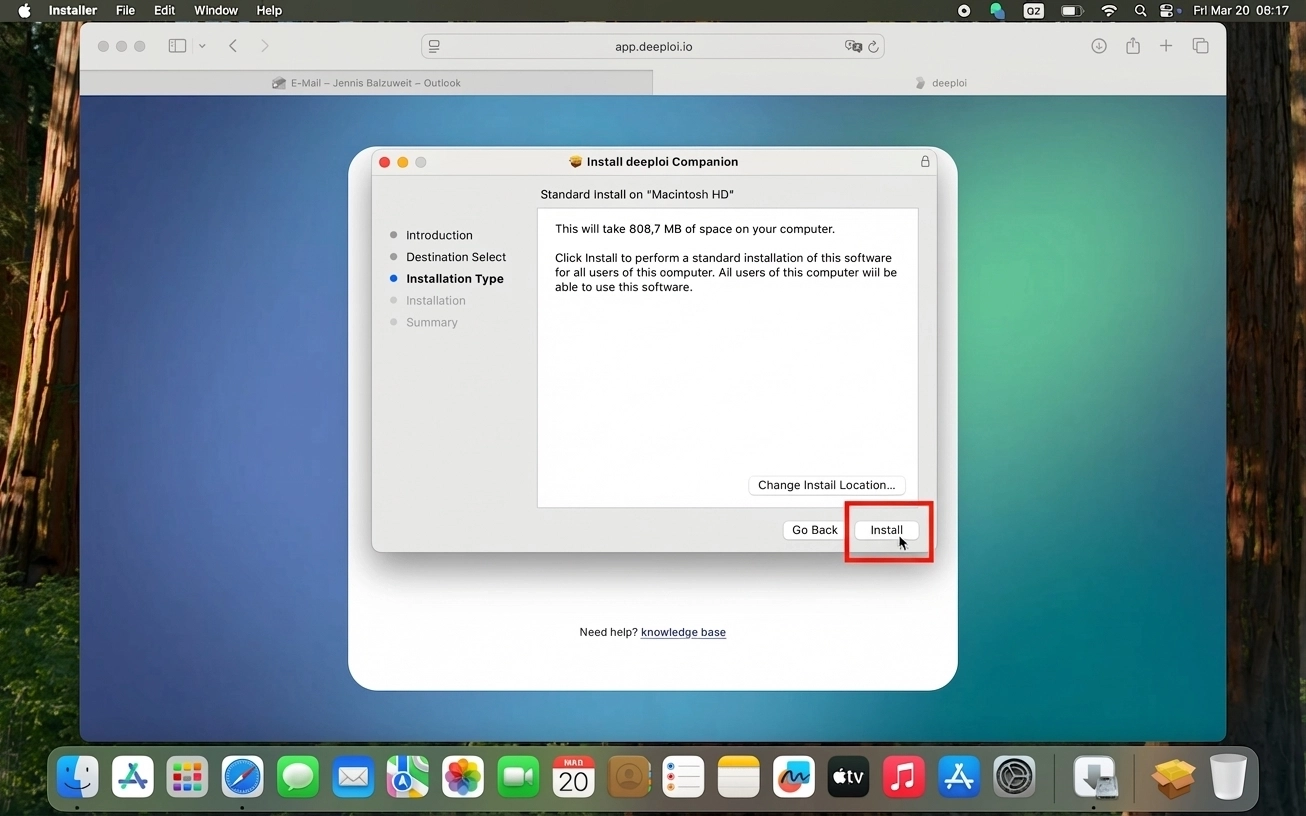
- When asked for credentials, enter your Mac account password to start the installation.
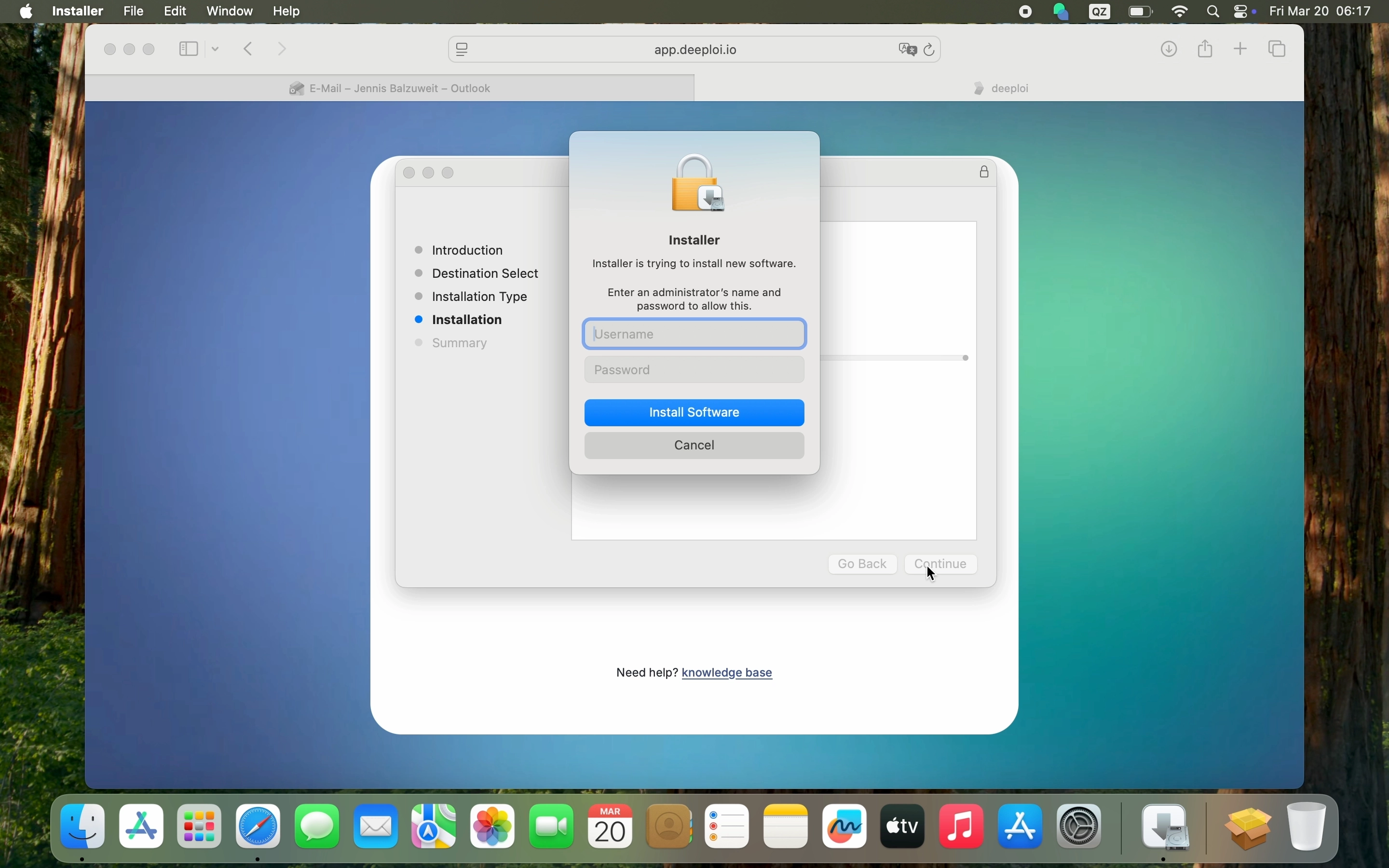
- Wait for the installation to complete, then click Close.
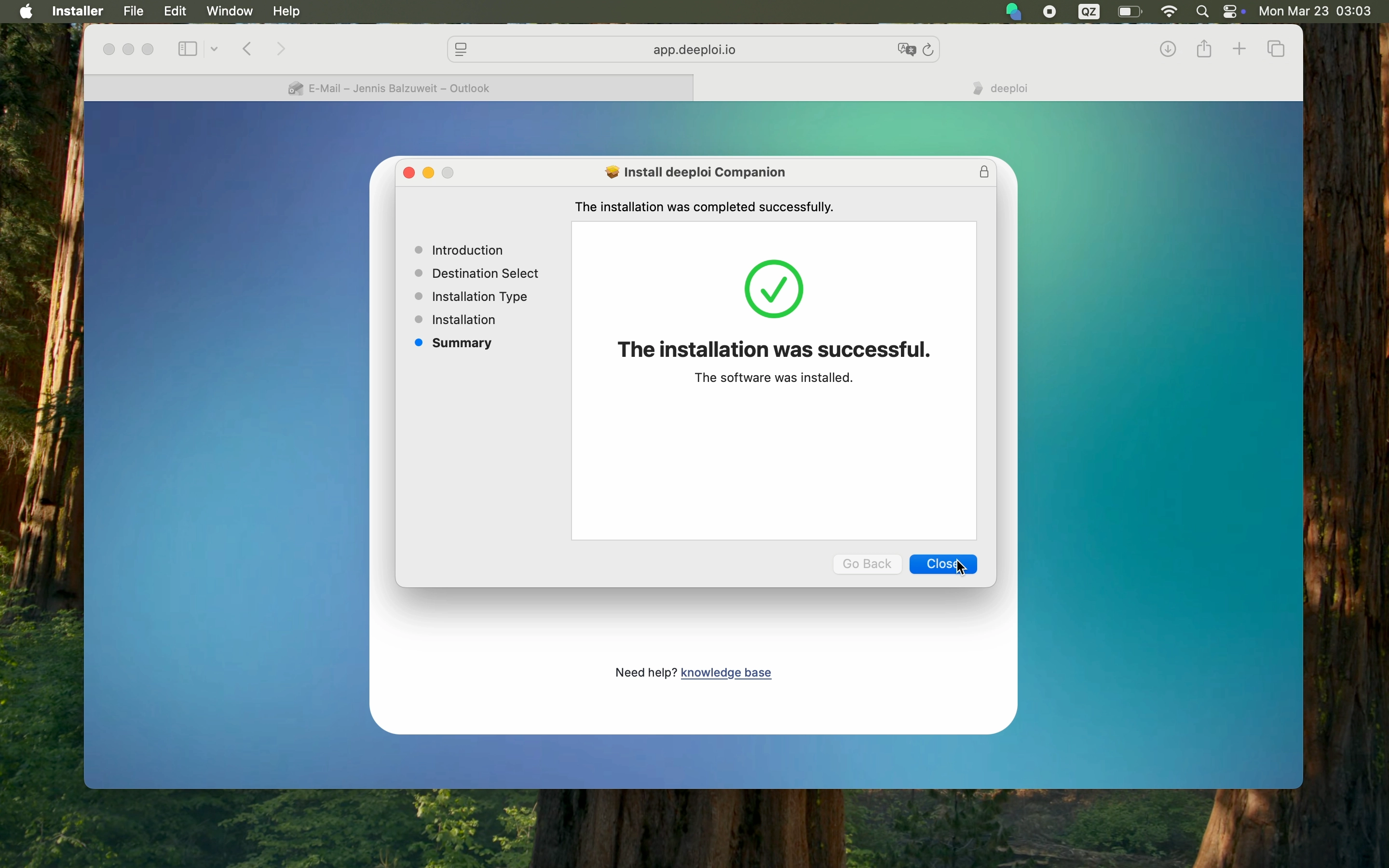
A confirmation appears that your device is registered.
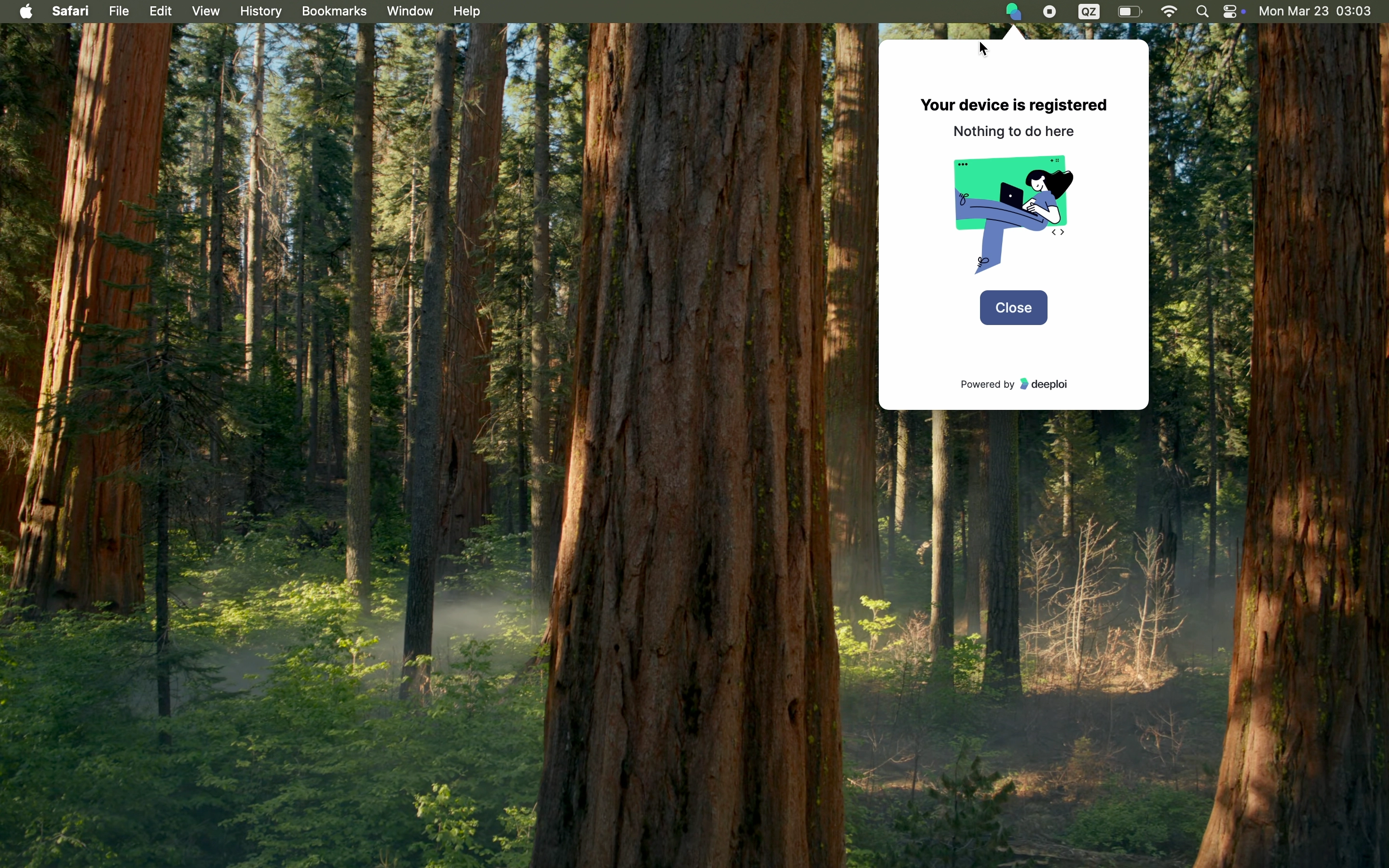
Your device is now connected to deeploi and ready for work.