

How do I install work apps on my iPhone or iPad?
Your work apps for iPhone and iPad are in Self-Service, an icon your company puts on your home screen. Tap Install next to the app you need, and it usually arrives within a few minutes. Self-Service only installs the work apps your company chose. It doesn't open your photos, messages or other apps.
Self-Service appears on work iPhones and iPads that are connected to deeploi and assigned to you. If you don't see the icon, ask your IT admin. Your company may not use Self-Service yet.
Install an App
- Open Self-Service on your home screen. It opens already signed in and shows the apps for this device.
- Find the app under Ready to install and tap Install.
- Keep your iPhone or iPad unlocked and connected to the internet. The app shows The install starts within a few minutes.
- If your iPhone or iPad asks you to sign in or approve the install, tap the message. The install can't finish without it. If your iPhone or iPad wasn't set up through Apple Business Manager, iOS asks you to confirm each install. On devices set up through Apple Business Manager, apps install without asking.
When the app is on your device, it moves to Ready to use with an Installed tag.
What Do the Sections Mean?
Self-Service sorts your apps into four sections:
| Section | What it means for you |
|---|---|
| Needs you | The app is waiting for you. A short line under the app says why, for example a message on your device you still need to tap. Tap Retry after you've done it. |
| Ready to install | The app is not on your device yet. Tap Install when you need it. |
| Ready to use | The app is installed. |
| Auto-install | Your company installs these apps for you. You don't need to do anything. |
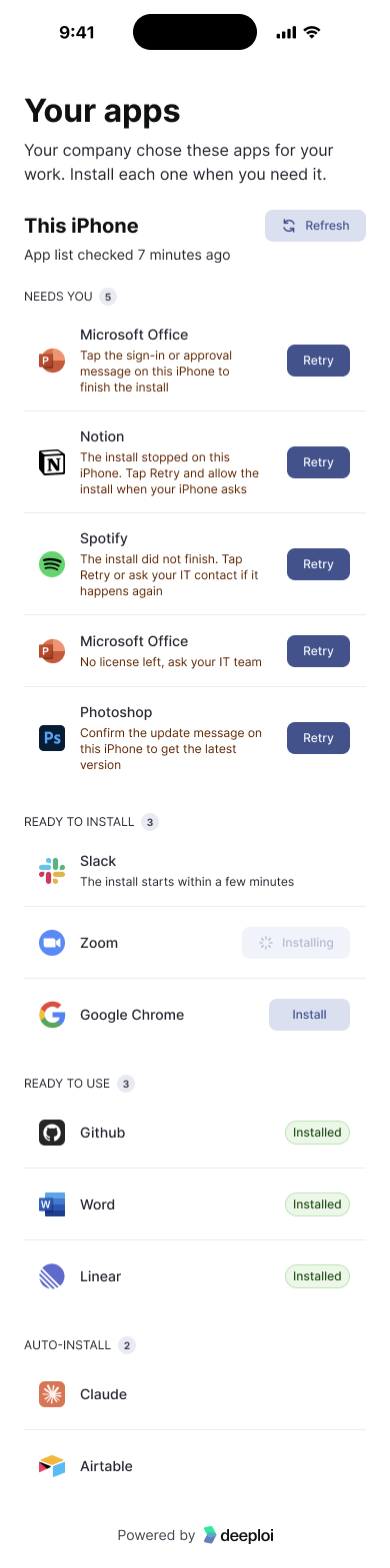
Tap Refresh to update the list after you install or delete an app. If you delete an app, it goes back to Ready to install, and you can install it again anytime.
You can also open Self-Service in a browser at app.deeploi.io/self-service. Sign in with your work email and the 6-digit code we send you.
Still stuck? Contact your IT admin or reach out to deeploi support.