

Bundles
A bundle is a set of apps you prepare for a group of employees. deeploi installs them on each device automatically and manages the accounts when people join or leave your company.
For example, your design team uses Figma. Every designer needs the Figma app on their laptop, and their own Figma login. A bundle handles both the app installation and the account creation for every employee assigned to it.
Important
Each employee can only belong to one bundle at a time. Assigning the same person to multiple bundles is not supported.
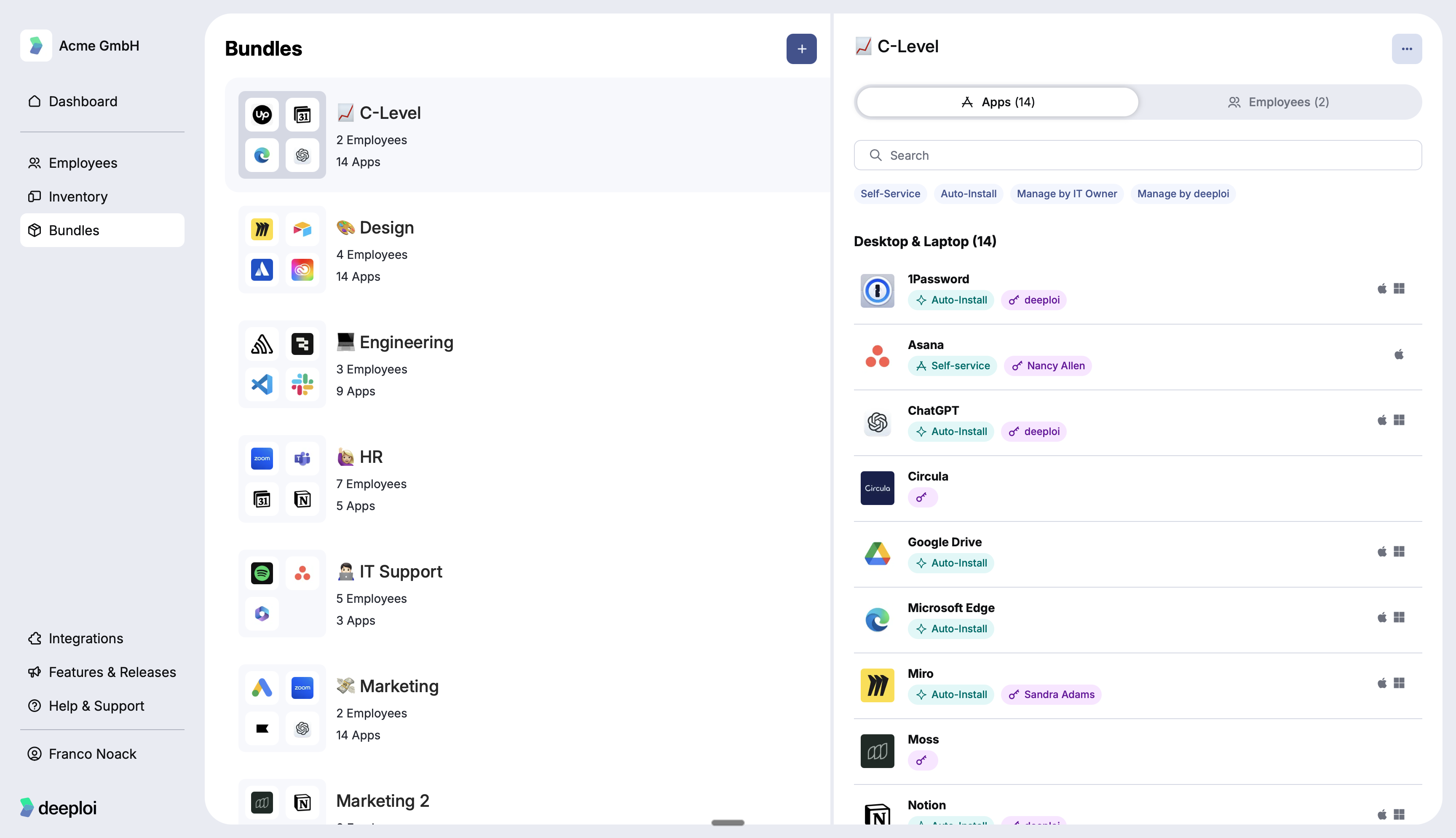
How to create a bundle?
In the dashboard, click Bundles in the left sidebar, then click + in the top right corner. You will go through five steps:
-
Choose a bundle type. This tells deeploi which of your team's devices to look at when suggesting apps. It does not decide who is in the bundle. Everyone looks at all your connected devices and works best when you are setting up deeploi for the first time. A Department looks only at that team's devices, so suggestions match what that team already uses. Custom skips suggestions entirely and starts with an empty list, for groups that don't fit a department.
-
Review and add apps. deeploi looks at the software already installed on those devices and suggests apps from its catalog. This only reads app names, nothing else. Accept the suggestions you want, remove the ones you don't, and use the search bar to add anything else. The categories on screen show only the most popular apps. Search by name to find the full catalog.
-
Set up each app. For every app in your bundle, you choose how it gets installed and who handles the employee's login for that app. You do this in the next section of this page.
-
Assign employees. Pick which employees this bundle applies to. You always do this manually, regardless of which bundle type you chose.
-
Click Create.
How to edit a bundle?
Select the bundle from the list, click ..., and choose Edit bundle. To duplicate a bundle, use the same menu. Duplication copies all apps and their settings, but not the assigned employees. You will need to reassign employees to the new bundle manually.
How to request an app that is not in the catalog?
Search for the app by name. If nothing comes up, click Request App. Requests are reviewed by the deeploi team and can take a few weeks. If you need several apps added at once, contact your customer success manager.
How to set up apps and accounts?
When you click Add next to an app in the catalog, a settings panel opens. You make two choices for every app: how it gets installed on the device, and who manages the employee's login for that app.
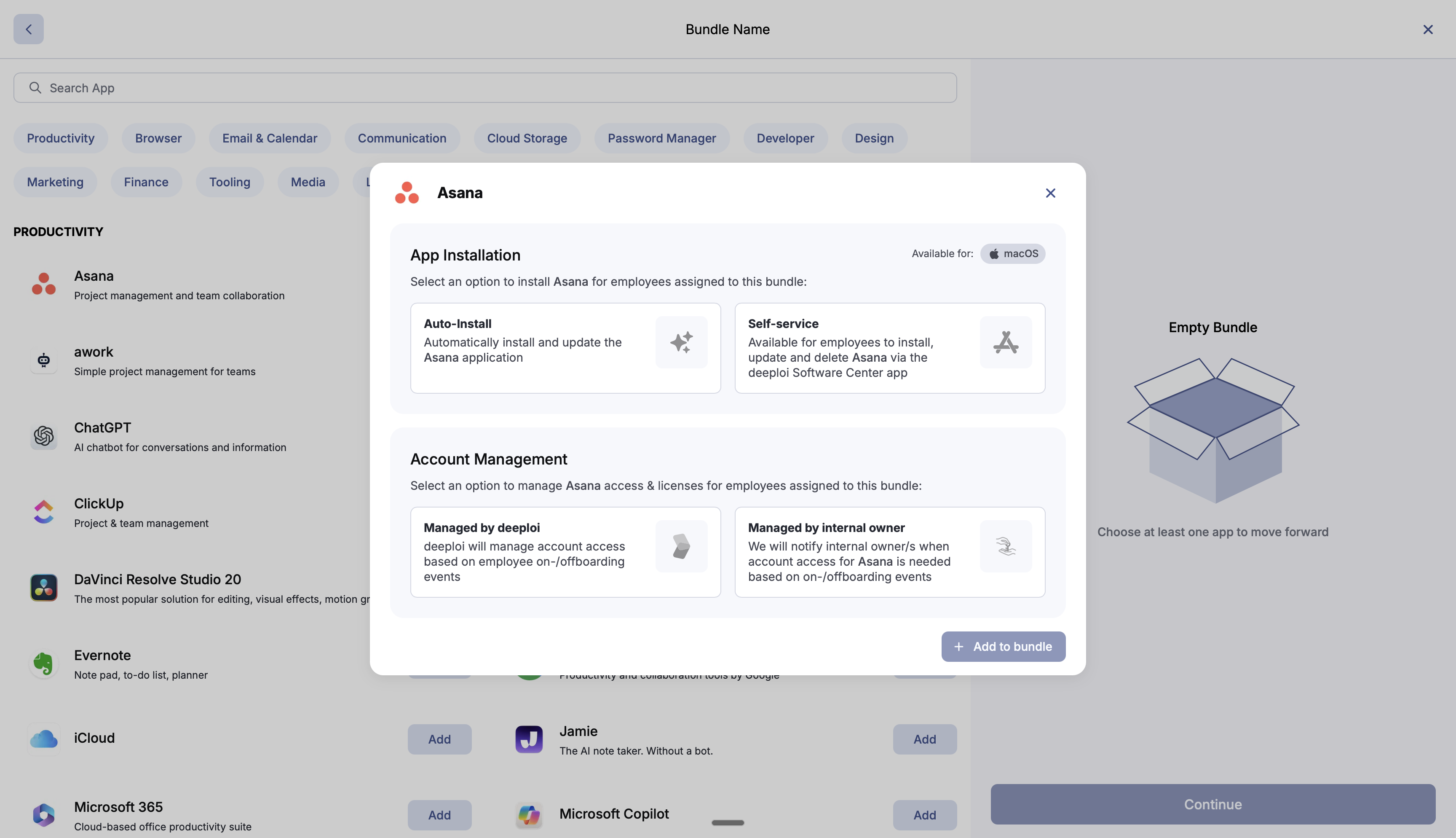
App Installation
Choose how the app arrives on the employee's device. The panel also shows which platforms the app supports: macOS, Windows, iOS, or iPad. deeploi does not support Linux.
| Option | What happens | When to use it |
|---|---|---|
| Auto-Install | deeploi installs the app on the device as soon as the employee is registered. Nothing for the employee to do. Plan for 5 to 60 minutes depending on internet speed. | Apps every employee in this bundle needs ready on their first day. |
| Self-Service | The app appears in the deeploi Software Center, a list of apps you have made available for your team. The employee opens it and installs the app themselves when they need it. | Apps you want to offer but not require. |
Account Management
Choose who creates and removes the employee's login for this specific app when they join or leave your company.
| Option | What happens | What you need to set it up |
|---|---|---|
| Managed by deeploi | deeploi creates the employee's login in that app when they join, and removes their access when they leave. Nothing for you to do after setup. | You give deeploi admin access to that app once. This means adding a deeploi user as an admin inside the app, the same way you would add a team member. In Figma, for example, you invite a deeploi email address and give it admin permissions. |
| Managed by internal owner | deeploi sends an email to one or more people on your team when a login needs to be created or removed. That person takes the action. | Pick one or more people to receive these emails. A good choice when you haven't set up admin access yet, or when you prefer to handle account access yourself. |
Once you have set up an app, click Add to bundle to confirm it. Repeat for every app you want to include.
What if an app I need is not in the catalog?
Search for the app by name in the catalog. If nothing comes up, click Request App. The deeploi team reviews requests on a rolling basis. Adding a single app typically takes a few weeks. If you need several apps added at once, contact your customer success manager directly.