

Employees
Your employees need the right hardware, software, and accounts to do their job. Adding them to deeploi lets you make sure each person gets exactly what they need from day one: the right device, the right apps, and the right security settings, so they can focus on their work without worrying about IT.
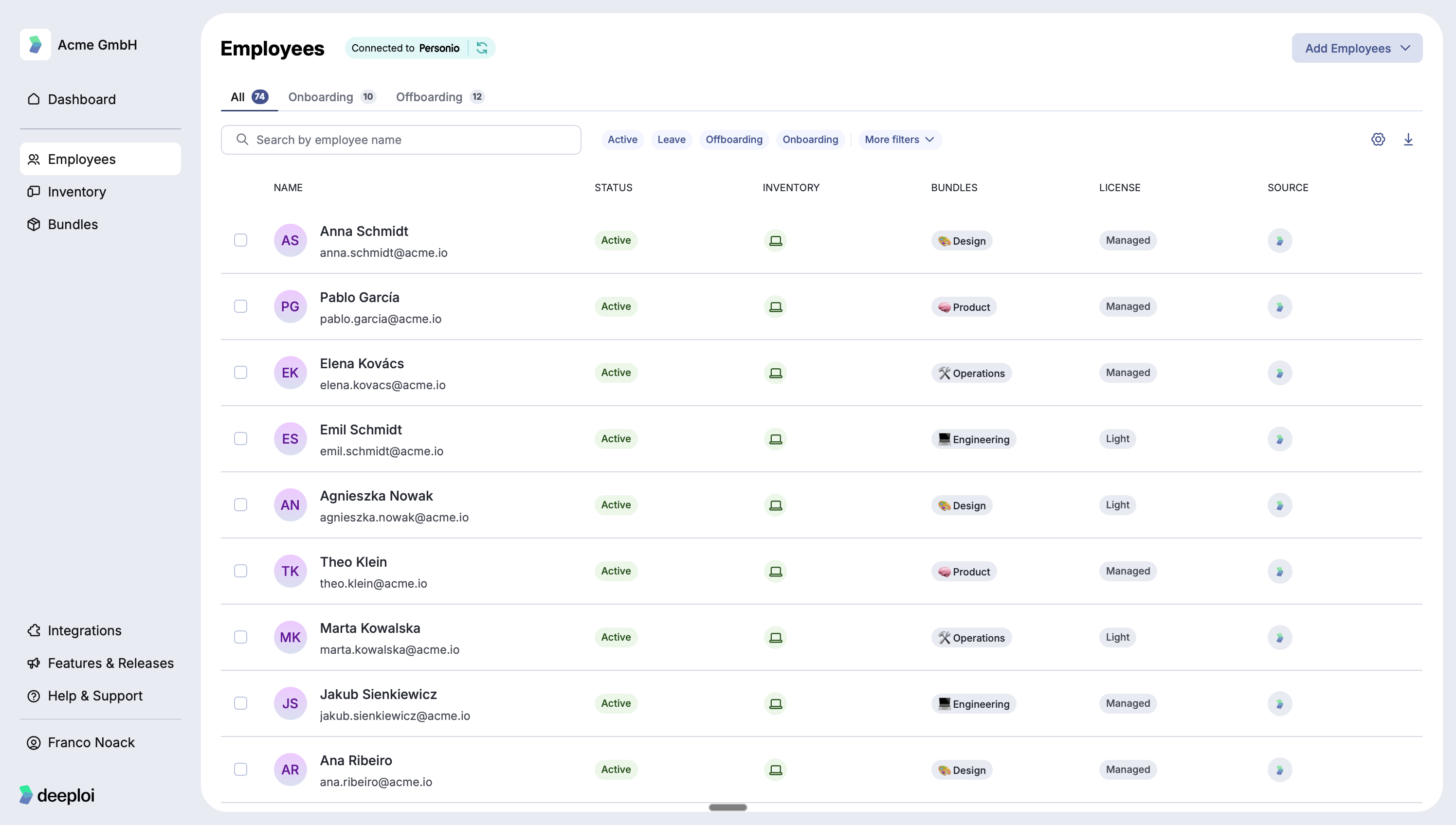
How to add/import employees?
| Method | How it works |
|---|---|
| HRIS Integration | Connect deeploi to your HRIS (for example, Personio) using an API key. You can set up filters to choose which employees are imported and which fields are shared. deeploi reads your HRIS data but cannot make any changes to it. If you need fields beyond what is included by default, contact IT support. |
| CSV Import | Go to Add Employees → CSV Import. deeploi provides a download template to help you structure your file. Required fields are first name, last name, and email. Any additional fields are optional. Employees can be edited directly in the deeploi platform anytime. |
| Add Manually | Go to Add Employees → Add Manually. Required fields are first name, last name, email, department, and first day of work. Employees can be edited directly in the deeploi platform anytime. See Add an employee manually for the full steps. |
What information is stored for each employee?
The Employees list has three tabs: All, Onboarding, and Offboarding. The Onboarding and Offboarding tabs show upcoming and running onboardings and offboardings with their progress. Select any employee in the list to open their detail panel.
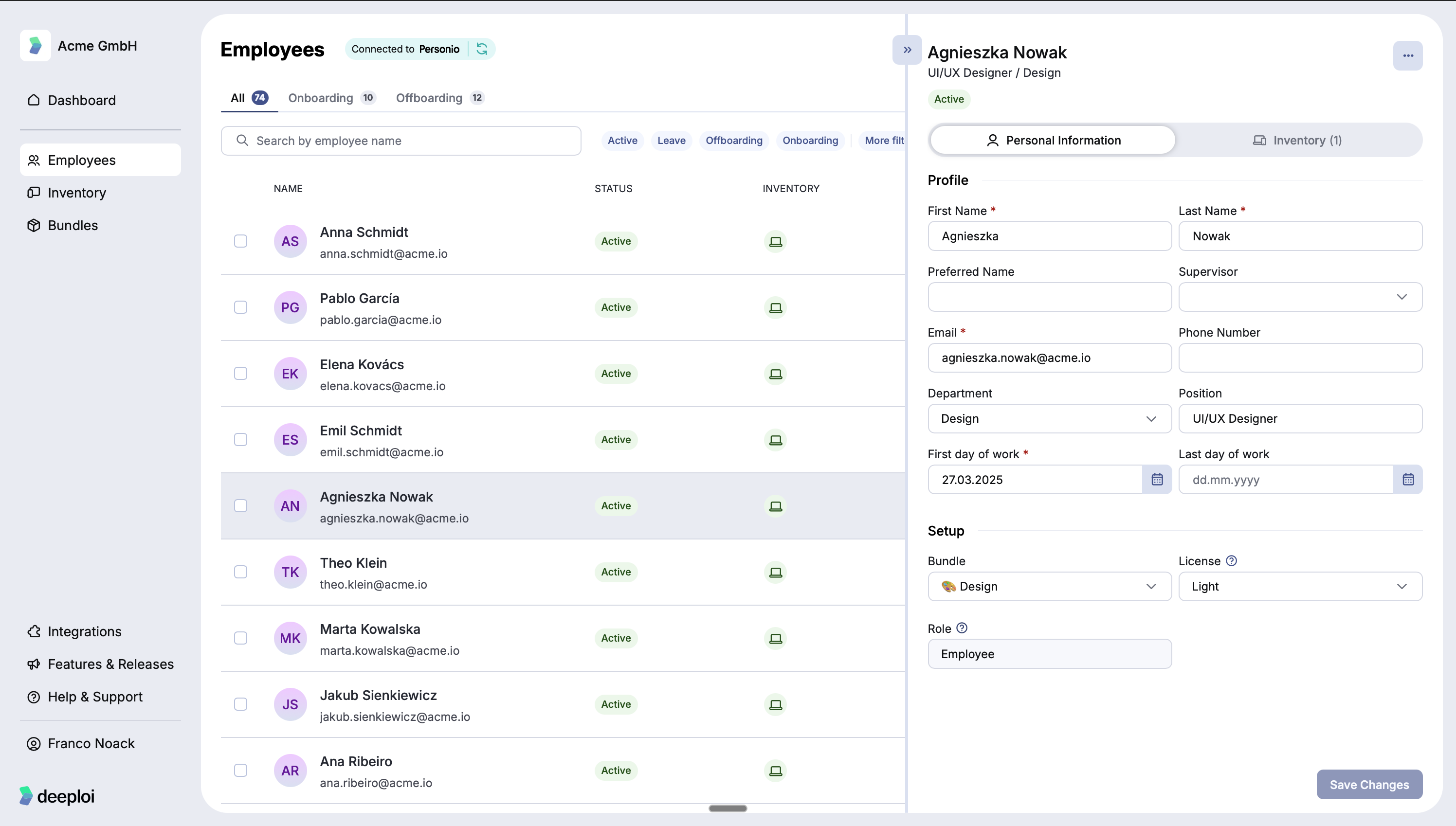
There are up to three tabs:
| Tab | What you see |
|---|---|
| Status | Only while an onboarding or offboarding is running. Each step of the onboarding or offboarding and whether it's done. |
| Personal Information | First name, last name, preferred name, supervisor, email, phone number, department, position, first day of work, last day of work, bundle, license, role, and workspace settings. |
| Inventory | All devices and peripherals currently assigned to that employee. |
What are the employee statuses?
Each employee in deeploi has a status that reflects where they are in their employment and whether deeploi is actively managing their device and software.
| Status | What it means | Billed |
|---|---|---|
| Active | The employee is actively managed by deeploi. Their device and software are set up and running. | ✓ |
| Onboarding | The employee has not yet started but their start date is confirmed. deeploi can already prepare their setup before day one. Billing starts on their first day. | ✗ |
| Offboarding | The employee is within 30 days of their last working day. On their last day, or on a date you select, deeploi removes their access and transfers data as requested. | ✓ |
| Leave | The employee is still employed but currently on sick leave or parental leave. This status is synced from the HRIS. Their deeploi management and billing are paused during this time. | ✗ |
| Inactive | The employee is no longer managed in deeploi and has no active license. Employees who complete offboarding are automatically set to inactive. | ✗ |
How do I change an employee's last working day?
If your HR system is connected to deeploi, change the date there. deeploi picks it up automatically. Otherwise, change it in the dashboard:
- Go to Employees and select the employee.
- Open the Personal Information tab.
- Change Last day of work. The date can't be before the first day of work.
- Click Save Changes.
A last working day in the past is allowed, for example when someone left before IT heard about it. The dashboard asks you to confirm first with Save a last day of work in the past?, because the employee becomes inactive right away and their license changes to Inactive by the end of the day. If the employee has access to the dashboard, they lose it too. Click Save to confirm.
If the employee already has an offboarding scheduled for a different date, the dashboard asks you to check it. Click Go to Offboarding to move the offboarding date, or Keep Offboarding Date to leave it as it is. If some offboarding steps have already run, the offboarding can't be edited anymore. Click Open Offboarding Ticket to ask deeploi to change the date.
What are the license types?
Each employee has one of three license types. The default view in the Employees list shows Managed and Light. To see Not Managed employees, add a filter.
| License | What it covers | Billed |
|---|---|---|
| Managed | Full device management, software installation, and IT support | ✓ |
| Light | App access and IT support without device management | ✓ |
| Not Managed | No IT service. Person is tracked in deeploi but receives nothing. | ✗ |
To change a license type: open the employee's profile and update the license in the Personal Information tab. To change license types in bulk, select multiple employees using the checkboxes, then choose Change license.
How do I search and filter employees?
Search for any employee by name or email using the search field in the top right of the Employees list. Filter the list by license type, status, department, or bundle using the filter options.
What are the roles and permissions?
Owners and managers get access to the deeploi platform and can manage their company's IT, including employee onboarding and offboarding, devices, settings, and payment. Employees are the people in your company receiving the IT service. They do not get access to the platform, but they can contact IT support directly.
Only the Owner can change other people's roles, and each company has exactly one Owner. If the Owner changes another employee's role to Owner, they automatically lose their own Owner rights and are moved to the Manager role instead.
| Permission | Owner | Manager | Employee |
|---|---|---|---|
| Manage employees (onboard, offboard, reset password, suspend) | ✓ | ✓ | ✗ |
| Manage devices (assign, review, lock, wipe, reset) | ✓ | ✓ | ✗ |
| Manage bundles (create and maintain app and software account groups) | ✓ | ✓ | ✗ |
| Manage integrations (connect HR systems and other tools) | ✓ | ✓ | ✗ |
| Manage payment settings (billing and invoices) | ✓ | ✓ | ✗ |
| Manage access (promote or demote employees, transfer ownership) | ✓ | ✗ | ✗ |