

Settings
To open Settings, click your name at the bottom of the left sidebar, then click Settings. Owners and Managers can change every setting on this page. Employees have no access to the dashboard.
What's on Each Tab?
| Tab | What you set there |
|---|---|
| General | Company name, logo, device locations, order details for procurement, and payment. |
| Workspace | Your Google Workspace or Microsoft 365 connection and how deeploi creates employee email accounts. |
| Onboarding | When deeploi creates accounts and sends emails to new employees. |
| Offboarding | What deeploi does with a departing employee's email account, data, groups, and devices by default. |
The Onboarding and Offboarding tabs stay greyed out until you connect your workspace on the Workspace tab.
Most changes only take effect after you click Save Changes at the bottom of the tab. The logo and device locations are the exception: they save as soon as you add, edit, or remove them.
What Can I Change on the General Tab?
| Setting | Effect |
|---|---|
| Company name | Shown across the dashboard and in emails deeploi sends to your employees. |
| Company legal name | Used for legal and billing purposes. |
| Logo | Your company logo. Upload a PNG, JPG, JPEG, or SVG file up to 5 MB. |
| Device locations | The places your team works, for example Munich or Remote. You can pick these locations when you assign a device. Each location shows how many devices use it. |
| Billing email | Where invoices for device orders go. Required before you can order devices. |
| Invoice address | The address printed on device order invoices. Required before you can order devices. Fill in all four fields (address, city, postal code, country) or none. |
| Payment | Click Go to Stripe to manage your payment method, see your billing history, and download invoices for your deeploi subscription. |
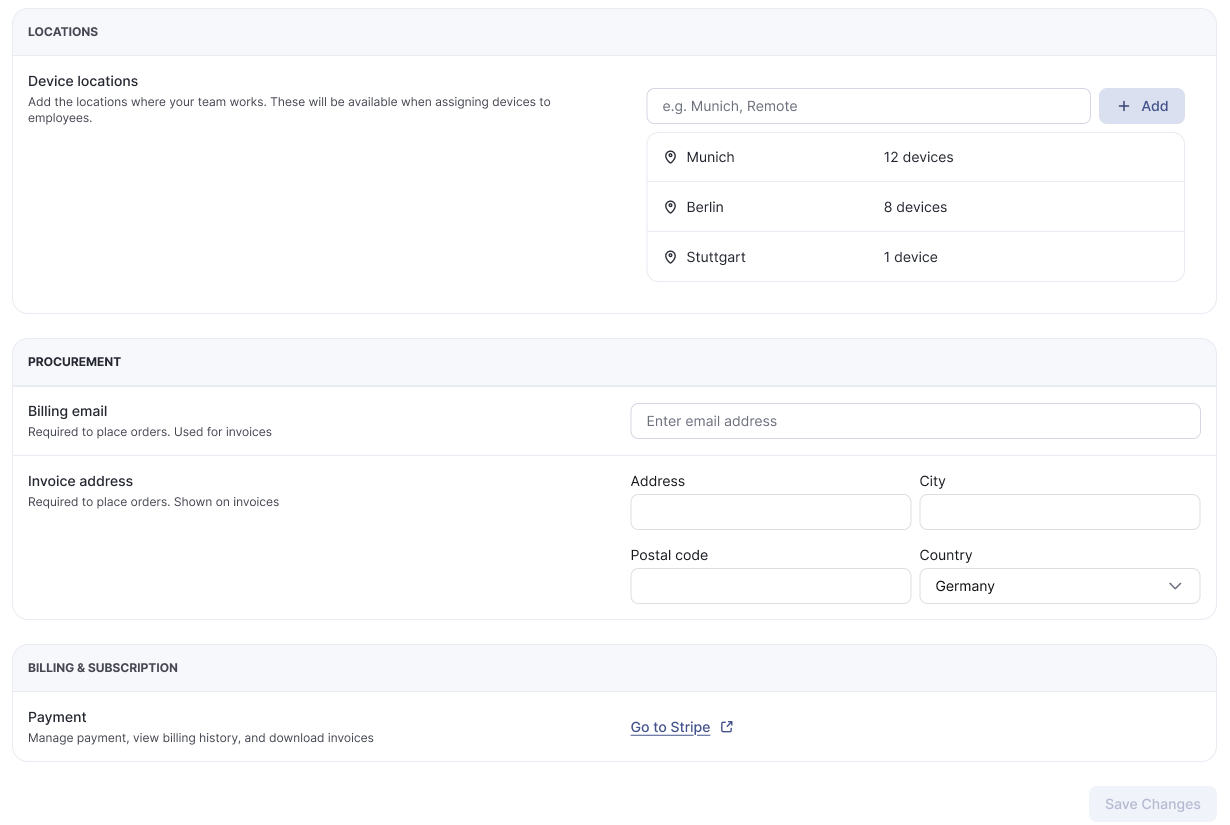
Removing a device location does not affect the devices or their users. Devices that used that location simply have no location afterwards.
Who Can Change Settings?
Owners and Managers can change everything in Settings, including payment. Only the Owner can change other people's roles. Each company has exactly one Owner. See the full permissions table on the Employees page.
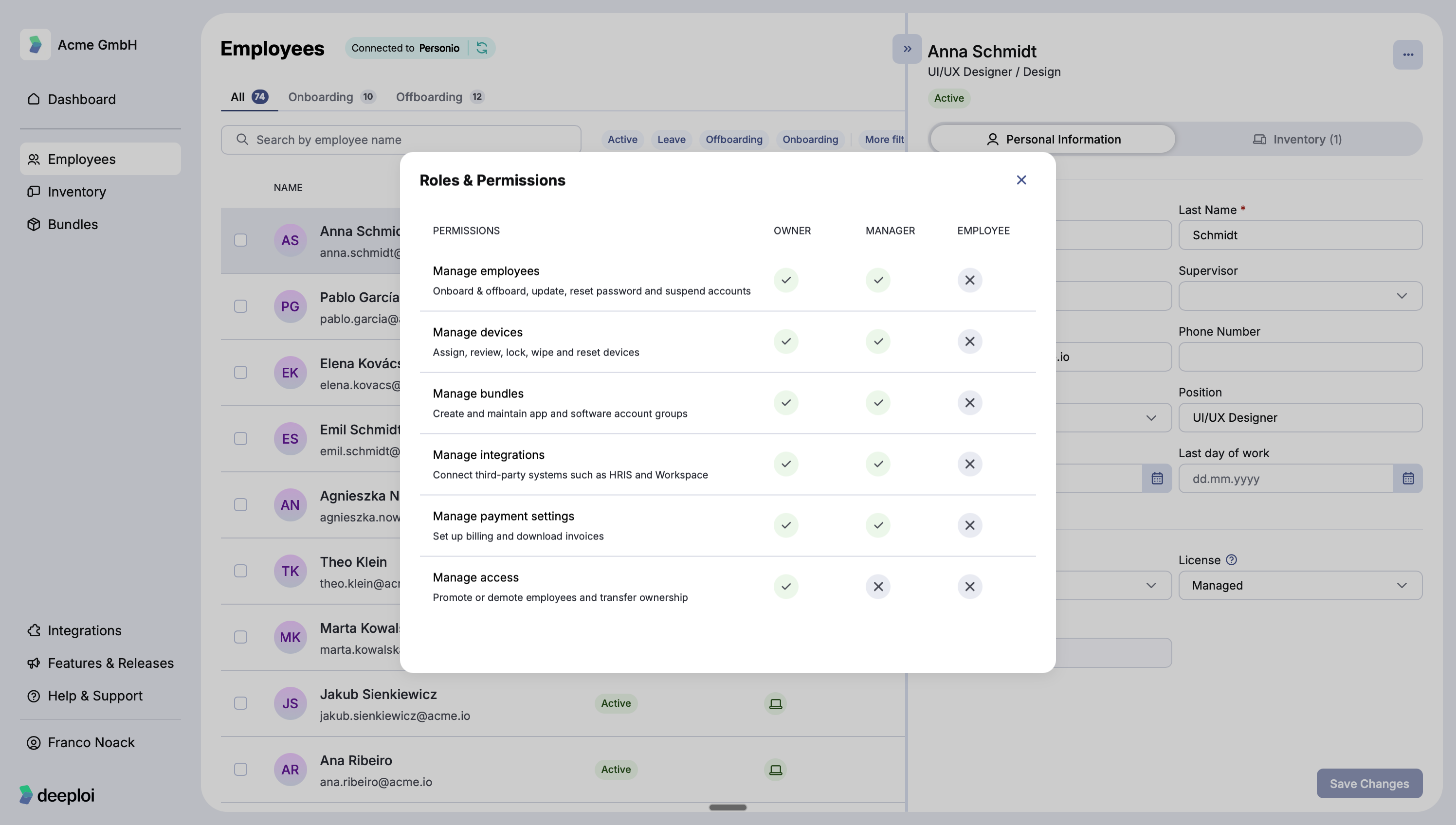
To change someone's role, you need to be the Owner:
- Go to Employees and click the employee.
- On the Personal Information tab, choose a new value under Role: Employee, Manager, or Owner.
- Click Save Changes and confirm in the dialog.
A new Manager gets an invitation to the dashboard. An Employee who used to be a Manager loses dashboard access immediately but keeps their devices and software licenses.
Important
Making someone else the Owner moves you to the Manager role. deeploi sends you a verification code by email to confirm the change. The code expires after 5 minutes.