

Onboarding process
How do I onboard a new employee?
The onboarding process has five steps. Steps 3 and 5 are optional and only apply if the new employee receives a device.
Step 1: Add the employee to deeploi
Before onboarding can start, the employee must exist in deeploi with a start date in the future. How you add them depends on whether you use an HR system.
Add the employee to your HR system. deeploi syncs automatically. If the employee does not appear within a few minutes, use the Sync button on the deeploi platform to trigger a manual sync.

Go to Employees in the deeploi platform. Click Add Employees in the upper right corner, select Add manually, and fill in the employee's details. See Add an employee manually.
Step 2: Fill out the onboarding form
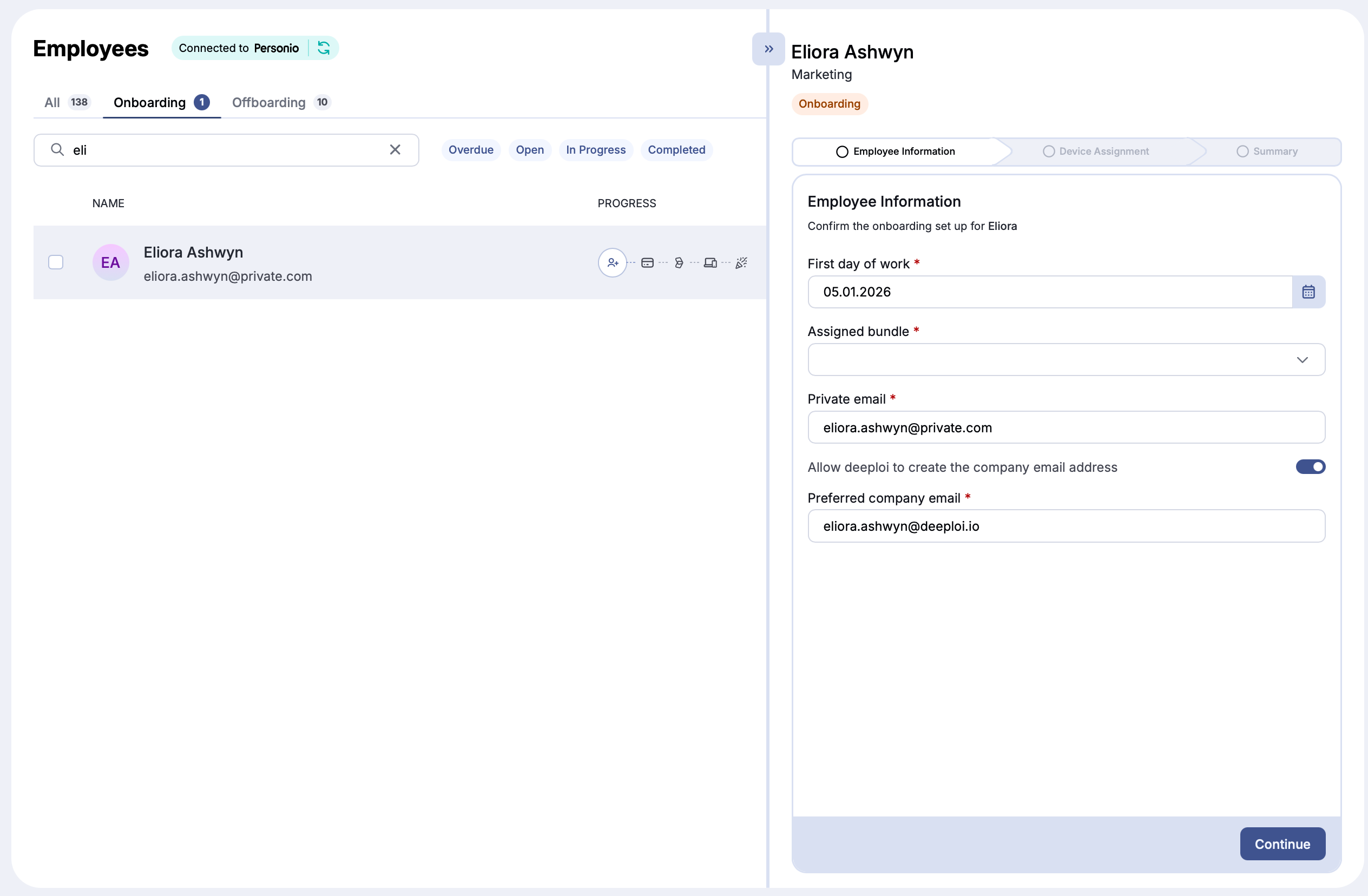
Once the employee exists in deeploi, the onboarding appears automatically under Employees → Onboarding with the status Open. Select the employee to open the form. It opens directly in their profile. You can also click the three dots in the upper right of the profile and select Start onboarding (or Continue onboarding if you started earlier).
deeploi reminds you of forms that are still open: with a weekly email, and with a Submit onboarding for [name] task in the To-Dos on your dashboard.
Complete the form with the employee's start date, bundle, private email, company email address, and devices. For every field in the form, see Onboarding Form.
Submit at least 4 days before the start date.
Account preparation starts only after you submit the form. If the form arrives late, deeploi cannot set up accounts and apps in time. If you order a device, submit at least 10 days ahead. deeploi treats anything later as a late onboarding, and the device may not arrive in time.
Step 3: Confirm the device order (optional)
If you selected a device to buy or rent in the onboarding form, deeploi coordinates the order and contacts you when your input is needed. Your dashboard shows a Complete device checkout for [name] task with the date the offer expires. For how the checkout works, see How to Order a Device.
| Device type | Delivery time |
|---|---|
| Catalog devices | Up to 2 weeks |
| Custom or non-catalog devices | Longer, varies |
Step 4: Account creation and welcome emails
After you submit the form, deeploi creates accounts and sends emails on this schedule:
| Action | When (default) |
|---|---|
| Email account created | 14 days before the start date |
| Software owners notified (for apps your team manages itself) | 5 days before the start date |
| Software accounts prepared | 4 days before the start date |
| Welcome email sent (with temporary password) | 4 days before the start date, at 12:00 |
| Device registration email sent | 4 days before the start date, at 12:00 |
You can change the timing of the email account, the welcome email, the device registration email, and the software owner notification yourself in Settings → Onboarding. You can also turn off each email there. See Set Your Onboarding and Offboarding Defaults. To change when software accounts are prepared, contact hello@deeploi.io.
Step 5: Device registration reminder (optional)
If a device was selected in the onboarding form, deeploi automatically reminds the employee to connect their work device to deeploi. This is required so the device can be managed, encrypted, and configured with the right software.
If the employee does not register the device after a certain time, deeploi notifies you so you can follow up. See Device registration reminders.
How do I track an onboarding?
After you submit, the onboarding moves to In Progress. Open the employee's profile and select the Status tab to see each step and whether it's done. The Progress column under Employees → Onboarding shows the same steps as icons.
| Status | What it means |
|---|---|
| Open | The employee has a future start date and the form is not submitted yet |
| Overdue | The start date has passed and the form was never submitted. See Skip an onboarding or offboarding. |
| In Progress | The form is submitted and deeploi is preparing accounts and devices |
| Completed | The onboarding is done. It stays visible for 10 days. |
| Archived | The onboarding was completed more than 10 days ago |
To change or stop a submitted onboarding, see Edit or Cancel an On/Offboarding.