

Controls
Controls lets you turn on security settings for every connected device yourself, without contacting deeploi. Each control has its own page with a list of your devices and whether they meet the setting.
Before you start
You see Controls in the left sidebar if deeploi manages your device settings centrally. Every IT owner on your deeploi account can view and change controls. You don't see Controls? Contact hello@deeploi.io.
Which Controls Can I Turn On?
The Controls page has two sections. System holds the individual controls. Compliance packs holds ready-made packages that set several controls at once.
| Control | What it does | Applies to |
|---|---|---|
| OS Updates | Updates devices automatically to the latest recommended OS version, 14 days after its release. | macOS, iOS / iPadOS, Windows |
| Device Encryption | Encrypts the disk on every supported device and saves the recovery keys for you. It is on by default. | macOS, iOS / iPadOS, Windows (not Windows Home) |
| Password & Screen Lock | Sets password rules, such as a minimum length, and locks the screen after a set number of minutes without use. | macOS, iOS / iPadOS |
| ISO 27001 | A compliance pack that sets all of the above, plus the macOS application firewall, to the values recommended for ISO 27001. | macOS, iOS / iPadOS, Windows |
The macOS application firewall has no card of its own. You set it through the ISO 27001 compliance pack.
How Do I Change a Control?
Open the control, change it, and save. On Password & Screen Lock, pick the macOS or iOS / iPadOS tab first. Each tab is saved on its own.
- Click Controls in the left sidebar.
- Click the card of the control you want to change, for example Device Encryption.
- Turn the setting on or off, or change its value.
- Click Save Changes.
deeploi saves your change and sends it to your devices in the background. You can leave the page while it runs. The Overview page also shows the progress, with a View in Controls link.
| What you see | What it means |
|---|---|
| Device Encryption update queued. | Your change is saved and waits to start. Other controls show their own name in this message. |
| Device Encryption update started. | deeploi is sending the change to your devices. |
| Device Encryption update applied. | The change is done. Devices that are offline receive it once they come online. |
| Something went wrong while applying your changes. | No change reached your devices. Click Try again. |
Important
Only one control change can run at a time. While one runs, the other controls are locked and show which change they are waiting for. Wait until it has finished, then make your next change.
How Do I See Whether My Devices Comply?
Each card on the Controls page has a status tag.
| Status | What it means |
|---|---|
| Enabled | The control is on for every platform. |
| Partially enabled | The control is on for some platforms and off for others. |
| Disabled | The control is off for every platform. |
| Not set up | This control has not been saved for your account yet. |
| Configured / Not Configured | Shown on the ISO 27001 card. All settings match the pack, or at least one does not. |
Device Encryption only shows Enabled or Disabled, because it is on unless you turn it off.
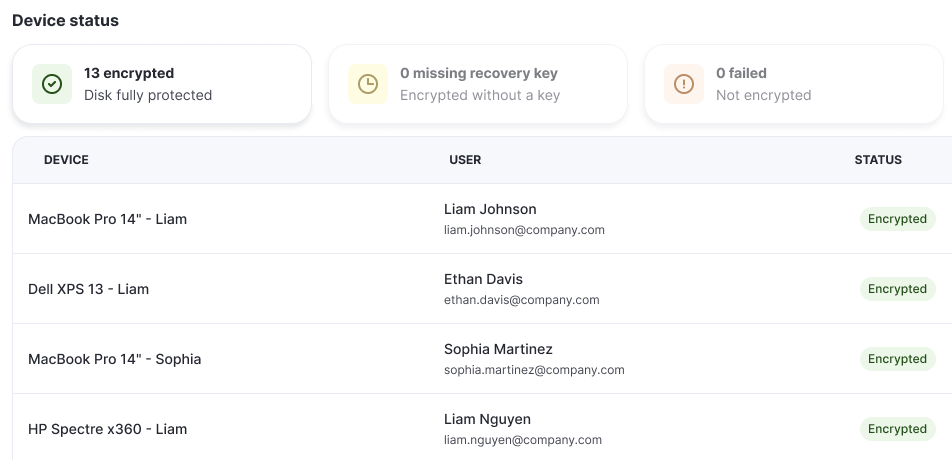
Once a control is on, its page lists your devices with their user and status. Click a summary box above the list to show only the devices with that status.
| Control | Device statuses |
|---|---|
| OS Updates | Compliant means the device runs the target version or newer. Not compliant means the device does not run the target version yet. This includes devices where the update did not install, and devices whose user still has time left before the update is forced. Unknown means deeploi cannot read the version or no target version is set yet. |
| Device Encryption | Encrypted in green means the disk is encrypted and deeploi has the recovery key. Encrypted in yellow means the disk is encrypted, but deeploi has no recovery key. Not Encrypted means encryption did not complete. Not Supported means the device cannot be encrypted, for example a Windows Home laptop. |
| Password & Screen Lock | Compliant means the policy is installed on the device. Not compliant means it is not installed yet. |
How Do Controls Work With ISO 27001?
The ISO 27001 compliance pack sets the same controls you find under System. A value set by the pack shows the tag Set by ISO 27001 on the control's page. If you change that value later, the page warns you that it no longer meets the ISO 27001 recommendation. The ISO 27001 card then shows Not Configured.
The pack covers the device side of ISO 27001. Certification itself is done separately with an external auditor. For step-by-step instructions, see Apply the ISO 27001 Device Standard.
What's Next
Apply the ISO 27001 Device Standard
Set every control to the ISO 27001 recommendation in one click.
Roll Out FileVault on Macs
What employees see when their Mac is encrypted, and why a recovery key can be missing.
Roll Out BitLocker on Windows
What employees see when their Windows laptop is encrypted.
What Is deeploi Security+?
Malware protection and real-time attack response for Macs and Windows devices.