

Let Employees Install iPhone and iPad Apps Themselves
With Self-Service, you decide per app whether deeploi installs it on every iPhone and iPad in a bundle, or whether employees install it themselves when they need it. Employees find their apps in a new Self-Service app that appears on their device automatically.
deeploi is turning on Self-Service for a first group of companies. To get it, contact deeploi support. Your company needs Apple Business Manager connected to deeploi.
What changes when Self-Service is turned on?
| Who | What happens |
|---|---|
| Employees | Every work iPhone and iPad that is connected to deeploi and assigned to an employee gets the Self-Service app. Nobody has to install it, and employees can't delete it. It opens already signed in and shows the apps for that device. On iPhones and iPads that weren't set up through Apple Business Manager, iOS asks the employee to confirm each install. On devices set up through Apple Business Manager, apps install without asking. |
| You | In each bundle, you choose Auto-Install or Self-Service for every iPhone and iPad app. |
| Apps already on devices | Nothing changes. Switching an app to Self-Service never removes it from a device, and installed apps keep getting updates. |
| Macs and Windows devices | Nothing changes. |
Make an App Self-Service
- In the dashboard, go to Bundles, select the bundle, click ... and choose Edit bundle.
- Open the settings of the iPhone or iPad app you want to change.
- Under App Installation, choose Self-Service.
- Click Save.
From then on, deeploi no longer installs that app on its own, for example on a new iPhone or for an employee you add to the bundle. It shows up in their Self-Service app instead.
If the Self-Service option is greyed out, your company has no license for that app in Apple Business Manager. Add licenses in Apple Business Manager as described here.
What do employees see?
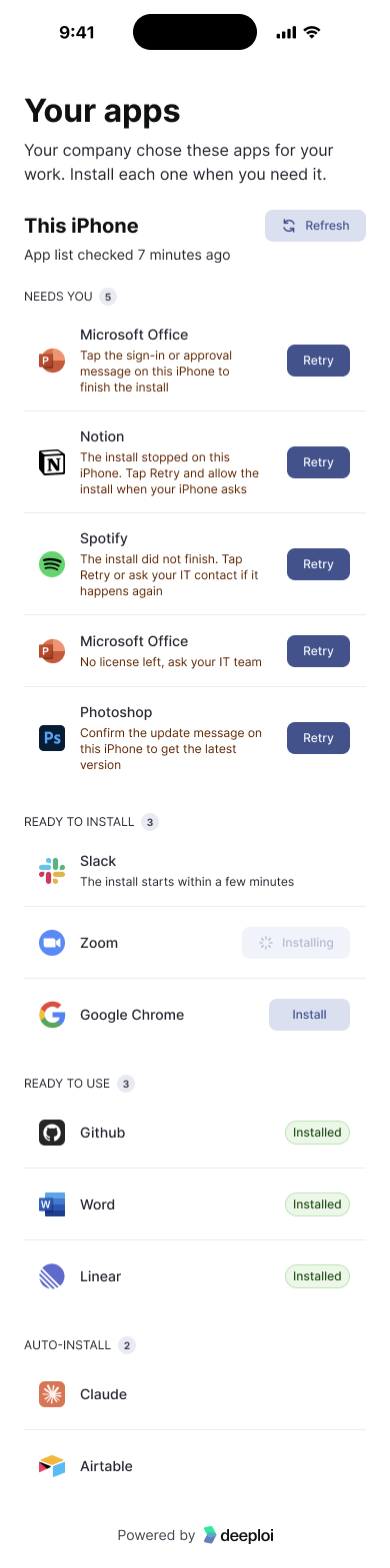
Employees open Self-Service on their iPhone or iPad. The app groups their apps into four sections:
| Section | What it shows |
|---|---|
| Needs you | Apps that wait for the employee, with the reason and a Retry button. For example, iOS is waiting for them to tap a sign-in or approval message, or every license is in use. |
| Ready to install | Self-service apps that are not on the device yet. The employee taps Install, and the install starts within a few minutes. |
| Ready to use | Apps that are installed, with an Installed tag. |
| Auto-install | Apps your company installs automatically that have not arrived yet. Employees don't need to do anything here. The section is hidden when it's empty. |
Employees tap Refresh to ask the device for its current apps. If an employee deletes a self-service app, it goes back to Ready to install.
Employees can also sign in from a browser at app.deeploi.io/self-service with their work email. To explain it to your team, send them How do I install work apps on my iPhone or iPad?.
Check or Install Apps From the Dashboard
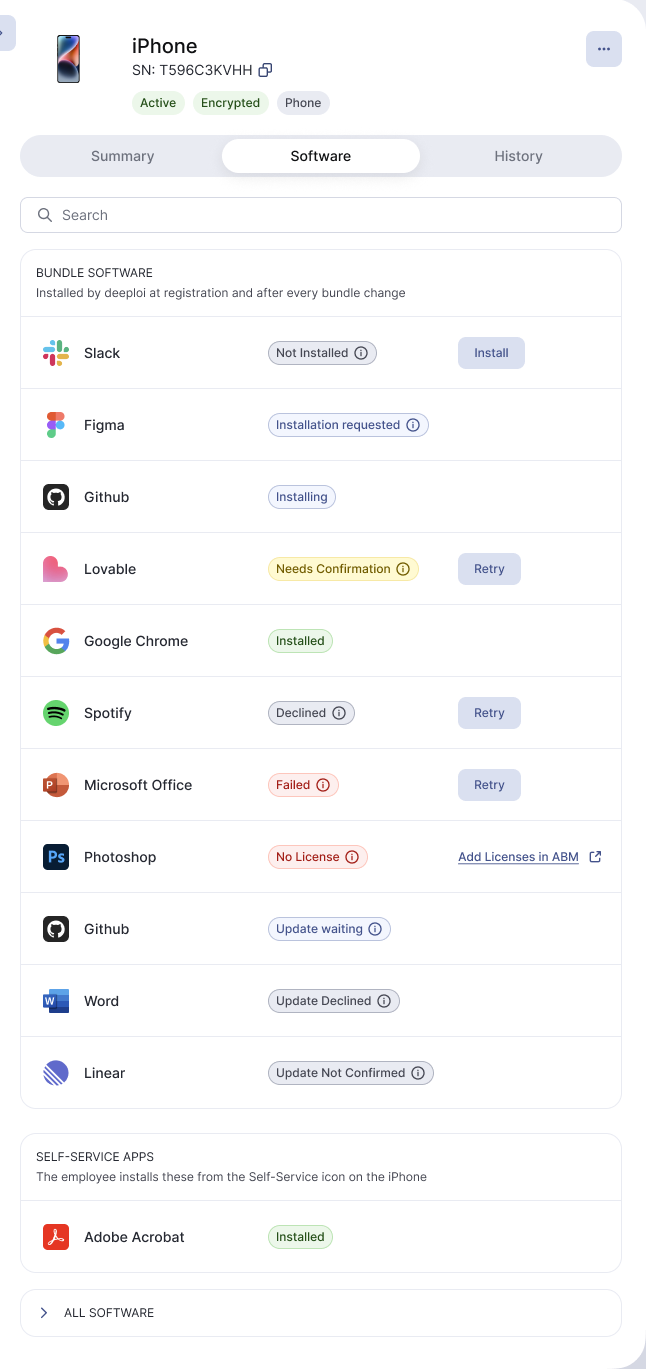
Open a device in Inventory and go to the Software tab. Self-service apps have their own Self-service apps section below Bundle software. Each app shows one status tag. Hover over the tag to see what it means and whether you need to do anything.
| Tag | What to do |
|---|---|
| Not Installed | Nothing. The employee installs it from Self-Service, or you click Install to request it for them. |
| Installation requested, Installing | Nothing. The install starts within a few minutes. |
| Needs Confirmation | Ask the employee to tap the sign-in or approval message on their iPhone or iPad. If the message is gone, click Retry. |
| Update waiting | Ask the employee to tap the update message on their iPhone or iPad. |
| Declined, Failed | Check with the employee, then click Retry. |
| No License | Every license for the app is in use. Click Add Licenses in ABM to buy more in Apple Business Manager. |
Click Refresh app list to ask the device for its current apps. Installed iPhone and iPad apps have no Reinstall button.