

Should I wipe, lock, or reset a device?
Reset a device after an employee offboards, so it's ready for someone new. Lock a device that's lost or stolen when you might get it back. Wipe a device only in an emergency, when the company data on it must be erased right away.
| Reset device | Lock device | Wipe device | |
|---|---|---|---|
| Best for | Offboarding and handovers | Loss, theft, or a bad leaver | Loss, theft, or a bad leaver |
| Data on the device | Erased | Kept | Erased |
| Can I undo it? | No | Yes, with Unlock device | No |
| Available on | Mac, Windows, iPhone, iPad | Mac, Windows | Mac, Windows, iPhone, iPad |
| After it runs | Factory settings, ready for a new employee | Nobody can use the device until you unlock it | Factory settings. A Windows PC may not start again. |
All three commands run as soon as the device is online. You find them under Remote Commands in the device's three-dot menu. They only appear for devices that are connected to deeploi.
For your protection, deeploi emails you a verification code before it sends any of the three commands. Enter it within 5 minutes.
On Macs, iPhones, and iPads, Reset device and Wipe device send the same erase command. The difference matters on Windows: reset uses Microsoft's own reset and reinstalls Windows, while wipe can remove Windows completely.
Reset a device
Use reset when a device changes hands. For the steps, see How do I reset a device?
Lock a device
- Go to Inventory → Devices and click the device.
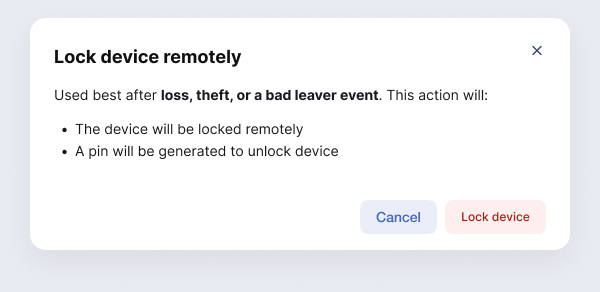
- Click the three-dot menu and select Lock device.
- Click Lock Device.
- Enter the verification code from your email.
The device's detail panel shows that the lock is pending until the device is online and locked.
Unlock a device
Open the device's three-dot menu and select Unlock device. What happens next depends on the operating system.
deeploi shows a PIN. Enter this PIN on the locked Mac to unlock it. Click the copy icon to copy the PIN.
Click Unlock device. The PC unlocks the next time it's online.
Wipe a device
A wipe cannot be undone. It erases all data, settings, and apps on the device. On Windows, it may also delete the operating system. The PC then needs a recovery USB stick before anyone can use it again.
- Go to Inventory → Devices and click the device.
- Click the three-dot menu and select Wipe device.
- Click Wipe device in the dialog.
- Enter the verification code from your email.
After the wipe, the device's detail panel shows the date its data was wiped. The device stays in your inventory. To remove it, see Should I archive or delete a device?