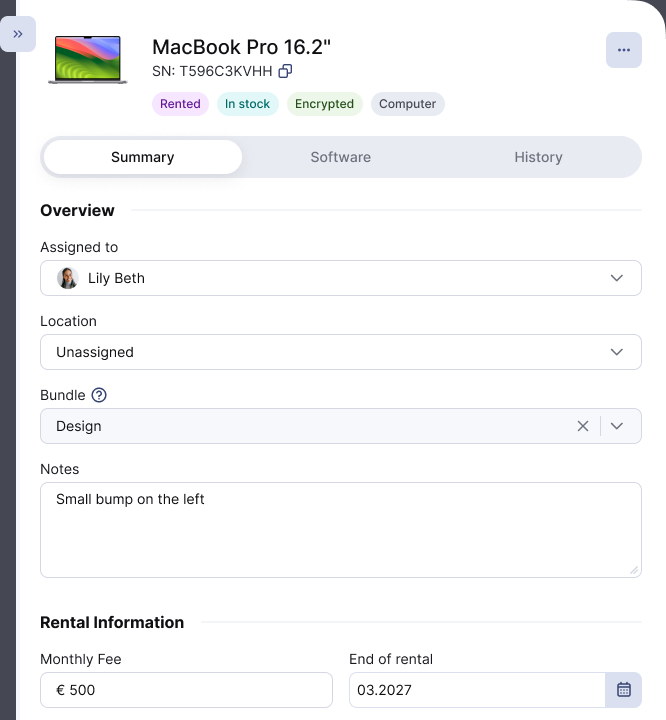

See When Your Device Rentals End
The End of rental column in Inventory → Devices shows the month each rented device's contract ends. You can plan returns and replacements before a contract runs out.
What does the End of rental column show?
Each device shows one of four values:
| Value | What it means |
|---|---|
A month, for example 03.2027 | The month the rental ends. |
| The month in red | The end date has passed. The device is still in your inventory. |
| Purchased | You bought the device outright. It has no rental to end. |
| Unknown | deeploi has no rental details for this device yet. |
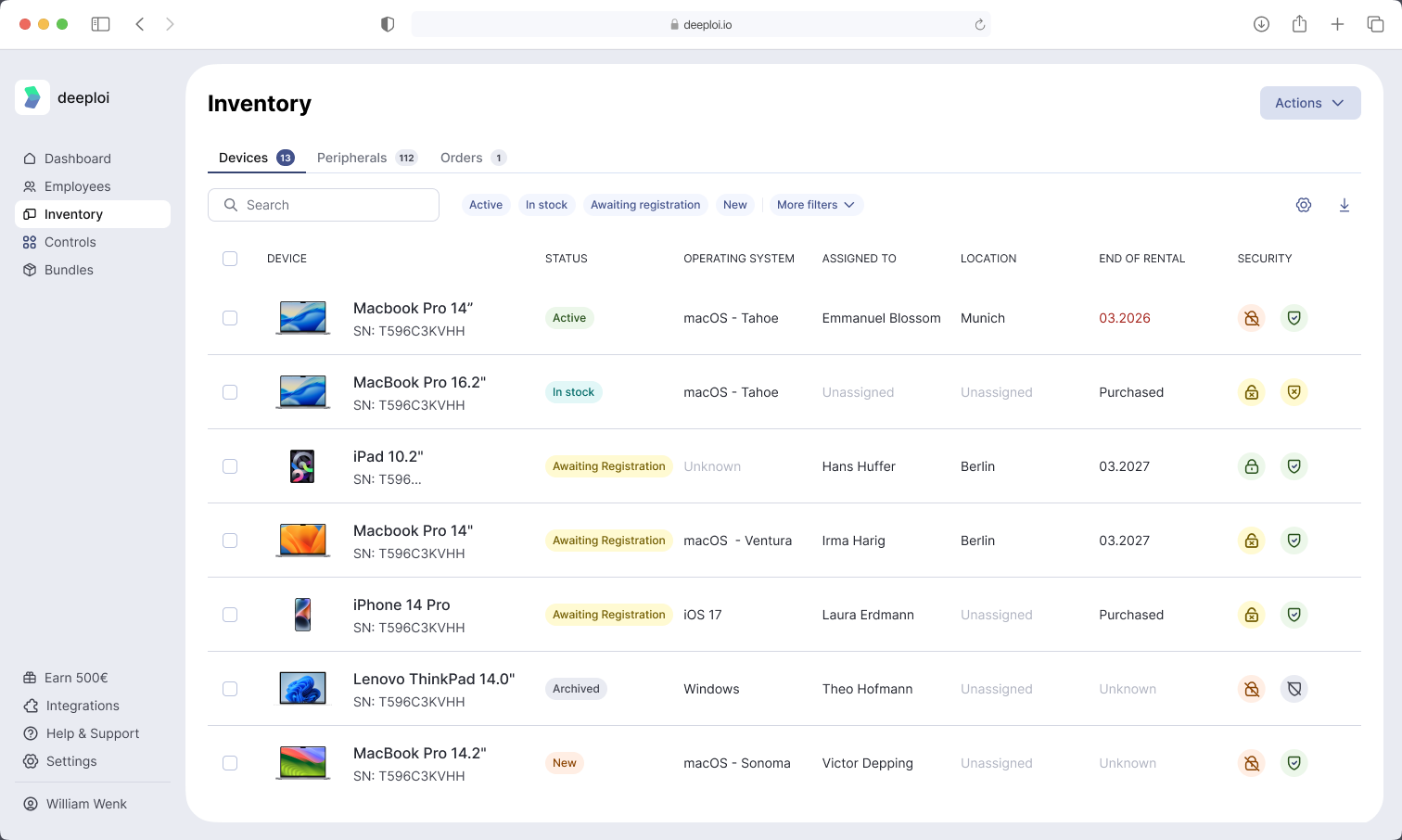
The column only appears if at least one of your active devices is rented. Archived devices do not count. You can show or hide it in the table's column settings.
Where does the end date come from?
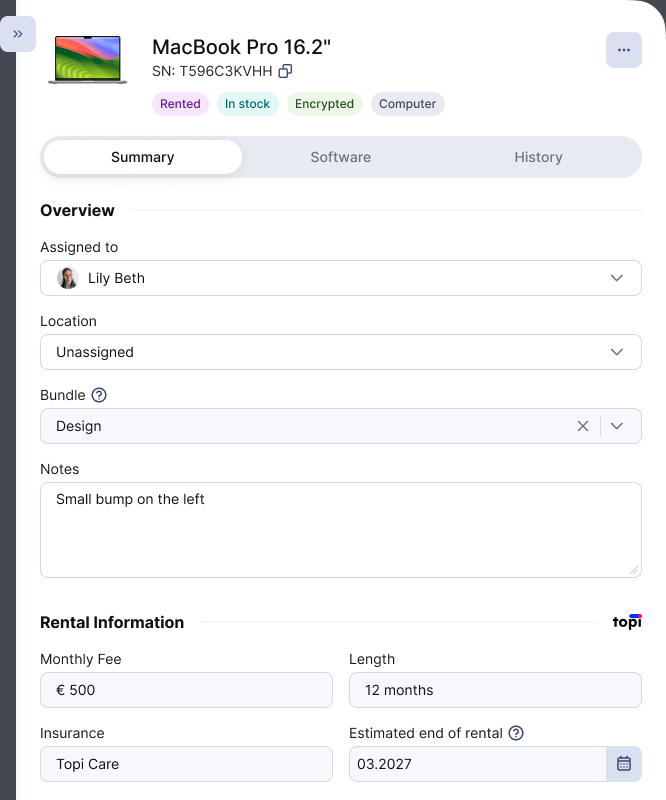
For devices you rent through topi, the date comes from the rental order automatically. It is an estimate: deeploi takes the date the device was ordered and adds the rental length.
Open the device to see the date under Estimated end of rental. Editing it is not supported, because it comes from the provider's contract.
For devices you rent from another provider, deeploi has no contract to read. You add the details yourself.
Rented through deeploi but still showing Unknown? Some older orders do not include the rental length yet. Look up the leasing end date in your topi portal to find the right details.
Add rental details for a device rented outside deeploi or unknown details
You need the contract's end date. The monthly fee is optional. You find Add rental information in the actions menu (⋯) at the top of the device panel.
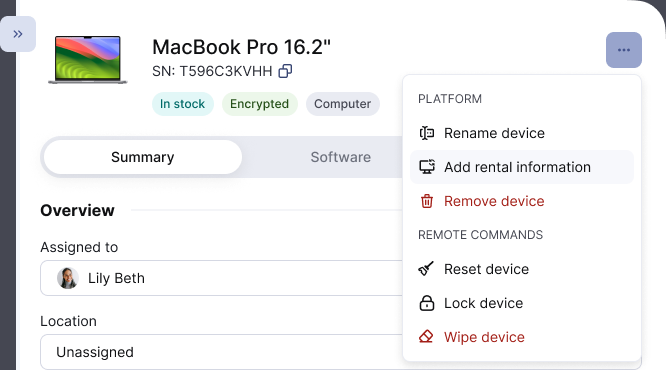
- Go to Inventory → Devices and select the device.
- Open the actions menu (⋯) and select Add rental information.
- Enter the End of rental date and, if you want, the Monthly Fee in euros, for example
39.90. - Select Save.
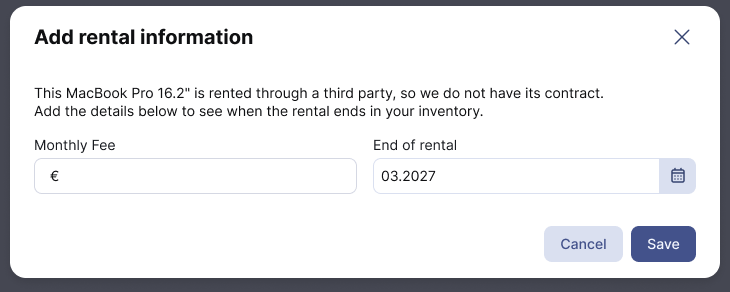
The device now shows its end month in the End of rental column.
Change rental details you entered
Select the device and scroll to Rental Information in the Summary tab. Change the Monthly Fee or End of rental field. Each field saves on its own when you leave it.