

How do I offboard a departing employee?
When an employee leaves, deeploi needs a submitted offboarding form before it can take any action. Two scenarios determine the order of steps.
Offboarding requires a submitted form.
deeploi cannot process any offboarding steps until the offboarding form is submitted. This ensures all actions are documented before they are carried out.
Case 1: Planned departure
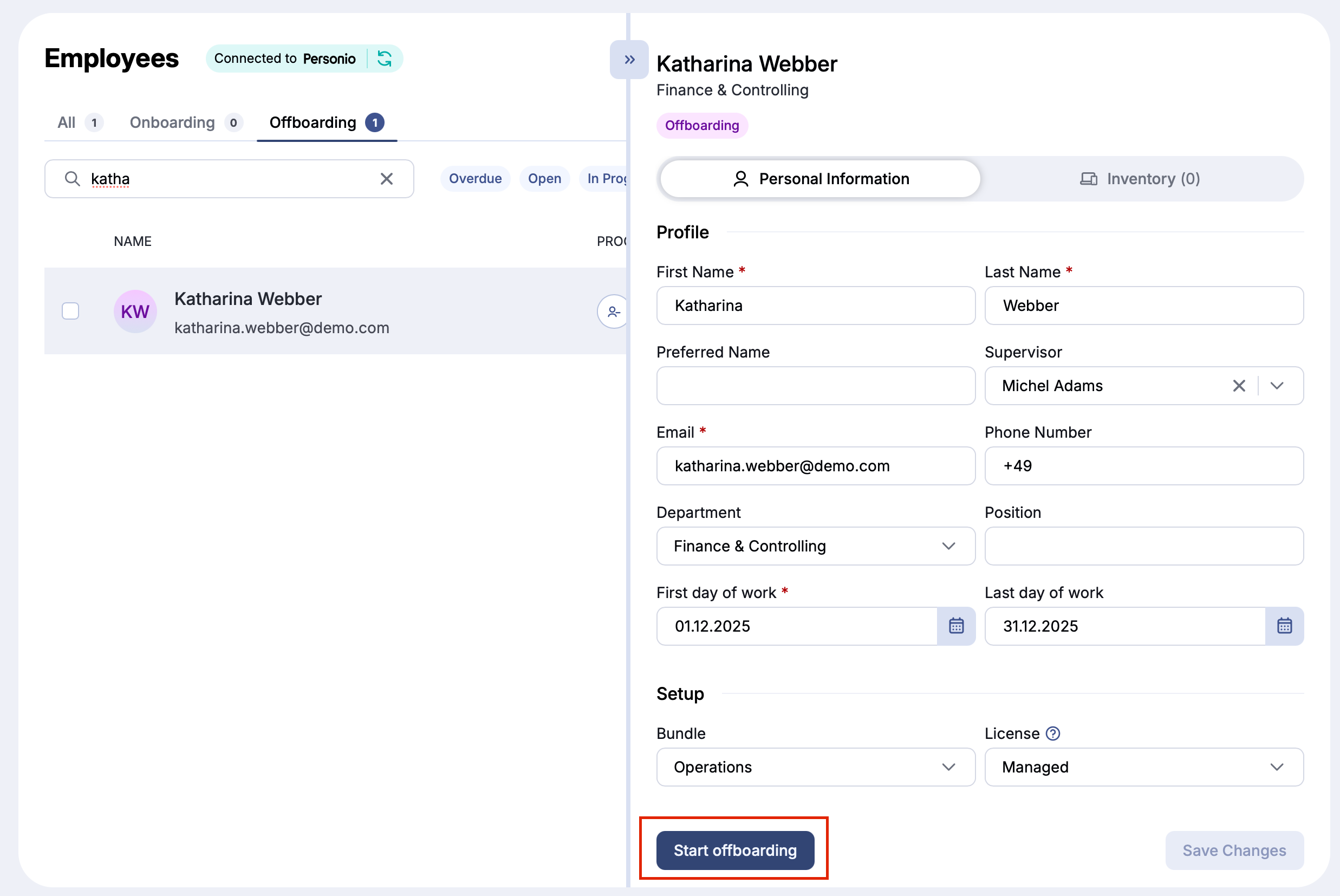
- Prepare the offboarding. Enter the employee's actual last working day. The last working day often differs from the official exit date.
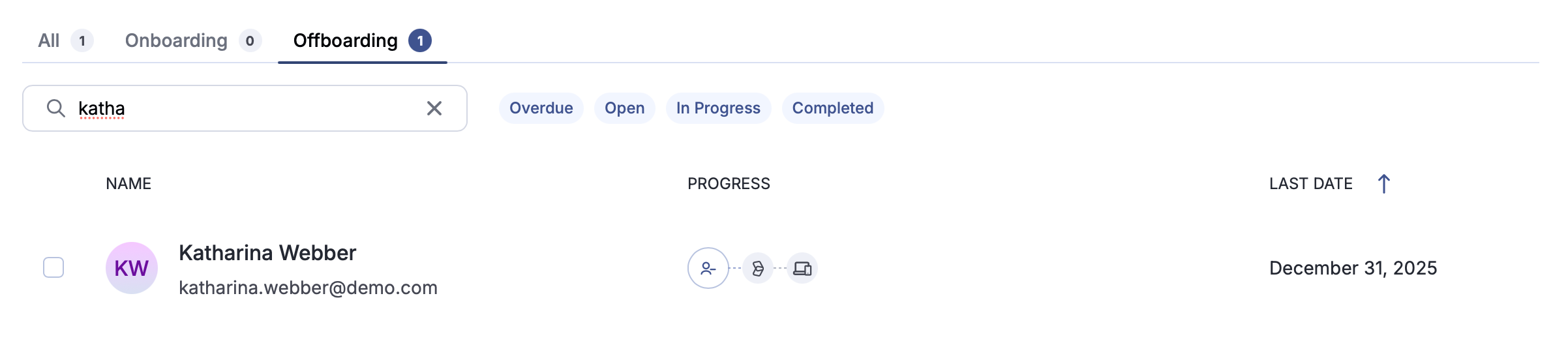
- The offboarding becomes visible. 30 days before the last working day, the offboarding appears in the platform under Employees → Offboarding with the status Open. Your dashboard shows a Submit offboarding for [name] task in the To-Dos, and deeploi sends weekly reminders until the form is submitted.
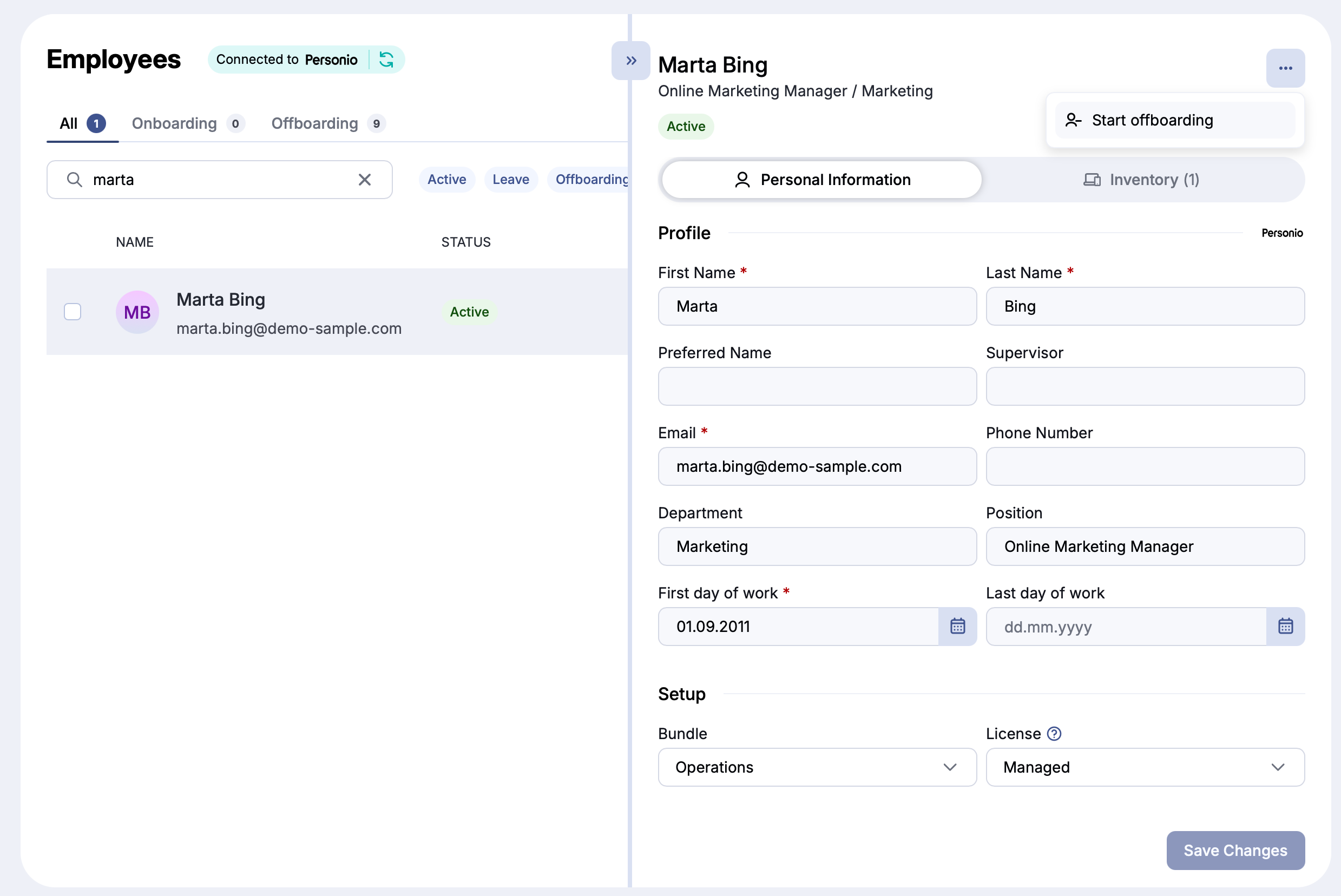
- Fill out the offboarding form. Click Start offboarding in the employee's profile, complete all required fields, and submit the form. If you started the form earlier in the same browser tab, the button reads Continue offboarding. For every field in the form, see Offboarding Form.
- Reset the device (if the employee has one). If the employee has a device registered with deeploi, reset it before reassigning it to someone else. You can reset it when you confirm the return (next step), or later from the device details. By default, deeploi emails you instructions on how to reset the device 7 days before the last day.
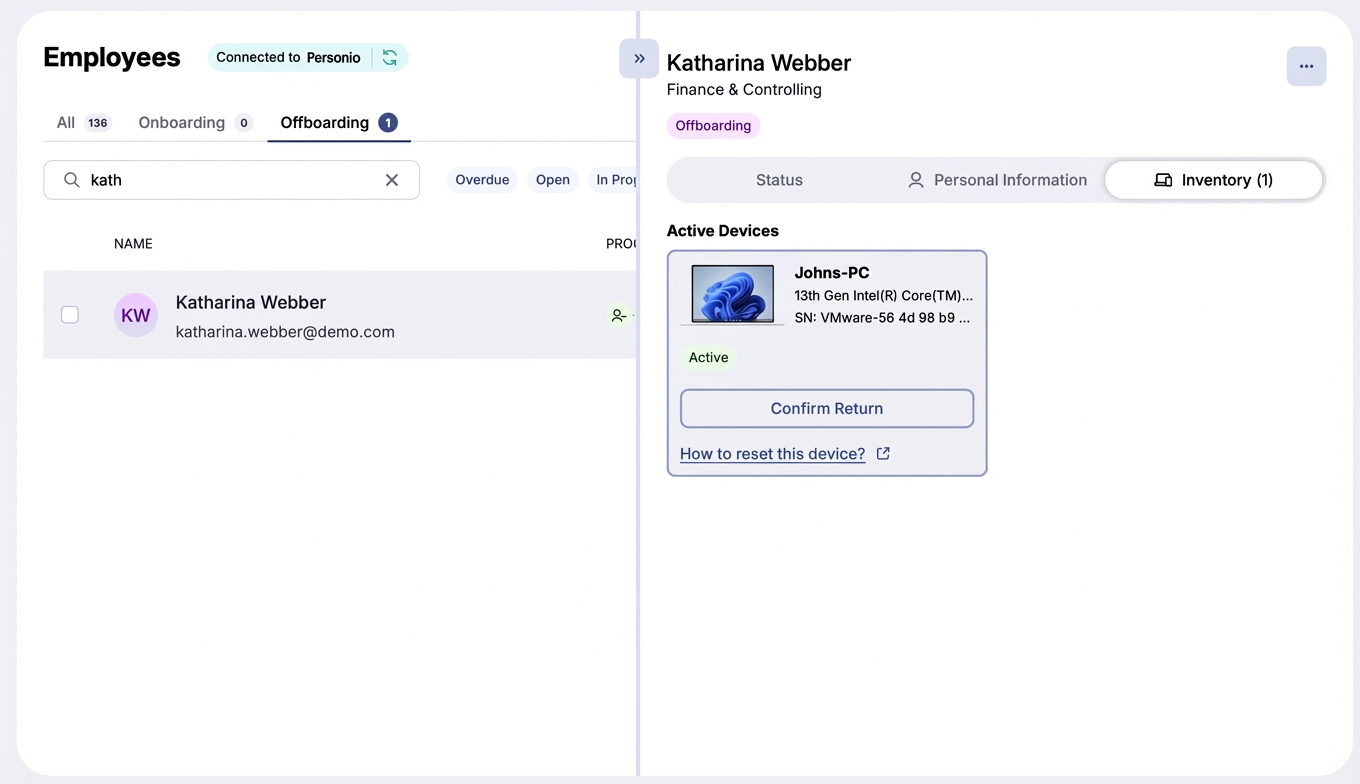
- Confirm the device return. Once the device is handed back, open the Inventory tab of the employee's profile and click Confirm Return. deeploi then asks Should we also reset this device? Click Reset device to wipe it, or Return only to keep it as it is. To reset, enter the verification code deeploi sends to your email. The offboarding stays open until every device and peripheral is returned. Until then, your dashboard shows a Collect device from [name] task.
- Track progress. Monitor the offboarding status under Employees → Offboarding, or in the Status tab of the employee's profile. Once complete, the offboarding remains visible for 10 days.
Where to enter the last working day (step 1):
Update the last working day in your HR system. deeploi picks it up automatically.
Enter the last working day manually in the deeploi platform to trigger the offboarding.
Case 2: Unexpected departure
- Open the employee's profile. Go to Employees in the deeploi platform, search for the employee, and open their profile.
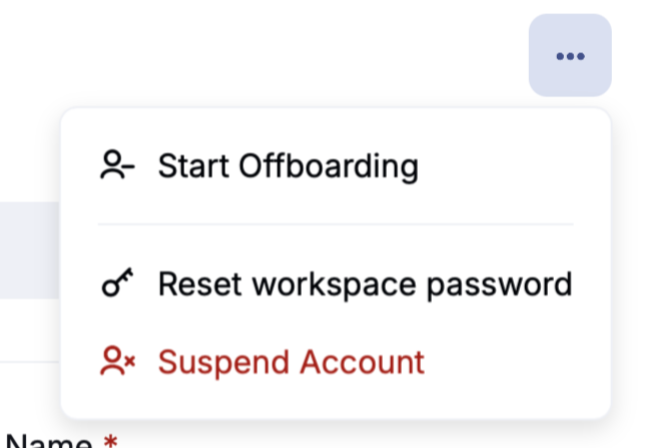
- Suspend the email account (optional). Click the three dots in the upper right of the profile and select Suspend Google account or Suspend M365 account, then confirm with Suspend Account. This blocks the employee's access immediately and keeps all data. With Google Workspace, incoming emails and calendar invites bounce. With Microsoft 365, they keep arriving. You can undo this at any time with Restore Google account or Restore M365 account.
- Start the offboarding. Click the three dots again and select Start offboarding. Choose the date and time the offboarding should run, fill out the form, and submit it. Microsoft 365 customers can also set up auto-reply or email forwarding in this form. See Offboarding Form.
- Reset the device. If the employee has a device registered with deeploi, reset it before reassigning it. You can do this in the platform immediately or later.
- Confirm the device return. Once the device is handed back, click Confirm Return in the Inventory tab of the employee's profile.
- Track progress. Monitor the offboarding under Employees → Offboarding.
- Update your HRIS. After completing the previous steps, update the employee's departure in your HR system. The HRIS integration is one-way only: data flows from the HRIS into deeploi, not the other way around.
How do I track an offboarding?
Under Employees → Offboarding, filter by status. The Progress column shows each step as an icon.
| Status | What it means |
|---|---|
| Open | The last working day is within the next 30 days and the form is not submitted yet |
| Overdue | The last working day has passed and the form was never submitted. See Skip an onboarding or offboarding. |
| In Progress | The form is submitted. deeploi removes access on the scheduled date. |
| Completed | All steps are done and every device is returned. It stays visible for 10 days. |
| Archived | The offboarding was completed more than 10 days ago |