
Set Your Onboarding and Offboarding Defaults
The Onboarding and Offboarding tabs in Settings decide what deeploi does for every employee who joins or leaves, so you don't have to choose it each time. Go to Settings → Onboarding or Settings → Offboarding, change what you need, and click Save Changes.
Both tabs are available once your workspace is connected. See Workspace Settings.
What Can I Set for Onboarding?
All timings count from the employee's start date. The time of day is the hour you pick in the field (0 to 23).
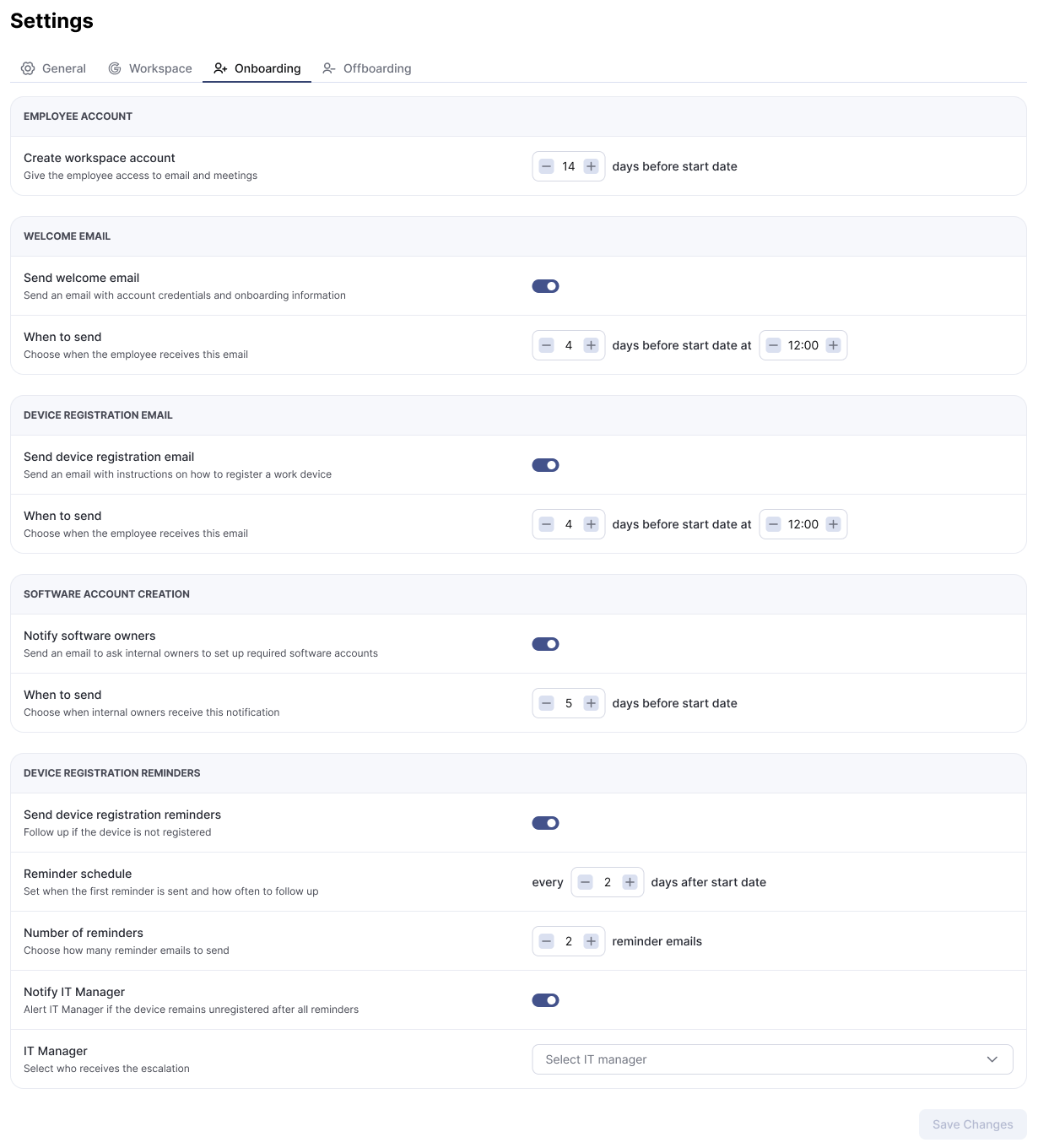
| Setting | Effect | Default |
|---|---|---|
| Create workspace account | How many days before the start date deeploi creates the employee's email account. | 14 days before |
| Send welcome email | Sends the employee their login details and onboarding information. If you turn it off, you share the login details yourself. | On, 4 days before at 12:00 |
| Send device registration email | Sends the employee instructions for connecting their work device. If you turn it off, you send the instructions yourself. | On, 4 days before at 12:00 |
| Notify software owners | Emails the internal owners of your apps so they set up the accounts the new employee needs. If you turn it off, you contact the owners yourself. | On, 5 days before |
| Send device registration reminders | Reminds the employee if their device is still not connected after the start date. | On |
| Reminder schedule | How many days pass between reminders, counted from the start date. | Every 2 days |
| Number of reminders | How many reminder emails the employee gets. | 2 |
| Notify IT Manager | Alerts an Owner or Manager if the device is still not connected after the last reminder. | On |
| IT Manager | Who gets that alert. Pick any Owner or Manager. If you pick nobody, deeploi alerts your main deeploi contact. | Not set |
With the defaults, reminders go out 2 and 4 days after the start date, and the IT Manager alert follows 2 days later. See Device Registration Reminders for the email texts.
Important
The order of the emails is fixed. The welcome email cannot go out before the email account exists, or after 10:00 on the start date. The device registration email cannot go out before the welcome email. The tab shows an error and does not save if a timing breaks this order.
What Can I Set for Offboarding?
Every offboarding starts with these settings. You can still change them for one employee in the offboarding form.
Email Account and Data
The Deletion window sets when deeploi deletes the employee's email account: Immediately, after 30, 60, or 90 days, Don't delete, or a Custom number of days after offboarding. The default is Immediately. The other options depend on your workspace.
| Setting | Effect | Default |
|---|---|---|
| Block sign-in | Ends all active sessions and stops the employee from signing in after their last day of work. | On |
| Convert to shared mailbox | Turns the mailbox into a shared mailbox so colleagues can still open it. Choose who under Grant shared mailbox access to. | On |
| Forward emails | Sends incoming emails to a colleague after the account is suspended. Choose who under Forward emails to. | Off |
| Share data access | Gives colleagues access to the employee's files. Choose who under Share data access with. | On |
| Send auto-reply message | Tells senders that the employee has left. Write the text under Auto-reply message. You can insert the employee's name and the supervisor's name and email. | Off |
| Setting | Effect | Default |
|---|---|---|
| Suspend account | Stops the employee from signing in on their last day. | On |
| Archive account | Keeps all of the employee's data at the lower price of a Google archive license. | On |
| Keep address as an alias | Sends emails for the old address to a colleague after the account is deleted. Choose who under Assign email alias to. | On |
| Transfer Drive & data | Copies the employee's Google Drive files and other data to a colleague before the account is deleted. Choose who under Transfer data to. | On |
With Immediately, the email account is deleted right after offboarding. Make sure data transfer or shared access is set up before you choose it.
Groups, Devices, and Software
| Setting | Effect | Default |
|---|---|---|
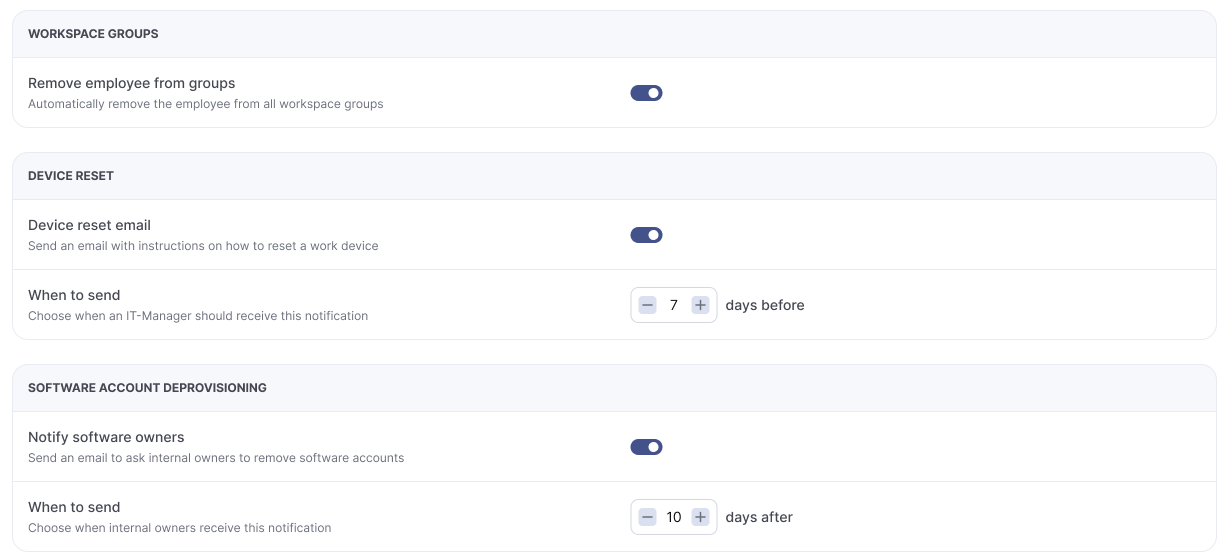
| Remove employee from groups | Removes the employee from all groups in your workspace. | On |
| Device reset email | Sends you instructions for resetting the employee's work devices. Nothing is sent if the employee has no devices to reset. | On, 7 days before the last day |
| Notify software owners | Emails the internal owners of your apps so they remove the employee's accounts. If you turn it off, you contact the owners yourself. | On, 10 days after the last day |