

How do I use the Offboarding Assistant?
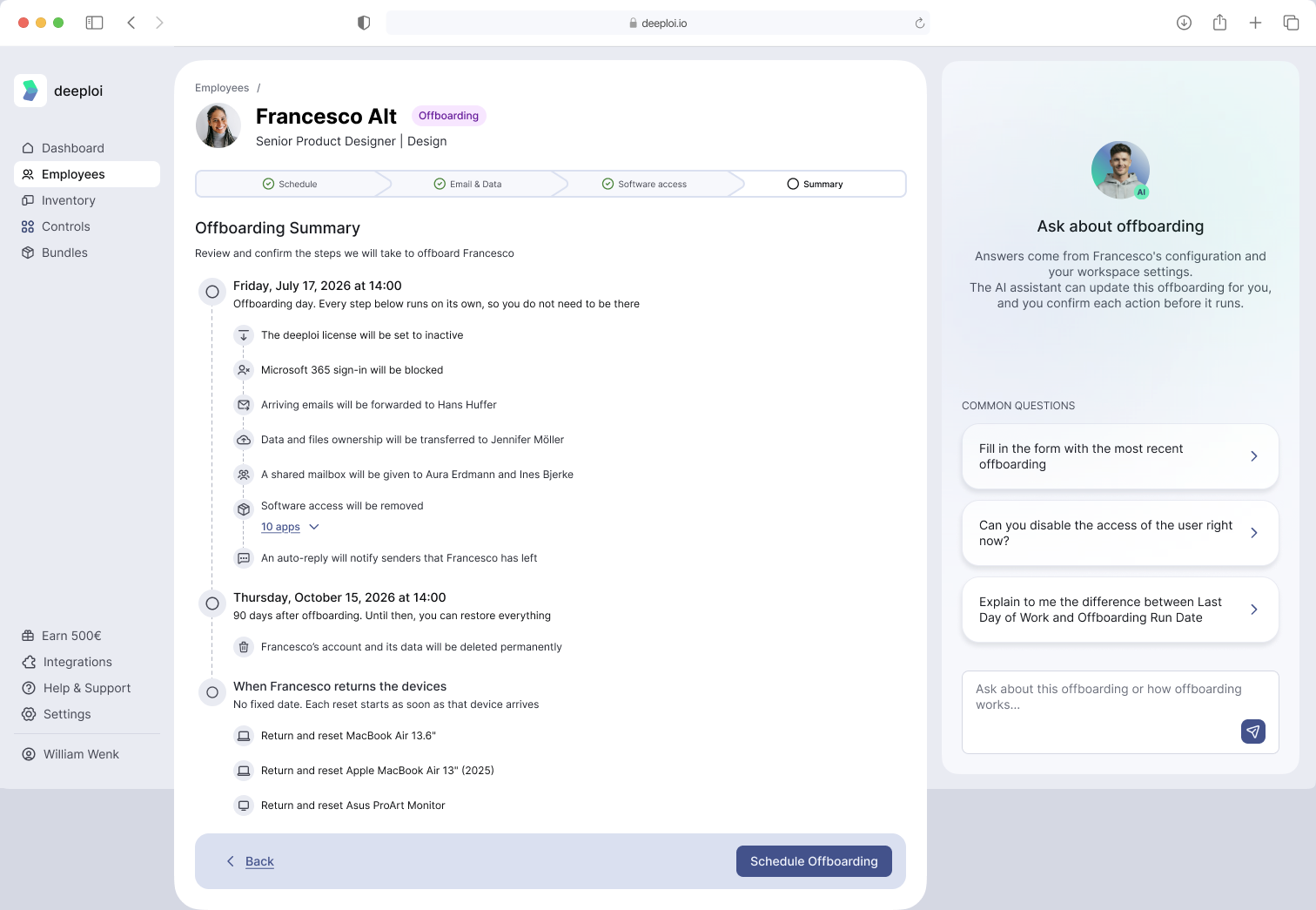
The Offboarding Assistant is an AI assistant in a panel to the right of the offboarding form. Ask it a question in your own words, or ask it to fill in a step of the form. Nothing it changes is saved until you click Submit on the Summary step.
The Offboarding Assistant is in beta, and deeploi turns it on company by company. If you don't see the Offboarding Assistant panel next to the form, it is not turned on for your company yet.
Ask the Assistant a Question
- Open the offboarding form for the employee, as described in Offboarding Process. The Offboarding Assistant panel opens next to the form.
- Click one of the questions under Common questions, or type your own in the box at the bottom of the panel.
- Press Enter or click Send. The assistant shows Thinking… while it works, then answers in the panel.
The assistant answers in the language you write in. To add a line break without sending, press Shift + Enter.
What the Assistant Can Fill In
The assistant only changes the step you have open. If you ask for a setting on another step, it tells you which step to go to.
| Step | What the assistant can set |
|---|---|
| Schedule | Offboarding date and Offboarding time. The assistant does not change the employee's last working day. |
| Email & Data (Google Workspace) | Suspend account, Archive account (only if archiving is turned on for your company), Transfer data ownership, Keep email address as an alias, Account deletion and the deletion date |
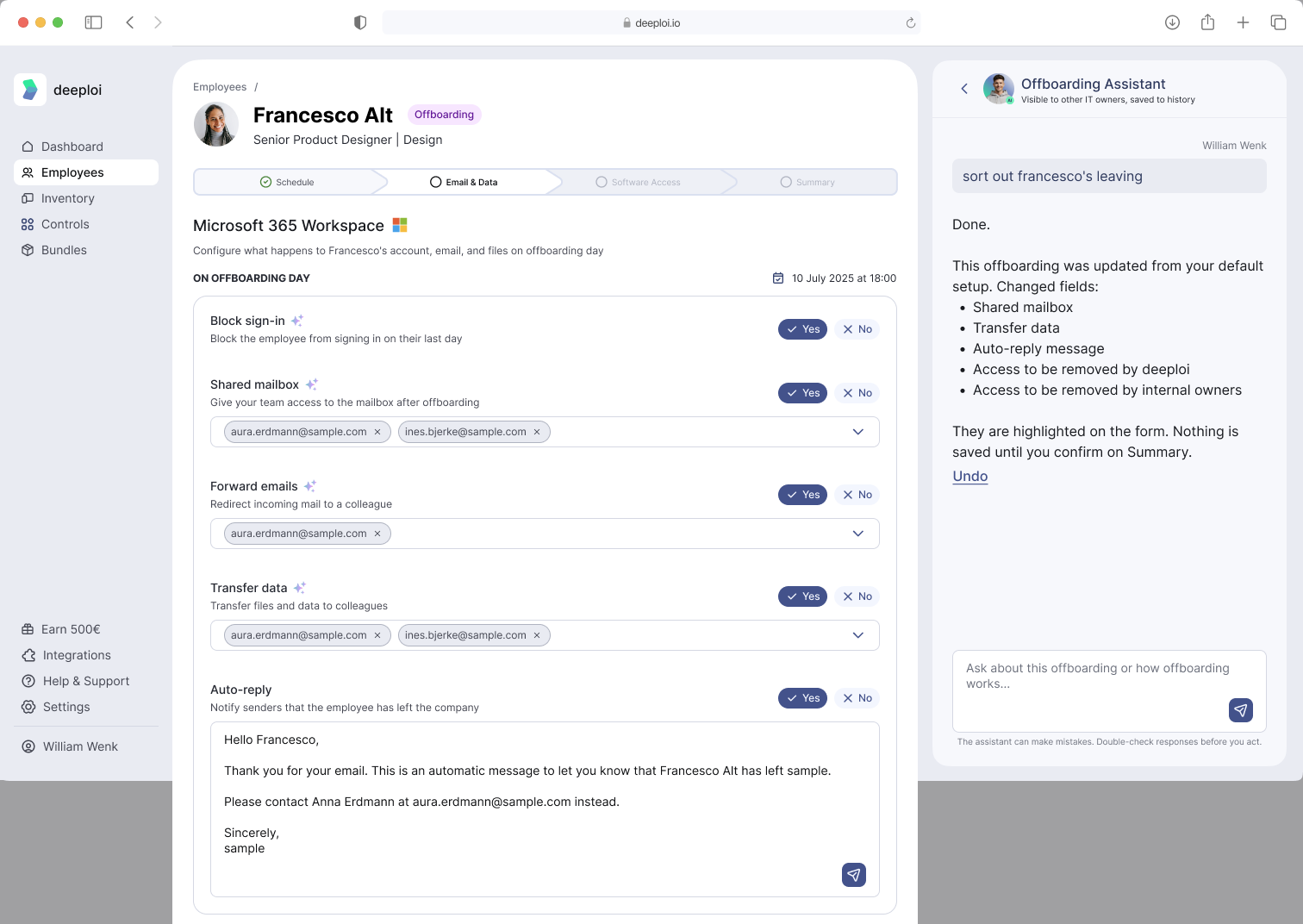
| Email & Data (Microsoft 365) | Block sign-in, Shared mailbox and who gets access (up to 5 people), Forward emails, Share data access (one person), Auto-reply, Account deletion and the deletion date |
| Software Access | The person who receives the employee's software access, and removing apps from the list deeploi removes access to |
The assistant fills in the form only when you tell it to change something. If you ask a question like "Could I run it sooner?", it answers and leaves the form as it is.
How to Check What the Assistant Changed
After the assistant changes the form, its answer ends with This offboarding was updated. Changed fields: and a list of the fields. In the form, each of these fields shows a star icon next to its label. Hover over it to see Filled out using the AI Assistant. If you change the field yourself, or click Restore Defaults, the star disappears.
If the assistant suggested something the form could not take, it says These suggested changes were not applied: followed by the fields. Set them yourself in the form.
To take back the assistant's changes, click Undo under its answer while you are on the step it changed. Then choose one of the following.
| Button | What happens |
|---|---|
| Undo on [step] | The fields the assistant filled on the open step go back to their previous values |
| Undo Everywhere | The fields the assistant filled on every step go back to their previous values, and the form returns to Schedule |
Fields you have changed yourself since stay as you set them. Before you submit, check every step and the Summary.
What the Assistant Cannot Do
| Limitation | What to do instead |
|---|---|
| The assistant cannot submit the offboarding or remove anyone's access. | Check the form and click Submit on the Summary step. |
| The assistant cannot change an offboarding that is already submitted. It tells you what to set. | Change the fields yourself. See Edit or Cancel an Onboarding or Offboarding. |
| The assistant cannot change the employee's last working day. | Change it in your HR system or in the employee's profile. |
| The assistant cannot see your company's offboarding defaults or restore them. | Click Restore Defaults on the Email & Data step. |
| The assistant cannot add an app to the list deeploi removes access to, or change apps managed by someone on your team. | Tick the app yourself on the Software Access step. |
| The assistant only uses email addresses of your company's Google Workspace or Microsoft 365. It never uses the departing employee's own address or a private address. | Give the assistant the work email address of a colleague. |
| The assistant does not pick a person at random. If a name matches more than one person, or nobody, it asks you. | Give the full name or the email address. |
| The assistant cannot open a support ticket or contact anyone. | Contact deeploi support from the dashboard. |
What Data the Assistant Uses
The assistant answers from this knowledge base (docs.deeploi.io) and from your company's data in deeploi. With each question, it receives:
| Data | Where it comes from |
|---|---|
| The current values of the form | The offboarding form you have open |
| The employee's name, position, department, last working day and offboarding dates | The employee's profile in deeploi |
| The employee's supervisor | The employee's profile in deeploi |
| Colleagues you name, and whether they have a Google Workspace or Microsoft 365 account | Your company's employees in deeploi and your connected workspace |
| The most recent offboarding of another employee | Your company's offboardings in deeploi. The assistant never copies that employee's auto-reply. |
| The apps on the Software Access step | The employee's bundle |
| The last messages of the conversation | The chat itself |
The assistant can make mistakes. The panel reminds you: The assistant can make mistakes. Double-check responses before you act.
Who Can Use the Assistant
Every IT owner in your deeploi account can use the assistant. Each chat belongs to one employee's offboarding and is saved, so other IT owners in your company can read it. The panel shows Visible to other IT owners, saved to history.
When you open the form for an employee who already has a chat, the panel lists it under Started for this employee. Click Continue Chat to pick it up again. Chats about other employees appear under Other employees with the tag View Only. You can read them but not reply.
Limits and Error Messages
Each IT owner can send 30 questions per hour, and your company can send 200 questions per day. A question can be up to 2,000 characters long.
| Message | What it means |
|---|---|
| You've reached the question limit. Please try again in [time]. | You or your company reached the question limit. Wait for the time shown. |
| The assistant is still answering the previous question. Please wait a moment. | The assistant answers one question at a time per chat. Your question stays in the box. Send it when the answer arrives. |
| The assistant didn't answer in time. Please ask again. | The assistant did not finish its answer. Send the question again. |
| Something went wrong. Please try again. | The question could not be sent or the chat could not be loaded. Try again. |
| We couldn't load the chats. | The list of chats did not load. Click Try again. |
If the panel has a problem, the offboarding form keeps working. You can always fill it in yourself.
Example Questions
| You write | What the assistant does |
|---|---|
Fill in the form with the most recent offboarding | Copies the settings of your company's latest offboarding into the open step |
Can you disable the access of the user right now? | Explains how soon access can be removed. On Schedule, it can set the earliest possible offboarding date and time. |
Explain to me the difference between Last Day of Work and Offboarding Run Date | Answers from this knowledge base. The form stays as it is. |
I need to offboard him by year end | On Schedule, sets the offboarding date to that day |
Forward his emails to me | On Email & Data (Microsoft 365), sets Forward emails to your work email address |