

Set Up Windows Sign-In with Google
With Windows sign-in with Google, your employees sign in to their Windows work devices and Microsoft 365 apps with their Google Workspace email and password. Google Workspace stays your main workspace. deeploi connects Microsoft 365 next to it and creates the Microsoft accounts your employees need.
This is for companies that use Google Workspace and have Windows devices or use Microsoft 365 apps. Owners and Managers can set it up in Settings → Workspace.
Important
This changes how everyone on your domain signs in. Once it is set up, every Microsoft account on the domain signs in through Google, and the Microsoft passwords stop working. Employees who are already signed in to Microsoft 365 apps stay signed in until Microsoft next asks them to sign in. Tell your employees before you start, and share the employee guide with them.
What Do I Need Before I Start?
| You need | Why |
|---|---|
| Google Workspace connected to deeploi | Google Workspace must be your main workspace. Its card in Settings → Workspace shows the Primary tag. |
| A Microsoft tenant, the Microsoft account your company uses for Microsoft 365 or Windows | deeploi connects it to your Google Workspace through the deeploi platform. Signing in needs no Microsoft 365 license. Employees only need one to use Microsoft 365 apps such as Outlook or Word, and deeploi does not assign it. |
| Your company domain verified in that Microsoft tenant | Your domain is the part of your email addresses after the @. Verify it in the Microsoft 365 admin center first. deeploi only offers domains that Microsoft has already verified. |
| Global Administrator access to Microsoft 365 | You sign in with this account to connect Microsoft 365 and accept the permissions deeploi asks for. |
| Admin access to the Google Admin console | You add the Microsoft app in Google and download its certificate file. |
Important
Connect Google Workspace before Microsoft 365. The first workspace you connect becomes your main workspace. If Microsoft 365 is your main workspace, the Windows sign-in card does not appear.
Step 1: Connect Microsoft 365
Go to Settings → Workspace. Below your Google Workspace card, find the Windows Sign-In with Google card and click Connect for Windows Sign In. Sign in with your Microsoft admin account and accept the permissions.

When you come back to the dashboard, the dialog Set Up Microsoft 365 Sign-In with Google opens. If it does not, click Set Up Sign-In on the card.
Step 2: Add the Microsoft App in Google
Keep the dialog open. In a new tab, open the Google Admin console and follow the steps shown in the dialog:
- Go to Apps › Web and mobile apps › Add app › Search for apps and choose "Microsoft Office 365 - Web (SAML)".
- Select Signed response.
- Set Name ID format to
PERSISTENTand Name ID to Basic Information › Primary email. - Map Primary email to
IDPEmail. - Turn on user access for everyone.
- Download the
GoogleIDPMetadata.xmlfile.
Important
If you skip step 5, employees cannot sign in and see no error message.
Step 3: Upload the File and Confirm the Domain
- Back in the dialog, check the domain next to Domain verified. If several domains are verified, click the domain to choose another one.
- Drag
GoogleIDPMetadata.xmlinto the upload area, or click it to choose the file. - Click Set Up Sign-In.
deeploi shows "Windows sign-in with Google is set up for" followed by your domain. The card then shows Certificate valid until and the expiry date.
Important
From this moment, everyone with a Microsoft account on that domain signs in through Google. Their Microsoft passwords no longer work. You can set up one domain.
Step 4: Fix Employees Who Cannot Sign In Yet
deeploi checks every employee whose email address is on your domain and who has a Google Workspace account. If someone has no matching Microsoft account, the card shows "[number] employees cannot sign in to Windows or Microsoft 365 with Google".
- Click Review and fix.
- In Fix Windows Sign-In, untick anyone you want to leave as they are.
- Click Confirm Fix.
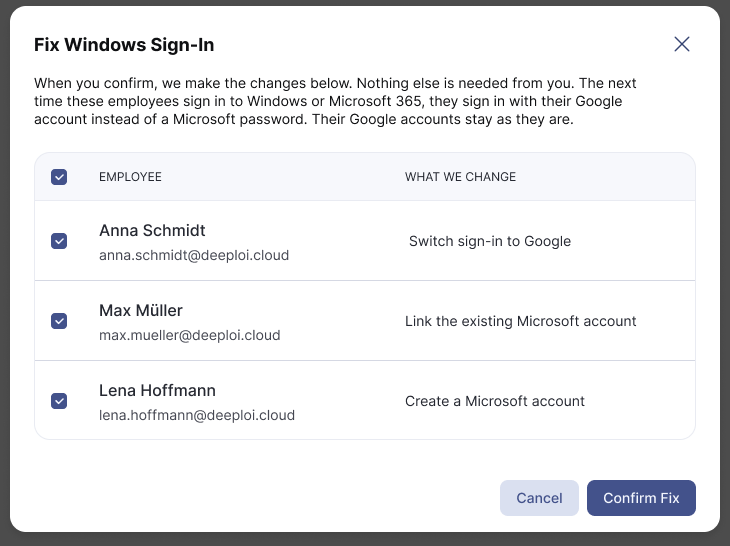
The What we change column tells you what happens to each person's Microsoft account:
| What we change | Meaning |
|---|---|
| Create a Microsoft account | The employee has no Microsoft account yet. deeploi creates one with their Google email address, without a password and without a Microsoft 365 license. |
| Link the existing Microsoft account | The employee already has a Microsoft account with the same email address. deeploi connects it to their Google account. |
| Switch sign-in to Google | The employee's Microsoft account signs in with a different address. deeploi changes it to their Google email address. |
deeploi does not create Microsoft accounts for existing employees on its own. You decide who is fixed, and their Google accounts stay as they are.
What Changes for My Employees?
Employees sign in to Windows and Microsoft 365 with their Google email address. Microsoft sends them to the Google sign-in page, and they enter their Google password. Share How do I sign in to Windows with my Google account? with your team.
| Situation | What deeploi does |
|---|---|
| New employee | When deeploi sets up the employee's Google account during onboarding, it creates their Microsoft account right after, without a Microsoft 365 license. New hires only get a Microsoft account automatically this way. If you create Google accounts yourself, use Review and fix once the new employee shows up in the list. |
| Employee leaves | After deeploi suspends or deletes the Google account, it blocks sign-in to the Microsoft account. When the Google account is deleted, deeploi deletes the Microsoft account too, unless it has a Microsoft 365 license. deeploi IT support then hands over the licensed account's mailbox and OneDrive and deletes the account. |
| Microsoft account created by hand | It can take up to a day before deeploi recognizes it. Until then, the employee shows in the list of people who cannot sign in. |
How Do I Renew the Google Certificate?
Google signs every sign-in with a certificate, and the card shows until when it is valid. Google certificates usually last five years. From 60 days before the expiry date, the card shows a reminder. Once the certificate has expired, nobody can sign in with Google until you renew it.
- In the Google Admin console, download the new
GoogleIDPMetadata.xmlfile. - On the Windows Sign-In with Google card, click Refresh.
- In Refresh the Google certificate, upload the file and click Refresh.
deeploi shows "Google certificate refreshed". deeploi accepts both the old and the new certificate, so sign-in keeps working while you switch to the new certificate in Google.
What Happens If I Disconnect Google Workspace?
The dashboard has no separate switch to turn off Windows sign-in with Google. When you click Disconnect on the Google Workspace card, deeploi removes both connections. Windows sign-in with Google stays in place, but deeploi stops managing it: no certificate reminder, no Microsoft accounts for new hires, and no Microsoft sign-in block when someone leaves.
Important
To turn off Windows sign-in with Google, contact deeploi support. Employees on your domain have no Microsoft password, so they cannot sign in to Windows or Microsoft 365 until new passwords are set.
What If Something Goes Wrong?
Still stuck? Reach out to deeploi support from the dashboard.