

Offboarding Process
What is a Offboarding Proces?
The offboarding process is a workflow that ensures a departing employee's accounts are handled correctly and their device is secured and prepared for reuse.
When an employee leaves, deeploi needs a submitted offboarding form before it can take any action. Two scenarios determine the order of steps.
Offboarding requires a submitted form.
deeploi cannot process any offboarding steps until the offboarding form is submitted. This ensures all actions are documented before they are carried out.
Case 1: Planned departure
- Prepare the offboarding. Enter the employee's actual last working day. The last working day often differs from the official exit date.
- The offboarding becomes visible. 4 weeks before the last working day, the offboarding appears in the platform under Employees → Offboardings. deeploi sends weekly reminders until the form is submitted.
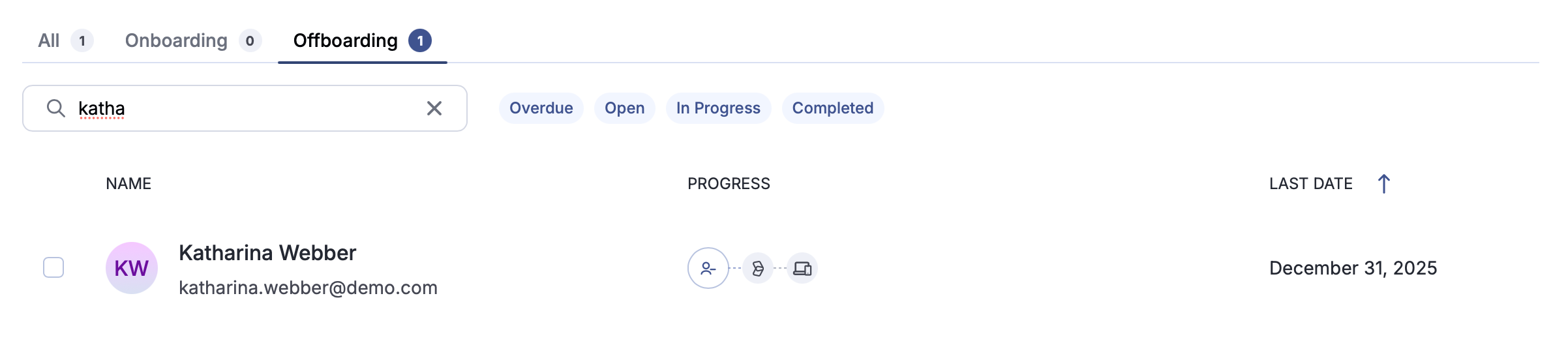
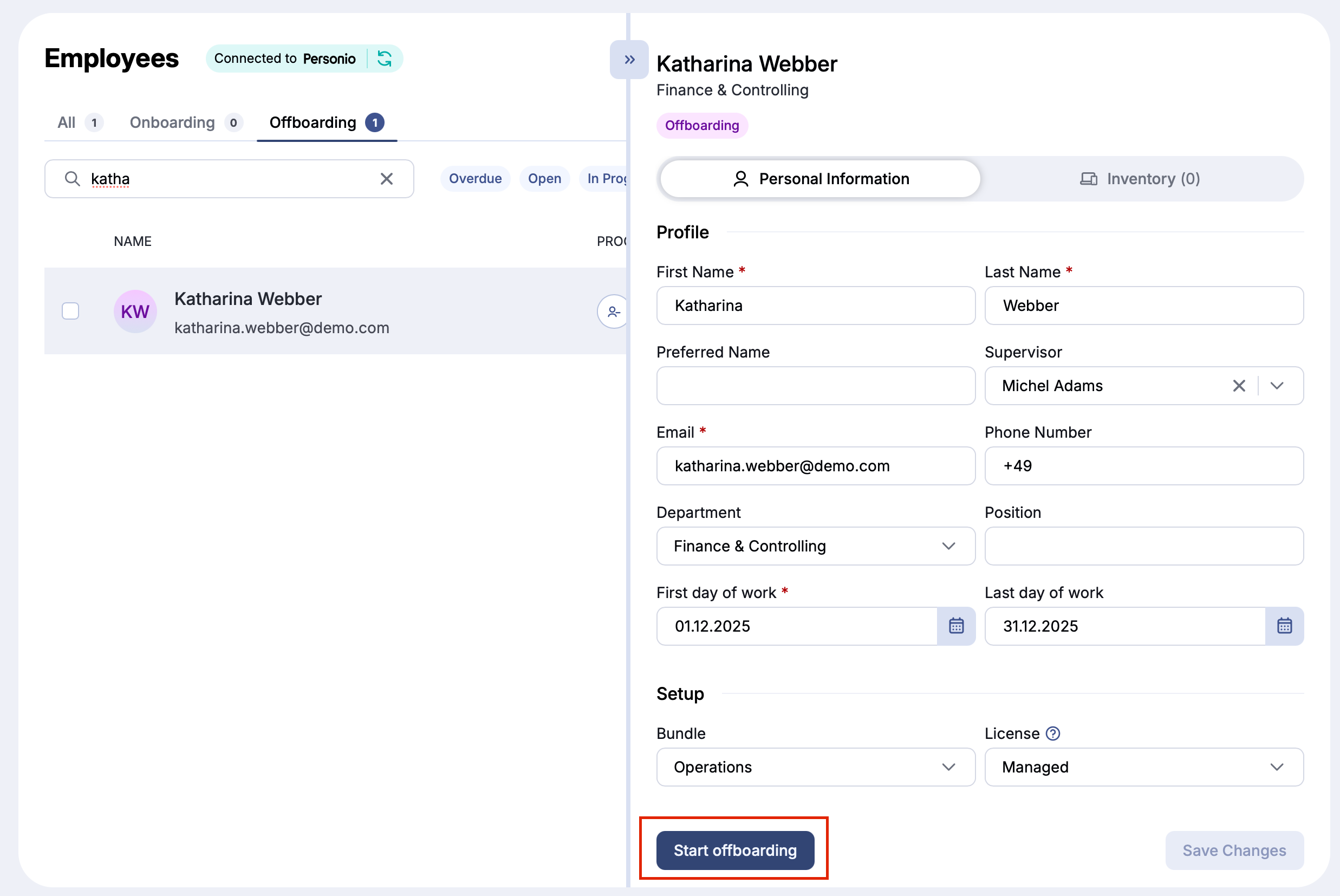
- Fill out the offboarding form. Click Start Offboarding in the employee's profile, complete all required fields, and submit the form.
-
Reset the device (if the employee has one). If the employee has a device registered with deeploi, reset it before reassigning it to someone else. You can do this in the platform immediately or later, from the device details or during offboarding.
-
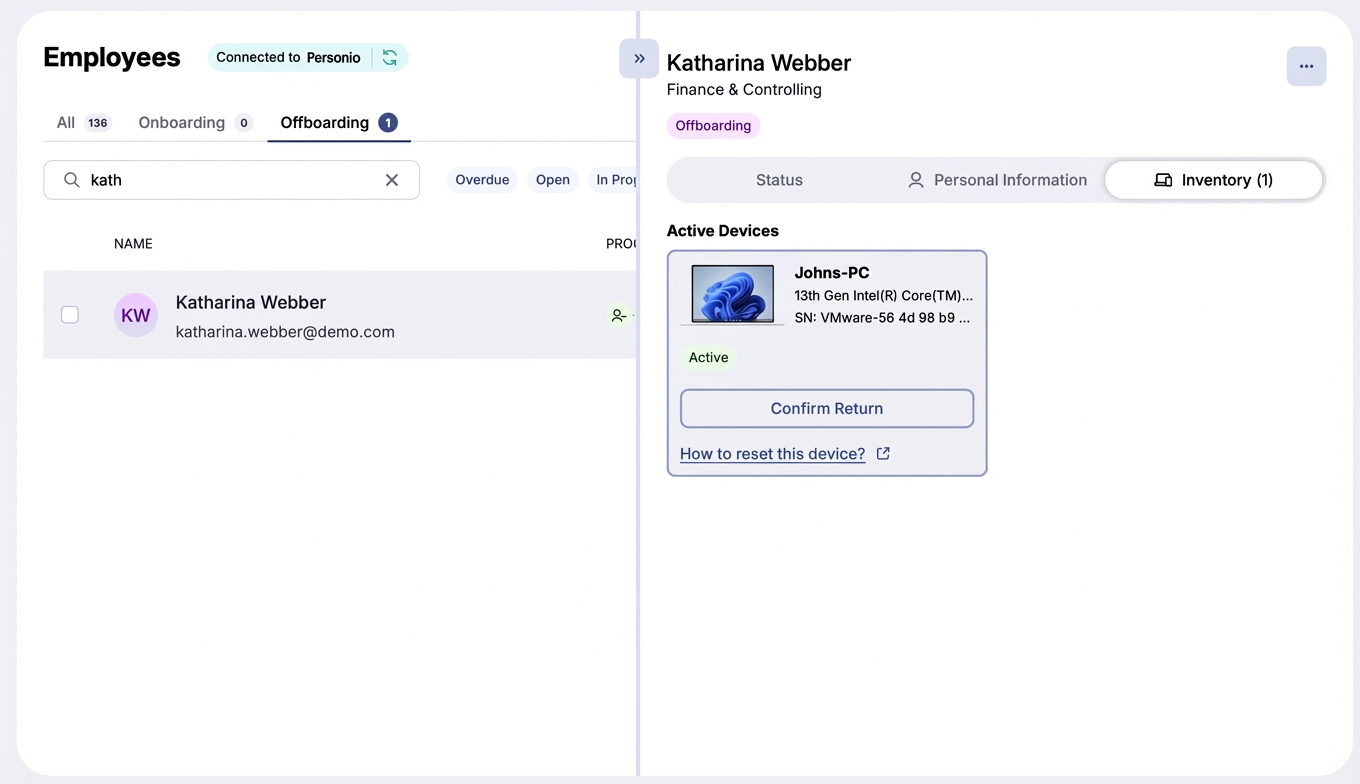
Confirm the device return. Once the device is handed back, mark it as "returned" in the inventory tab of the employee's profile. The offboarding stays open until you do this.
- Track progress. Monitor the offboarding status under Employees → Offboardings. Once complete, the offboarding remains visible for 10 days.
Case 2: Unexpected departure
-
Open the employee's profile. Go to Employees in the deeploi platform, search for the employee, and open their profile.
-
Suspend the email account (optional). Click the three dots in the upper right of the profile and select Suspend Account to block email access immediately.
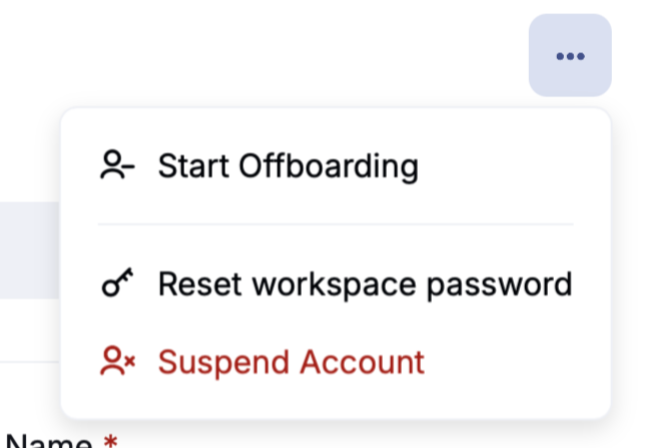
- Start the offboarding. Click the three dots again and select Start Offboarding. Choose the preferred offboarding date, fill out the form, and submit it.
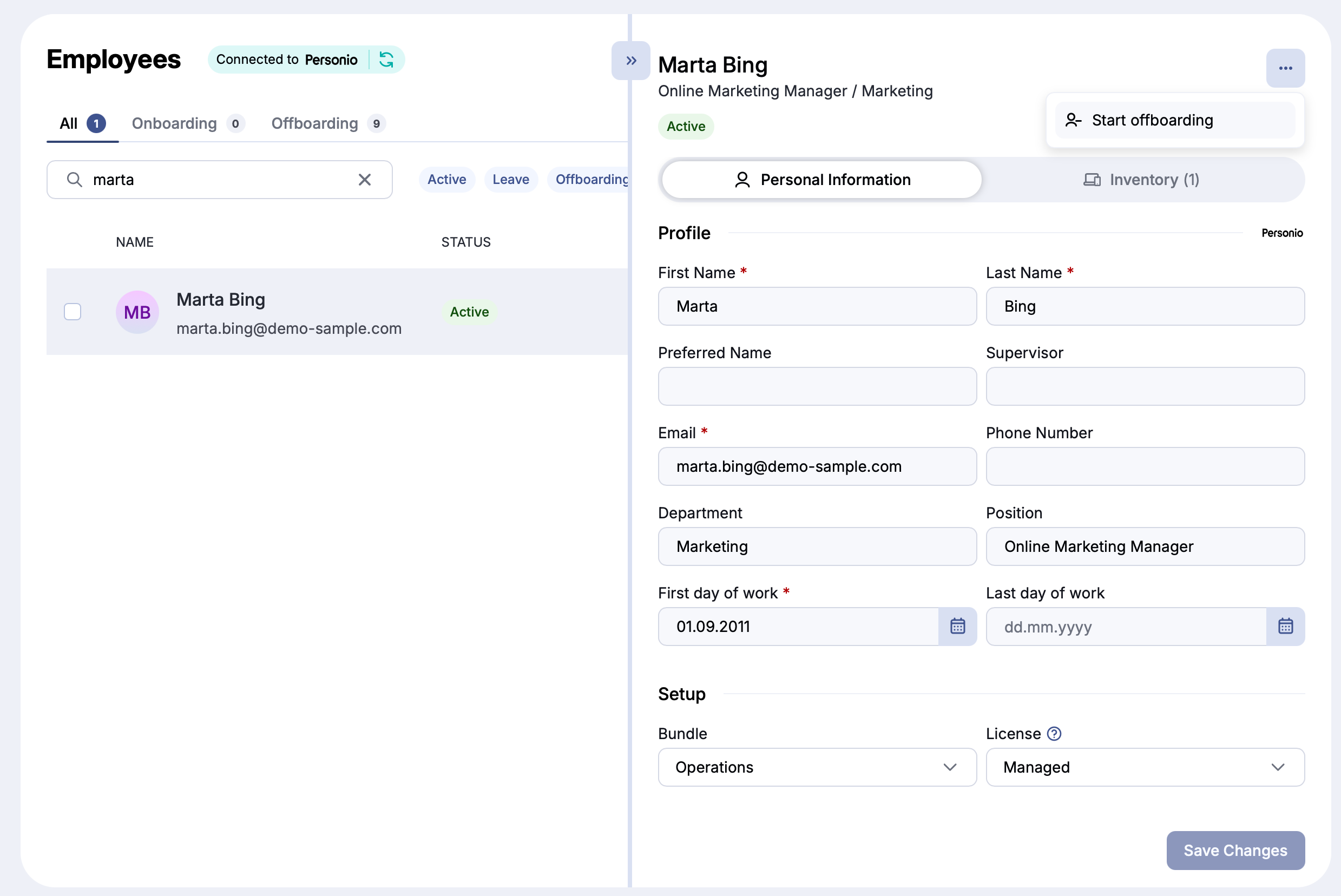
-
Reset the device. If the employee has a device registered with deeploi, reset it before reassigning it. You can do this in the platform immediately or later.
-
Confirm the device return. Once the device is handed back, mark it as "returned" in the inventory tab of the employee's profile.
-
Track progress. Monitor the offboarding under Employees → Offboardings.
-
Update your HRIS. After completing the previous steps, update the employee's departure in your HR system. The HRIS integration is one-way only: data flows from the HRIS into deeploi, not the other way around.
Video walkthrough
What does the video cover?
- Navigating to an open offboarding. Finding it under Employees → Offboardings.
- Scheduling. Choosing same-day (after 14:00) or next working day (until 18:00).
- Email and data decisions. Choosing between keeping the account, deleting it, granting email access to someone, or transferring files.
- Software access. Reviewing the tools deeploi will remove access to, and deselecting any to keep.
- Submitting. Reviewing the summary and confirming.